Artificial Intelligence is quickly becoming part of everyday engineering workflows, but if you’re a SOLIDWORKS user, the big question is usually:
“Where do I even start?”
The good news is that AI in SOLIDWORKS isn’t something separate you need to learn from scratch. It’s already being integrated into the tools you use every day through the 3DEXPERIENCE platform.
In this guide, we’ll walk through everything you need to get started, step by step:
-
Required software and prerequisites
-
Activating the 3DEXPERIENCE platform
-
Installing the Design with SOLIDWORKS connector
-
Accessing AI tools like the new AI Labs tab
No fluff, just what you need to get up and running.
Step 1: Understand What “AI in SOLIDWORKS” Actually Means
Before jumping into setup, it’s important to clarify something:
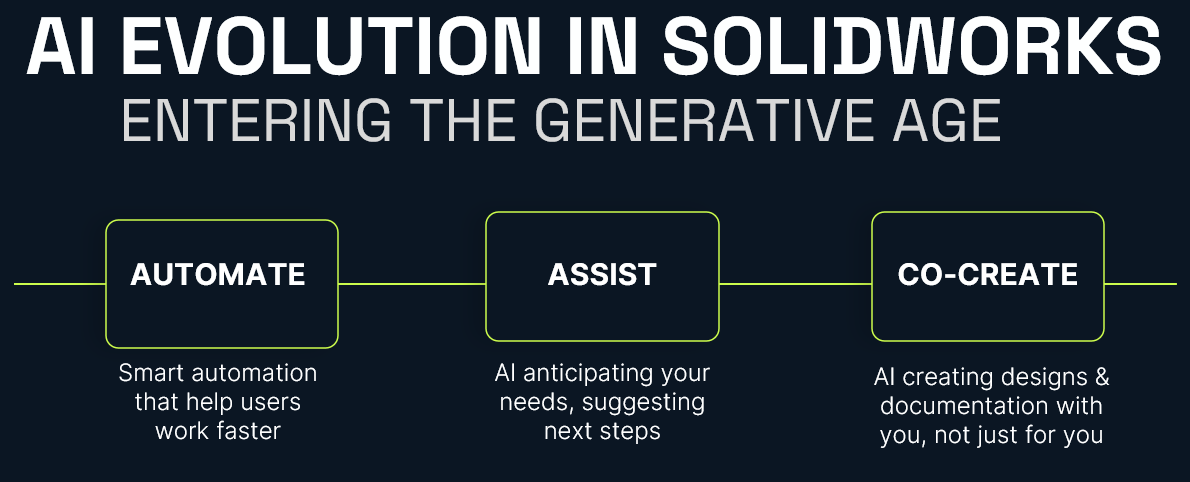
AI in SOLIDWORKS isn’t a single feature. It’s a set of capabilities delivered through the 3DEXPERIENCE platform.
Today, that includes things like:
-
Design assistance and recommendations
-
Automation of repetitive tasks
-
Data-driven insights
-
Early access tools in Virtual Companions
In other words, AI is layered into your workflow, not replacing it.
Step 2: Confirm Your Prerequisites
Before you can access any AI-driven tools, you’ll need a few key components in place.
Required Software
-
SOLIDWORKS 2026 (or newer)
-
Active subscription (required for cloud services integration)
Platform Access
-
A 3DEXPERIENCE platform account
-
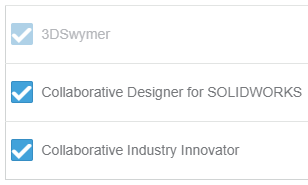
Assigned roles (including Collaborative Designer for SOLIDWORKS)
System Requirements
-
Stable internet connection
-
Admin rights for installation
-
Browser access to the platform
If you’re missing any of these, that’s your starting point.
Step 3: Activate the 3DEXPERIENCE Platform
AI functionality depends on your connection to the 3DEXPERIENCE platform.
How to Activate:
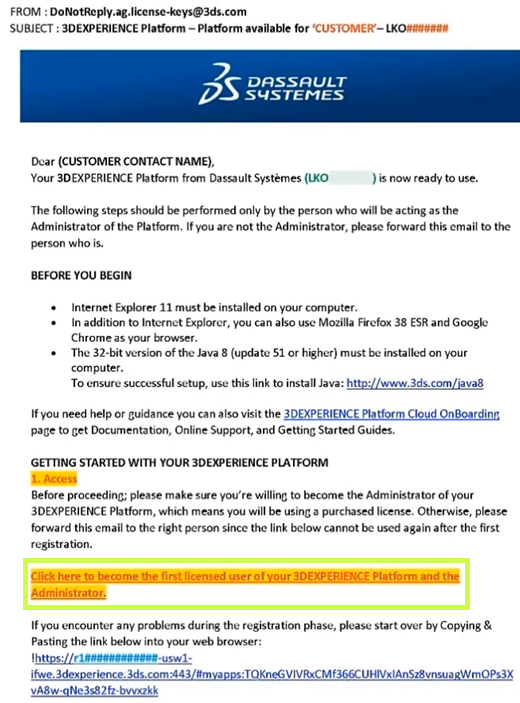
- Check your welcome email from Dassault Systèmes
- Click the activation link
- Set your password and log in
- Access your platform dashboard
Once inside, you should see your roles and available apps.
Still confused? Follow our Getting Started guide:
Getting Started with the 3DEXPERIENCE Platform
Step 4: Install the 3DEXPERIENCE Launcher
Before installing any apps, you’ll need the 3DEXPERIENCE Launcher.
Steps:
- Log into your 3DEXPERIENCE platform
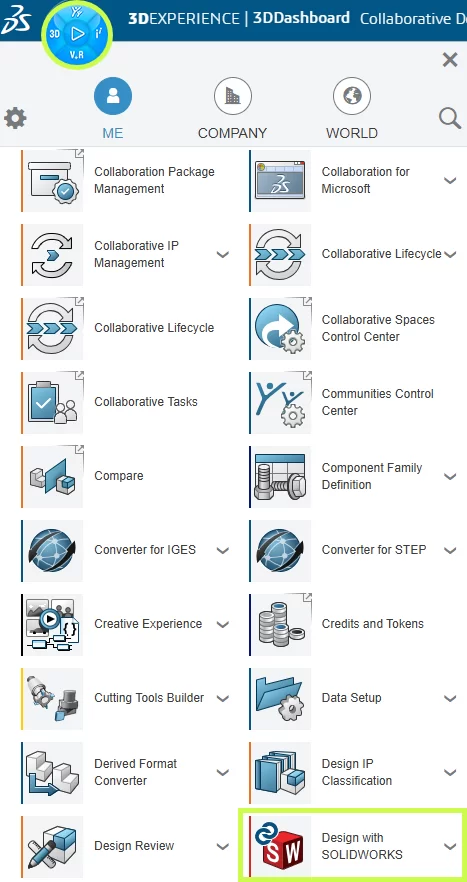
- Navigate to the Compass (top-left menu)
- Scroll down to My Apps and locate Design with SOLIDWORKS.
- Select the app to begin the installation.
- Click Install Launcher when prompted
- Run the installer
This tool acts as the bridge between your browser and desktop applications.
Step 5: Install “Design with SOLIDWORKS”
This is the most important step.
The Design with SOLIDWORKS connector is what links your desktop SOLIDWORKS environment to the platform, and enables AI-driven features.
Installation Steps:
- In the platform, search for Design with SOLIDWORKS
- Click Install
- Accept default settings (recommended)
- Complete installation
- Restart your machine if prompted
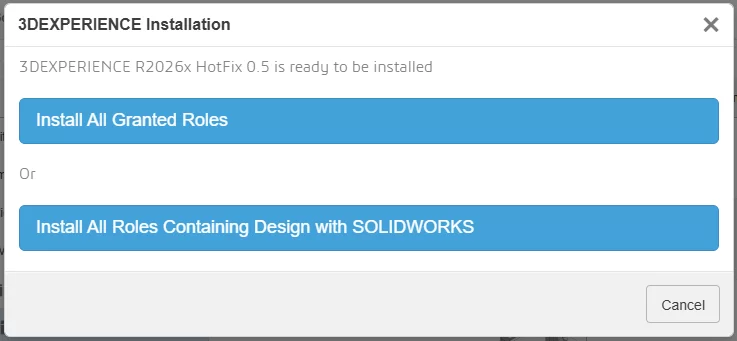
Once installed, your environment is officially “connected.”
Having trouble? Check out our installation guide:
Connect SOLIDWORKS Desktop to the 3DEXPERIENCE Platform
Step 6: Launch SOLIDWORKS from the Platform
This step is often missed, however, it is absolutely critical.
First Launch:
- Go to the platform
- Click Open on Design with SOLIDWORKS
- Launch SOLIDWORKS from the browser
Why this matters:
This ensures:
- Your session is authenticated
- The connector is active
- Cloud services are initialized
If you launch SOLIDWORKS directly from your desktop first, you may not be connected properly.
Step 7: Verify the 3DEXPERIENCE Add-in
Once SOLIDWORKS opens, confirm everything is working.
Check:
- A 3DEXPERIENCE tab appears in the task pane
- Add-in is enabled under:
Tools > Add-ins
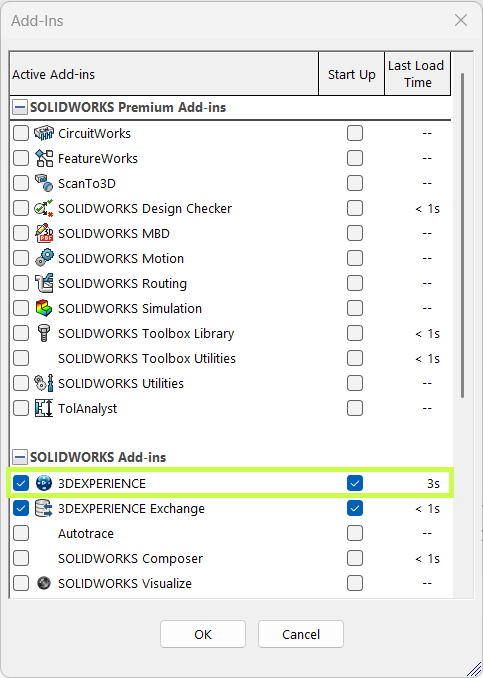
If it’s not active:
- Enable it manually
- Restart SOLIDWORKS if needed
This confirms your system is fully connected.
Step 8: Access the Virtual Companions Tab
Now we get to the interesting part.
With everything configured, you should have access to Virtual Companions, where new AI-driven tools are introduced.
Where to Find It:
- Inside SOLIDWORKS (Task Pane)
- Look for Virtual Companions tab
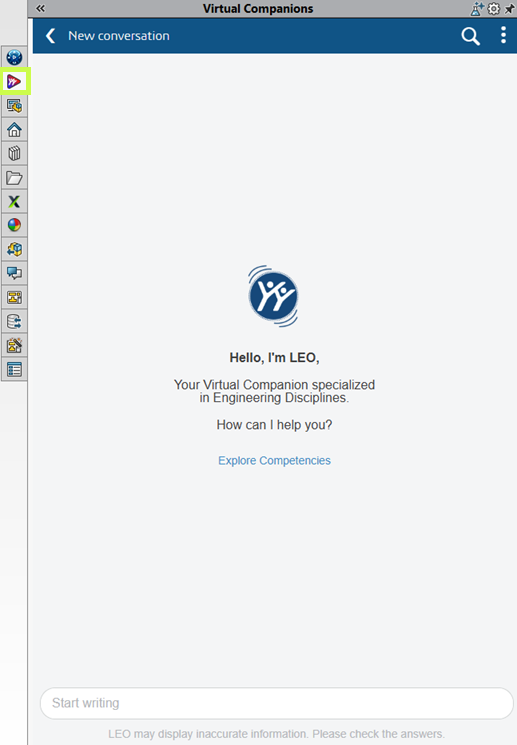
What You’ll Find:
- Experimental AI features
- Early access tools
- Workflow enhancements powered by AI
These features evolve quickly, so expect changes over time.
Step 9: Start Using AI Features (Practical Examples)
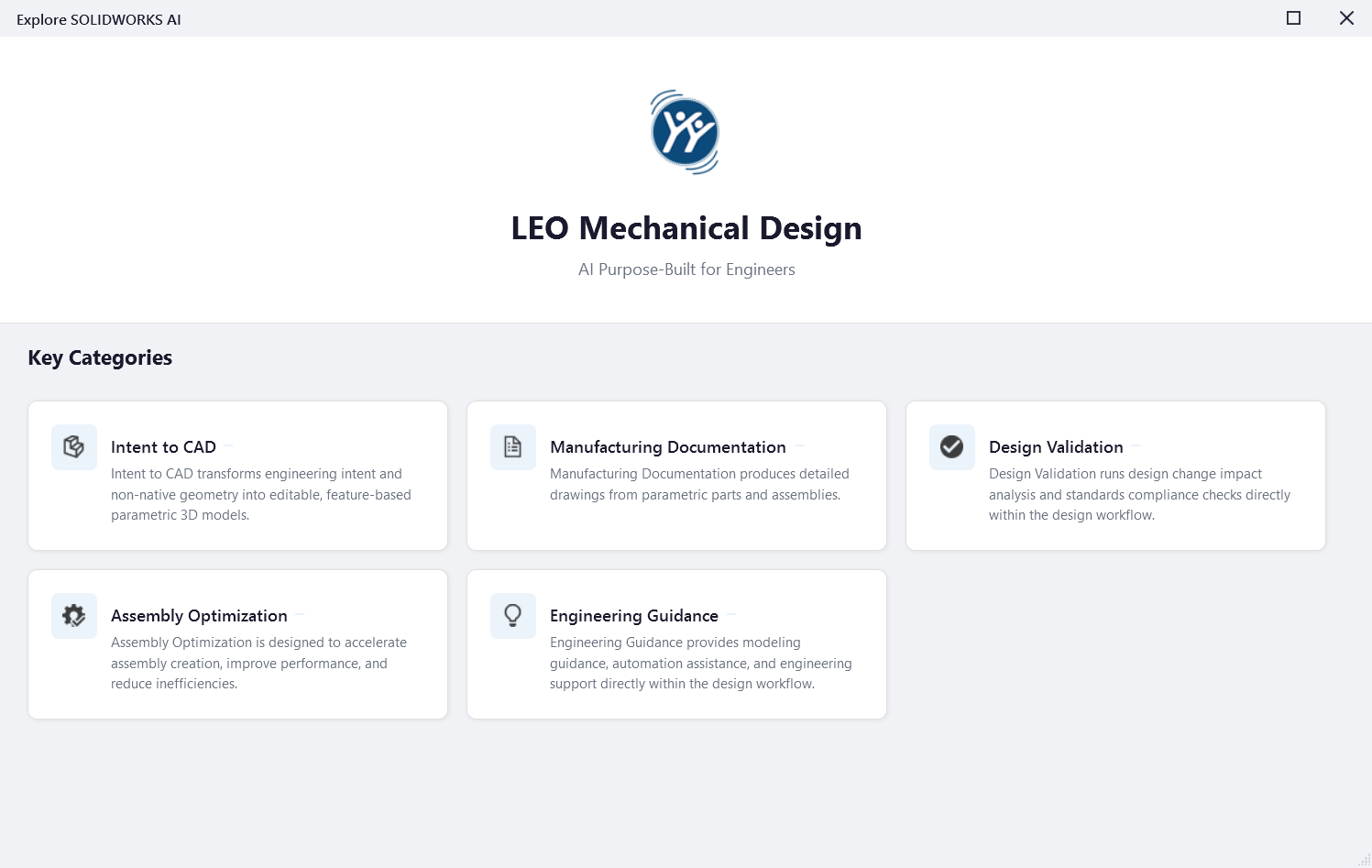
Once inside Virtual Companions, click the potion icon the top right to explore SOLIDWORKS AI competencies:

Good First Use Cases:
Click the different categories for examples of prompts you can use to get started.
Step 10: Best Practices for Getting Started
This is where most teams succeed or struggle.
✔ Start Small
Don’t try to overhaul your entire workflow.
✔ Focus on Real Problems
Look for:
- Repetitive tasks
- Bottlenecks
- Manual processes
✔ Validate Everything
AI suggestions still require engineering judgment.
✔ Train Your Team Gradually
Adoption works best when it’s incremental.
Final Thoughts: Where AI in SOLIDWORKS Is Headed
AI in SOLIDWORKS is evolving, but the direction is clear:
- More automation of low-value tasks
- Better decision support
- Deeper integration with simulation and data
And importantly:
SOLIDWORKS isn’t being replaced, it’s being enhanced.
For most teams, the real opportunity isn’t jumping ahead, it’s simply getting started.
For more information on AI in SOLIDWORKS, reach out to us through our website:
SOLIDWORKS AI: Transform Your Design with Artificial Intelligence