On the 3DEXPERIENCE platform, Derived Outputs such as PDFs, DXFs, STEP files, and other neutral formats are created from your CAD data for downstream use. These files are often shared with customers, suppliers, or partners who don’t have access to your platform tenant.
In this article, we’ll walk through a few practical ways to package and export Derived Outputs so they’re ready to send outside your organization.
Note: Dassault Systèmes provides general documentation on Derived Outputs. If you need help with setup, automation, or best practices, our technical support and implementation teams are always happy to help.
Choosing the Right Method
There are a couple of different apps and workflows you can use, each with its own advantages depending on:
-
The number of files involved
-
Whether you’re working with a single assembly or many
-
How much cleanup you want to do afterward
Let’s take a look at the most common approaches.
Using the Product Explorer App
Method 1: Download Derived Outputs from a Single Assembly
1. Open the assembly in Product Explorer that already has Derived Outputs.
2. Select the top-level assembly node (it will highlight in blue).

3. Click the Information (i) icon in the lower toolbar.
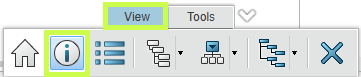
This opens the information side panel.
4. Navigate to Derived Formats.
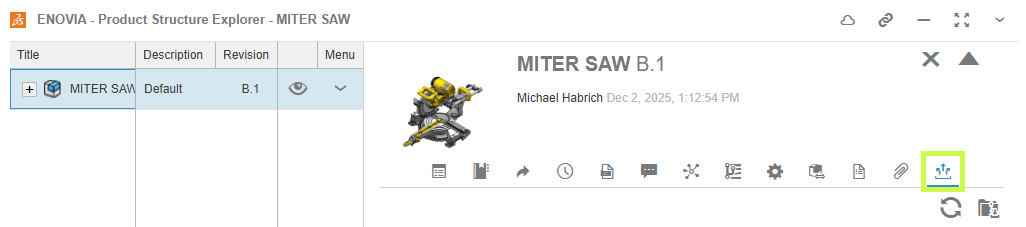
5. Click Download All Derived Outputs.
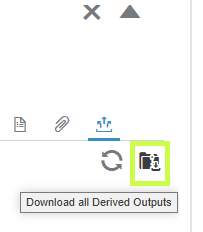
6. Choose which 2D and 3D formats you want to include.
7. Name the ZIP file and click Download.
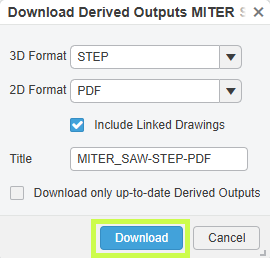
If you’ve added multiple assemblies to Product Explorer, you’ll need to repeat this process for each one.
Trade-off:
-
✔ Clean output (Derived Outputs only)
-
✖ One assembly at a time
Method 2: Export Multiple Assemblies at Once
If you need to collect outputs from several assemblies or even unrelated parts, this method is much faster.
1. Add assemblies or parts to Product Explorer.
2. Select multiple items using checkboxes or Shift + Select.
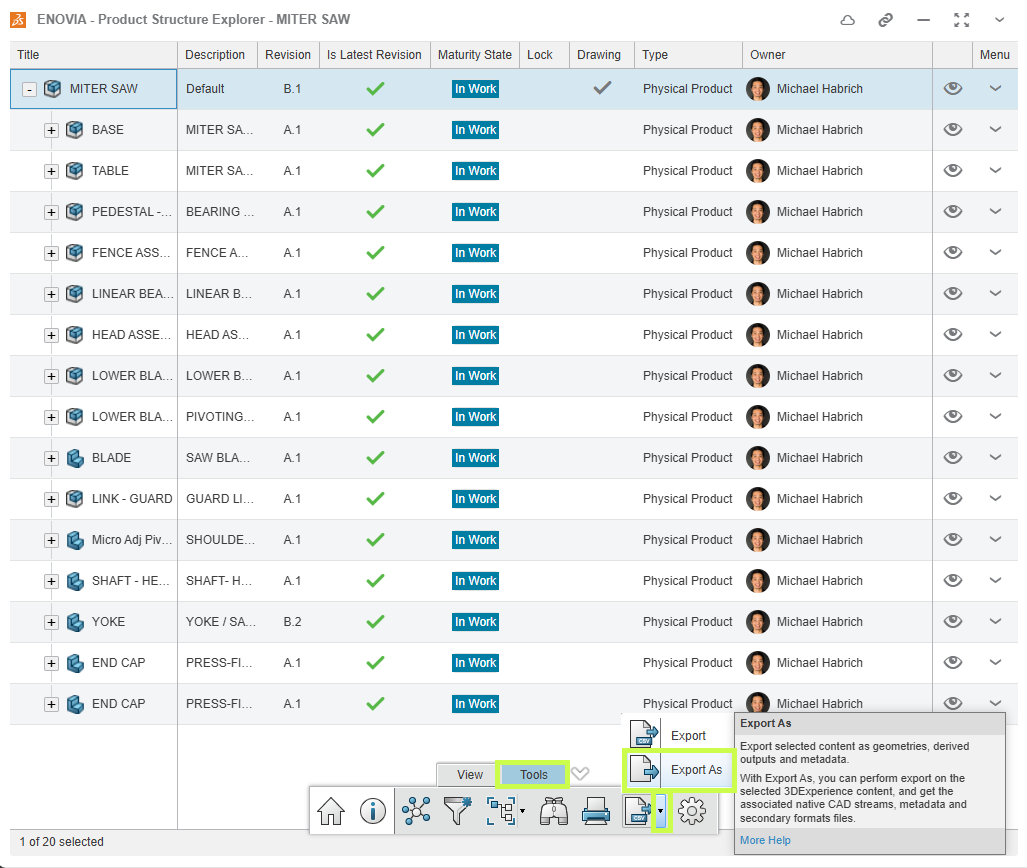
3. Click Export As from the bottom toolbar.
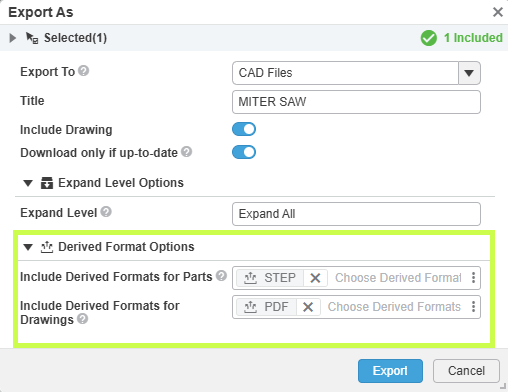
4. Name the export, enable Expand All, and set the Derived Format Options.
5. Click Export.
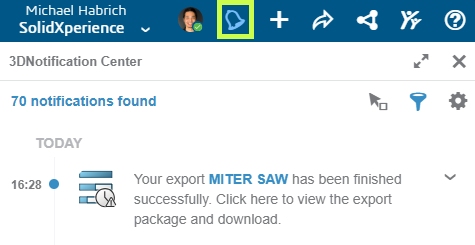
A background job will start.
Once complete:
-
A notification appears in the upper-right corner.
-
Click the notification to open the CAD Data Processor Monitoring app.
-
Use the Download button to retrieve the ZIP file.

This ZIP will include both CAD files and Derived Outputs. To keep only the outputs, simply open the ZIP in Windows Explorer, sort by file type, and remove any files you don’t need.
Trade-off:
-
✔ Multiple assemblies or mixed files at once
-
✖ Manual cleanup required
Using the Bookmark Editor App
Method 1: Download Outputs from a Single Assembly
1. Locate the assembly in a bookmark (or add it to one).
2. Right-click the assembly and choose Information, or open the side panel
3. In the window or side panel, navigate to Derived Outputs.
4. Click Download All Derived Outputs.
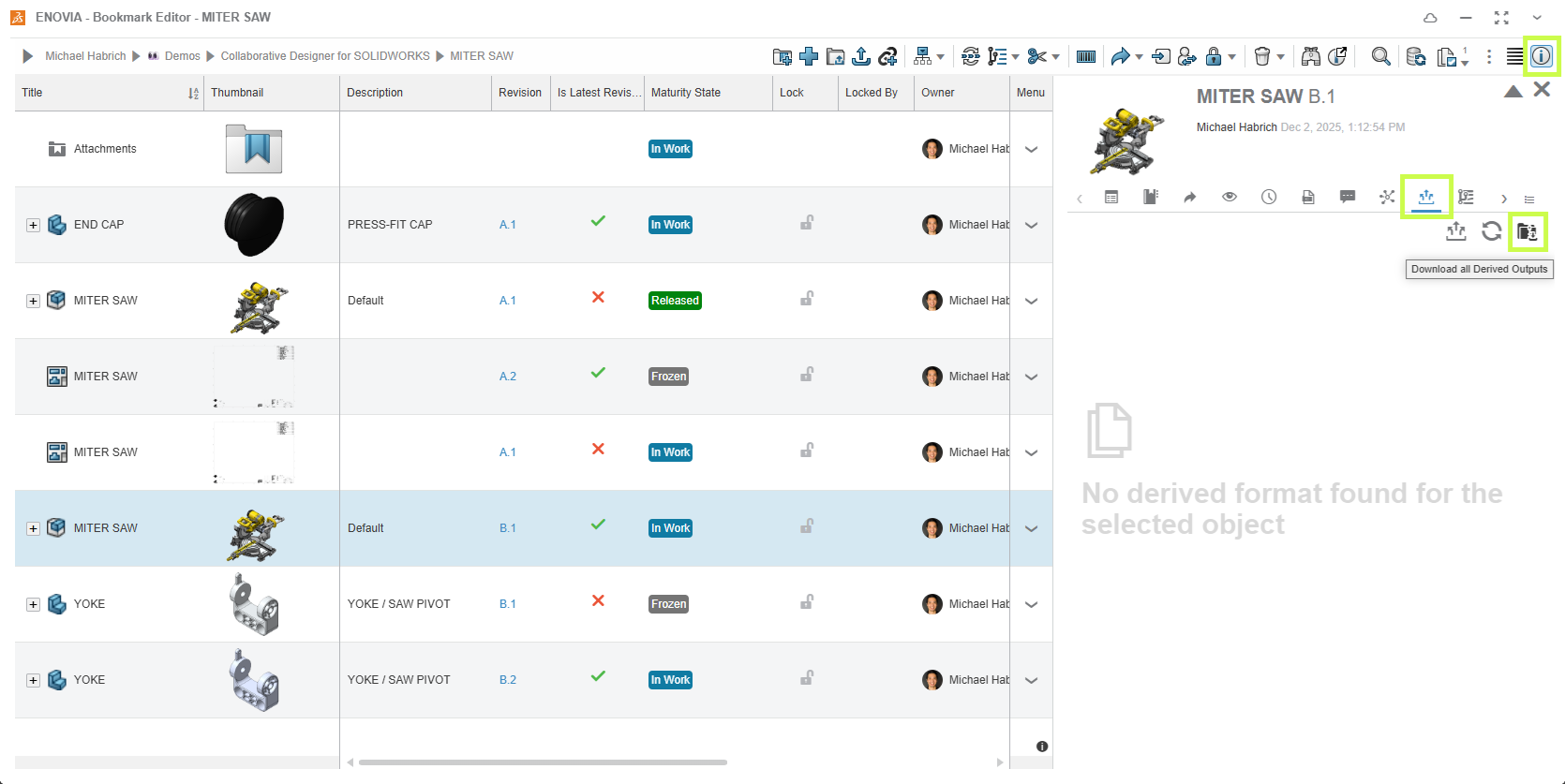
This workflow mirrors the single-assembly method in Product Explorer.
Trade-off:
-
✔ Simple and clean
-
✖ One assembly at a time
Method 2: Export Multiple Items from a Bookmark
This method works the same way as the multi-selection approach in Product Explorer.
1. Add all required assemblies or parts to a bookmark.
2. Select the files you want.
3. Click Export As from the upper toolbar.
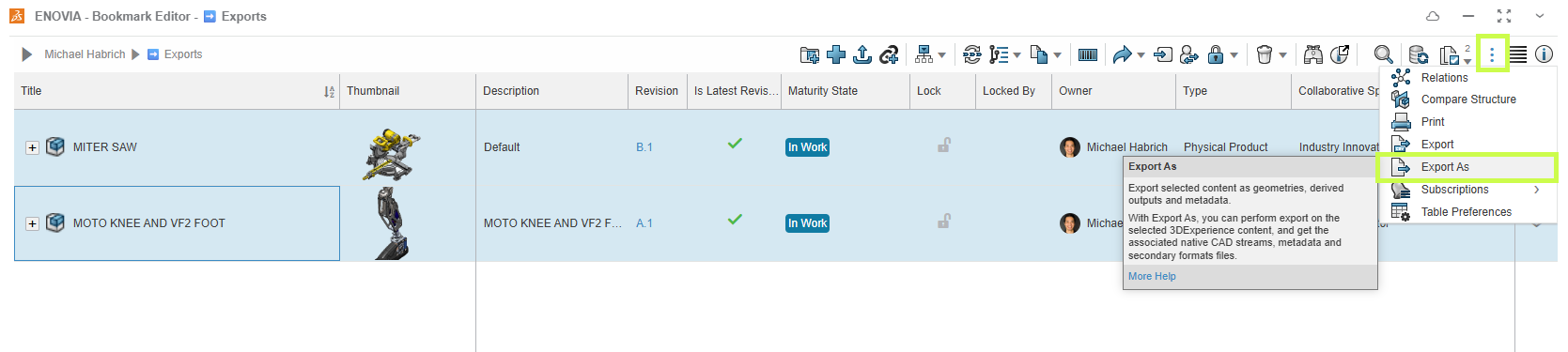
4. Configure the Derived Format options and start the export.
As before, the resulting ZIP will include CAD data along with the Derived Outputs, so some cleanup may be required.
Trade-off:
-
✔ Ideal for large batches or mixed content
-
✖ Requires removing CAD files afterward
Final Thoughts
Whether you’re sending a single PDF or packaging dozens of STEP and DXF files, the 3DEXPERIENCE platform gives you flexible ways to get the right data out securely and efficiently.
The key is choosing the method that best fits your situation:
-
Single assembly, clean output → Download All Derived Outputs
-
Multiple files, faster packaging → Export As
Looking to go further?
-
Check out more tips and tutorials on our YouTube channel.
-
Explore best practices with our experts.
-
Or reach out to your Solidxperts team we’re here to help you get the most out of your platform.