Artificial intelligence is quickly becoming part of everyday engineering work. But if you’re a SOLIDWORKS user, the big question is usually:
“Where do I even start?”
The answer has a name. Two, actually: AURA and LEO, the SOLIDWORKS AI Virtual Companions.
Virtual Companions put intelligence directly inside your SOLIDWORKS Design session. They guide ideas, take action, fix issues and help you make decisions across design, simulation and manufacturing. Think of them as assistants that understand your design intent, take care of routine operations and flag what’s coming, so your projects stay on schedule. Most importantly, they give you back time.
In this guide, we’ll cover:
-
Where to find the Virtual Companions (inside and outside SOLIDWORKS)
-
Who AURA and LEO are, and what each one is good at
-
The prerequisites you need in place
-
How to write your first prompts
No fluff, just what you need to get up and running.
Already set up? Skip to Using Your AI Virtual Companions.
Where to Find the Virtual Companions
You can reach the Virtual Companions in two places: directly inside SOLIDWORKS Design, or from the 3DEXPERIENCE platform through the 3DSwym app.
Inside SOLIDWORKS Design
There are two ways in.
Option 1: The Quick Access Tools. Select the Virtual Companions icon from the Quick Access Tools, which sit on either the Menu Bar or the CommandManager.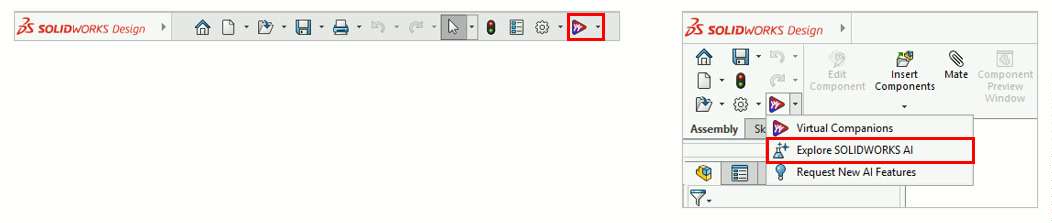
Option 2: The Task Pane. Select the Virtual Companions tab in the Task Pane.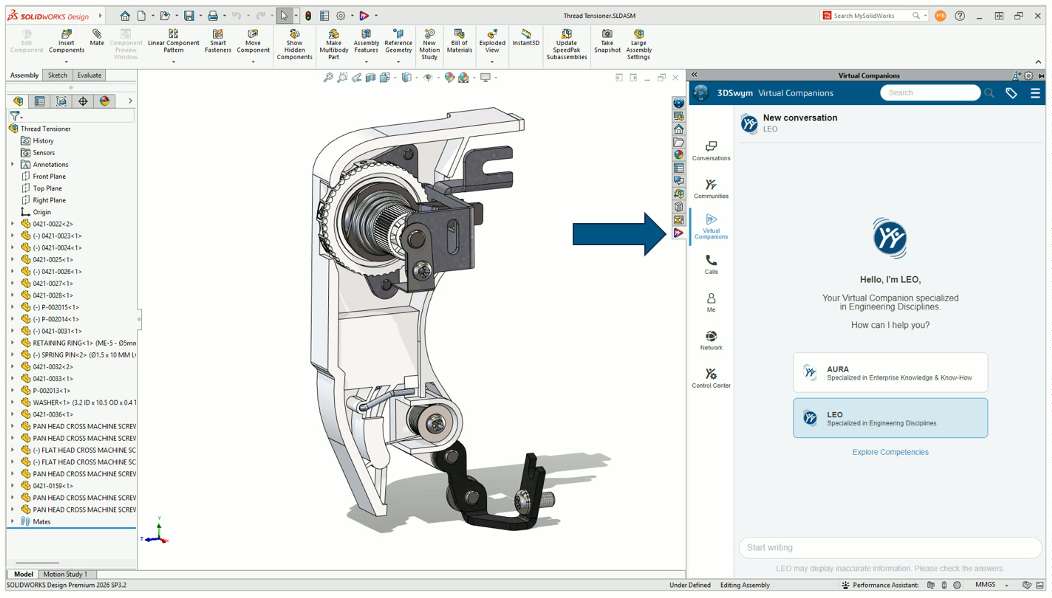
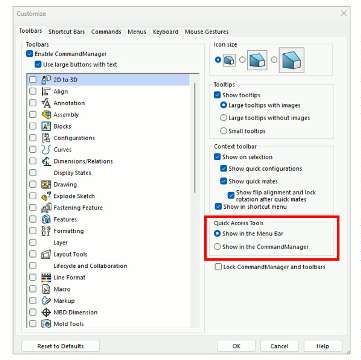
Tip: Can’t see the Quick Access Tools where you expect them? Their location is controlled in the Customize dialog. Right-click any toolbar or CommandManager tab to open it.
From the 3DEXPERIENCE platform
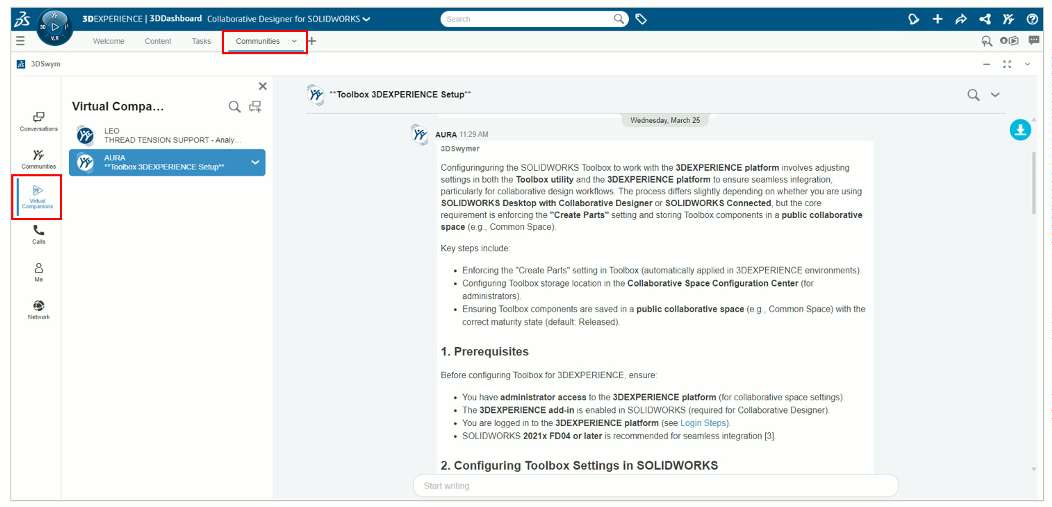
On the platform, open the 3DSwym app from the Communities tab of your SOLIDWORKS role cockpit. This gives you access to the Virtual Companions without opening SOLIDWORKS at all. (More on that at the end.)
Meet Your Virtual Companions: AURA and LEO
SOLIDWORKS Design roles give you access to two AI Virtual Companions. Each one brings its own specialist skills.

AURA: your knowledge and know-how companion
AURA connects SOLIDWORKS users with knowledge and know-how to inspire and guide product development. It explores and analyzes web knowledge to bring new perspectives to your work.
Use AURA for: general guidance, best practices, “how should I approach this?” questions.

LEO: your engineering companion
LEO specializes in mechanical design and simulation. It takes your prompts from inside SOLIDWORKS Design and helps with day-to-day design work, for example:
-
Generating assembly structures
-
Converting images to mesh
-
Adding parametric features to STEP files
-
Evaluating assemblies
-
Resolving design errors
…and plenty more.
Use LEO for: hands-on work on the part, assembly or drawing you have open.
Good to know: Many Virtual Companion capabilities don’t require your design data to be saved on the 3DEXPERIENCE platform. Some extra skills do unlock when your data is stored in the cloud, like converting an imported BREP model into a fully featured one.
Prerequisites and Setup
Before you can access the Virtual Companions, you’ll need access to your company’s 3DEXPERIENCE platform and one of the following:
SOLIDWORKS Design (Named-User License)
or
SOLIDWORKS Design with Cloud Services (Device-Locked License), with:
-
The Collaborative Designer for SOLIDWORKS role assigned to you
-
The Design with SOLIDWORKS application installed
Important: You need SOLIDWORKS 2026 SP3.2 or later to use the Virtual Companions in SOLIDWORKS Design. If you’re on an earlier service pack, update first.
Need help with setup?
-
Platform not activated yet? Follow our guide: Getting Started with the 3DEXPERIENCE Platform
-
Need to install your roles and apps? See: Connect SOLIDWORKS Desktop to the 3DEXPERIENCE Platform
If you’re missing any of these, that’s your starting point.
Using Your AI Virtual Companions
Step 1: Launch SOLIDWORKS connected to the platform
The Virtual Companions only work when your SOLIDWORKS Design session is logged in to the 3DEXPERIENCE platform. How you launch depends on your license.
SOLIDWORKS with Cloud Services (Device-Locked License): Launch SOLIDWORKS Design with the Open button on the Design with SOLIDWORKS panel in the Welcome app, or directly from a Windows shortcut.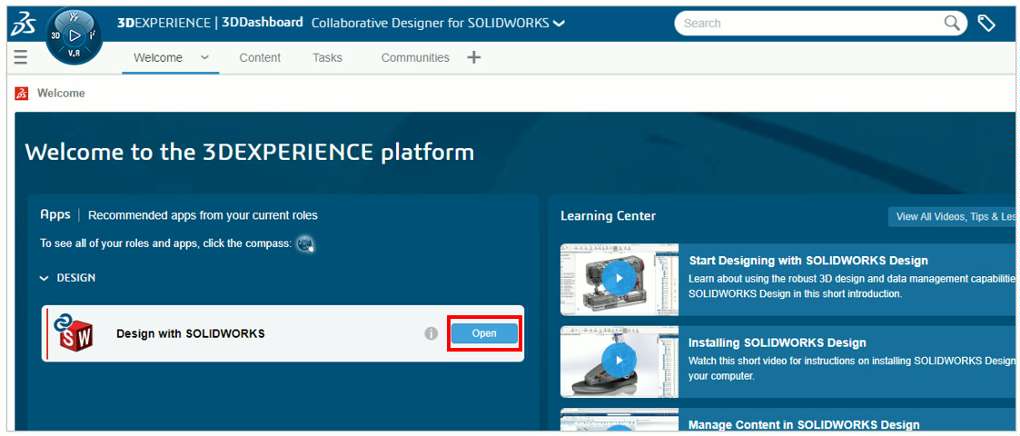
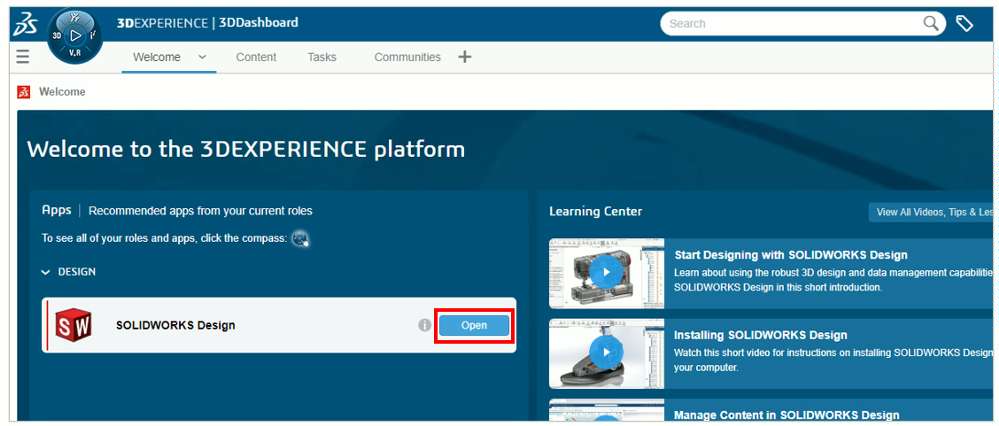
SOLIDWORKS Design role (Named-User License): Launch SOLIDWORKS Design from the Welcome app or a shortcut on your Windows desktop.
 Once SOLIDWORKS has loaded and connected to the platform, click the Virtual Companions tab in the Task Pane, pick AURA or LEO, and you’re ready for your first prompt.
Step 2: Ask AURA for knowledge and best practices
Select AURA as your companion, then type your prompt in the Start Writing area at the bottom of the Task Pane.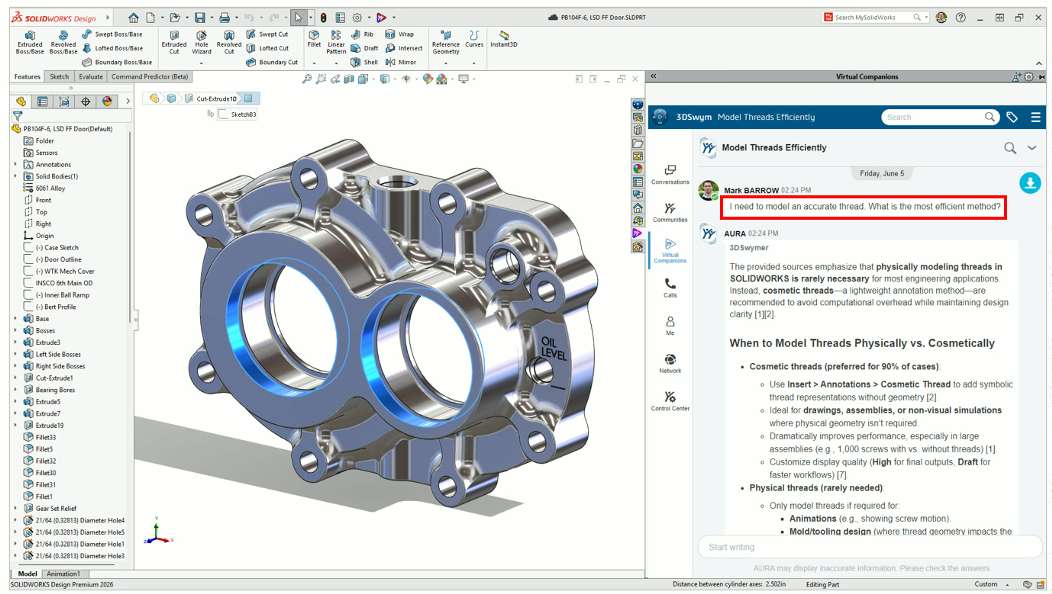
Try asking the kind of question you’d normally search the forums for, like the best way to model a threaded feature, or what to watch out for in a sheet metal design.
Step 3: Put LEO to work on your design
Select LEO as your companion and type your prompt in the Start Writing area.
Here’s the honest part: working with prompts is a different way of using SOLIDWORKS. You’re describing what you want instead of hunting for the right command, and that takes a little getting used to.
That’s why there’s a built-in prompt library. Open it either by:
-
Clicking the Explore SOLIDWORKS AI icon at the top of the Task Pane, or
-
Opening the Virtual Companions menu in the Quick Access Tools
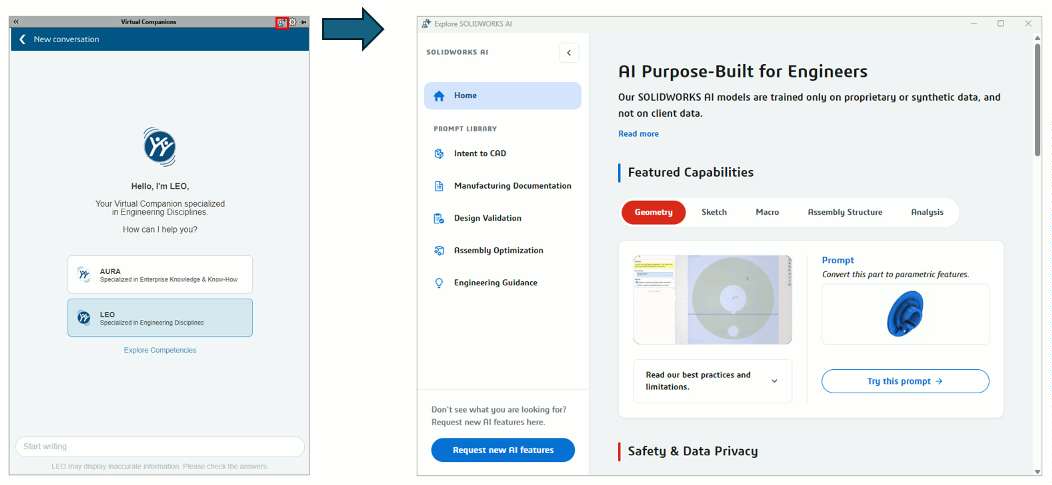

Pick a category to see suggested prompts for all kinds of design tasks.
Our recommendation: start with Engineering Guidance.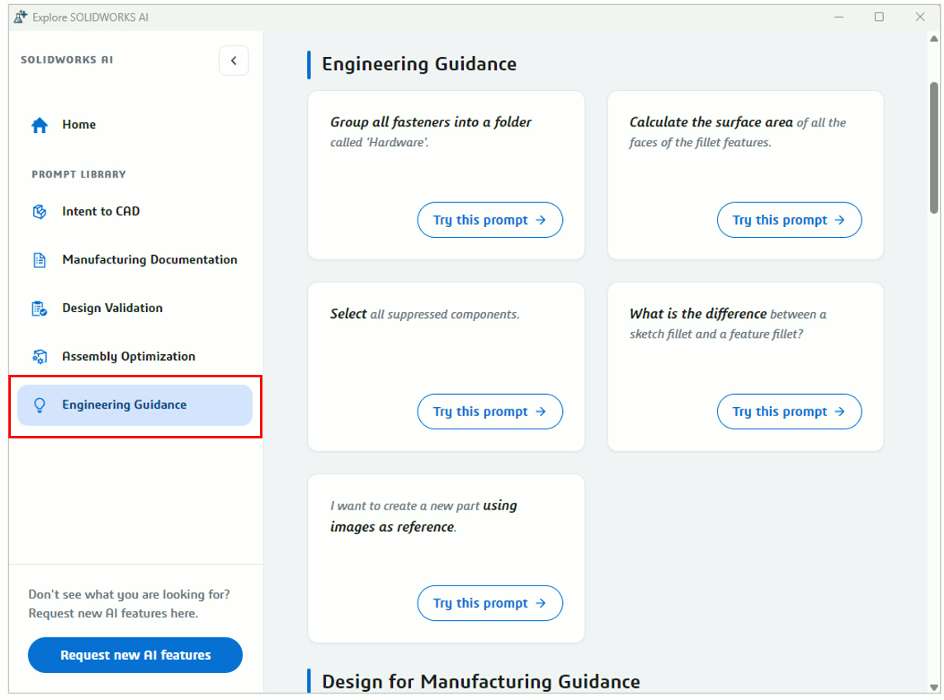
The prompts in this category relate to everyday modeling challenges, and they don’t require your work to be saved on the 3DEXPERIENCE platform. That makes it the easiest place for a new user to begin.
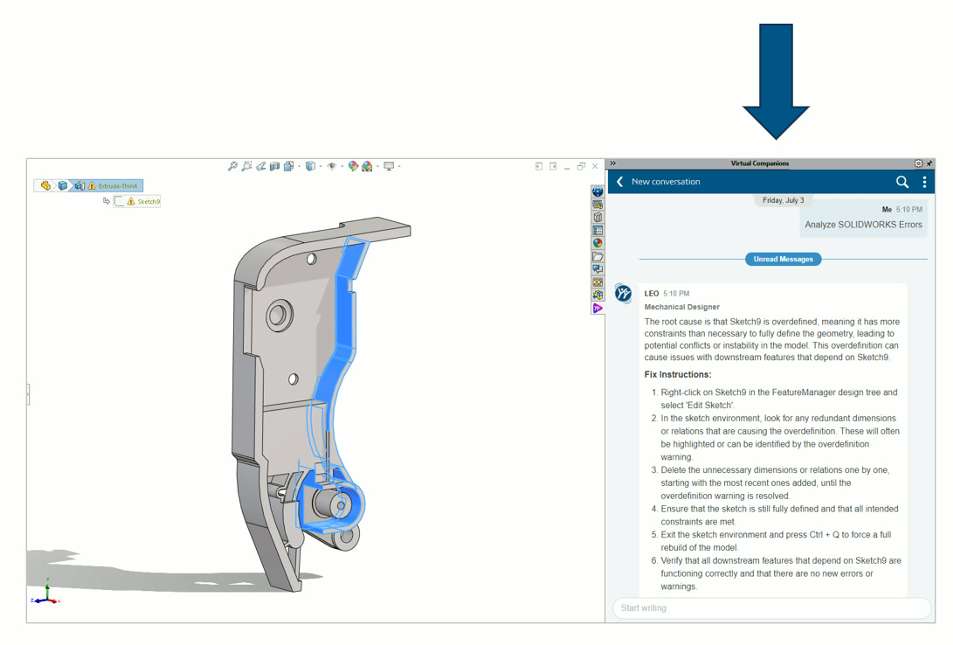
Click Try this prompt on any example and LEO starts a new conversation on that topic, tied to the part, assembly or drawing you have open. LEO then asks you for whatever information it needs to help.
Work through the categories one at a time. The more familiar you get with how these prompts are phrased, the easier it becomes to write your own.
Want to see everything that’s new? Check out Dassault Systèmes’ What’s New in SOLIDWORKS Design 2026x FD03.
Step 4: Use AURA outside SOLIDWORKS
You don’t need SOLIDWORKS open to talk to AURA. Your Virtual Companion conversations are also available in the 3DSwym app, on the Communities tab of both the SOLIDWORKS Design and Collaborative Designer for SOLIDWORKS role cockpits.
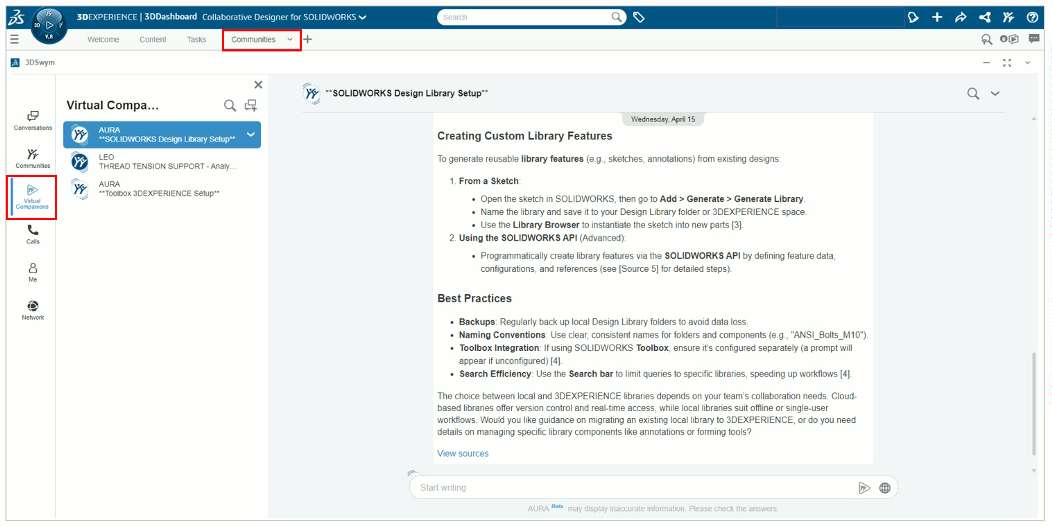
From there, you can ask best-practice questions without launching SOLIDWORKS, and even ask AURA to surface knowledge and insights from your company’s internal 3DSwym communities.
Note: Only AURA is available outside SOLIDWORKS. LEO works on the designs and drawings loaded in your session, so it’s only accessible inside SOLIDWORKS Design, from the Virtual Companions tab.
Best Practices for Getting Started
This is where most teams succeed or struggle.
✔ Start small. Don’t try to overhaul your entire workflow on day one.
✔ Use the prompt library. It’s the fastest way to learn what LEO can do and how to ask for it.
✔ Focus on real problems. Look for repetitive tasks, bottlenecks and manual processes.
✔ Validate everything. AI suggestions still need engineering judgment.
✔ Bring your team along gradually. Adoption works best when it’s incremental.
Final Thoughts
AI in SOLIDWORKS is evolving quickly, and the Virtual Companions will keep gaining new skills. But the direction is clear: less time on low-value tasks, better decision support, and deeper integration with simulation and your data.
And importantly: SOLIDWORKS isn’t being replaced, it’s being enhanced.
For most teams, the real opportunity isn’t jumping ahead. It’s simply getting started.
Want help bringing AI into your SOLIDWORKS workflow? Talk to our experts.