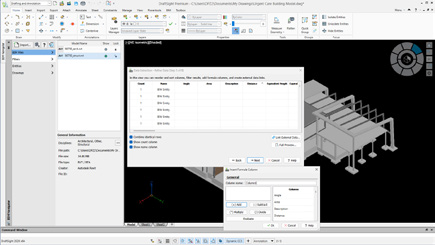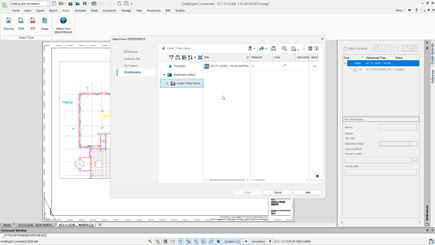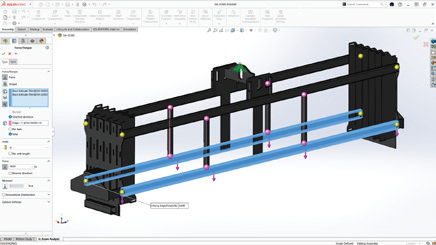
What’s New in SWOOD 2025?

BLOG

What’s New in SWOOD 2025?

[techtips_featured_image_shortcode]

We are pleased to announce the upcoming arrival of the updated version of SWOOD 2025 solutions, eagerly awaited by professionals working with wood, both in cabinets, architectural cabinetry, and any type of layout. In fact, the new SOLIDWORKS, SWOOD innovations are attracting lots of interest.

Moreover, the updated version, which will be available soon, includes several notable improvements to the SWOOD software suite. Here is a summary of the main advances, structured around the three pillars of the new SWOOD 2025 products.

This is an overview of what’s new. Contact us for more details, as each new feature can have several aspects.

The 3 Pillars of SWOOD 2025

  • Design
  • Manufacturing
  • Automation

Pillar 1: Design

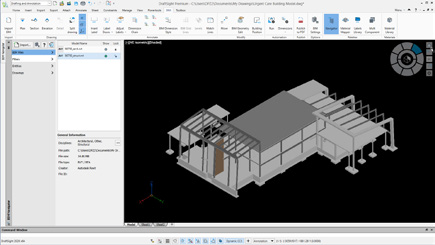
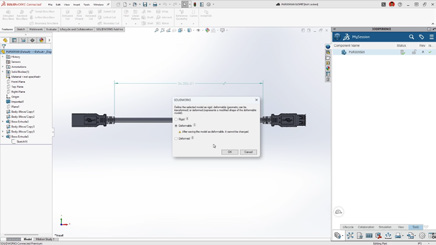
Panel Cutting Improvements SWOOD 2025Panel Cutting Improvements

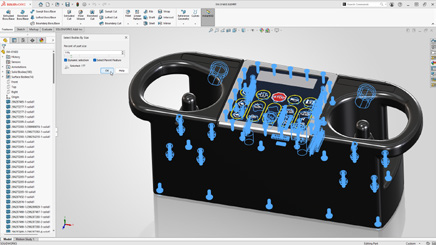
Panel cutting was introduced with SWOOD 2024 and has undergone some improvements this year. For example, improvements around the user experience by adding for example a help button, it is now possible to pin the function and therefore to chain the different cuts. Finally, the highlighting of interference has been added.


Edge Banding Length Feature

From the Edge Library or, from the Edge function, in the Design Tree, you will have the choice to set an over-field length. This overlength is going to be mostly used in the report or the total length in the report. As a result, you will have a reliable estimate.

Easy Customization of SWOODBox

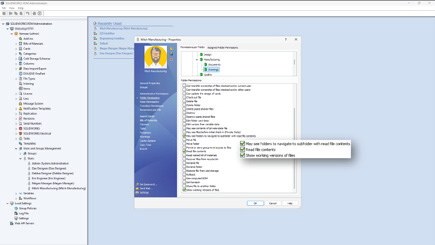
Thanks to the library installer you have access to links too! For example, hinges, inserting default settings allows you to quickly create SWOODBox! Therefore, you can save them to your SWOODBox library and quickly reuse them.

Improved User Experience

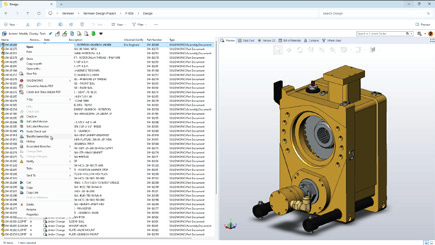
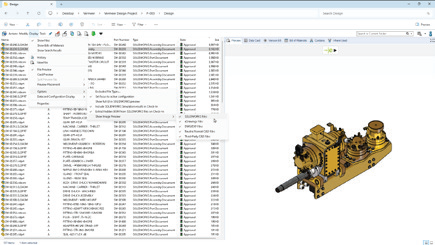
Right-clicking allows you to collapse folder contents, reducing the number of clicks and making navigation faster and more intuitive. This also eliminates the need for endless scrolling when searching for the right folder.

Additionally, to further streamline navigation and enhance your overall experience, you can also make use of filters.

Performance Improvements

Significant enhancements have been made across multiple areas. PDM now handles copy operations more efficiently, while deletion states in SWOODBox have been optimized for smoother workflows. Texture and appearance management has also been improved, ensuring greater consistency. Finally, reporting has been streamlined for faster, more reliable results.

Order Manager Improvements

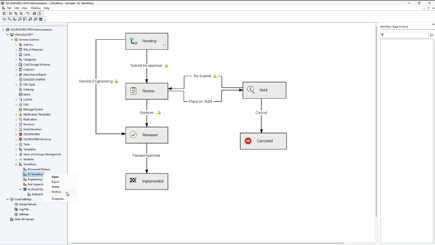
Similarly, the order managers, so SWOOD design and SWOOD Cam. What was done was to bring the SWOOD design and SWOOD Cam tools directly into these managers. This makes them more manageable and can even be reset to default if needed.

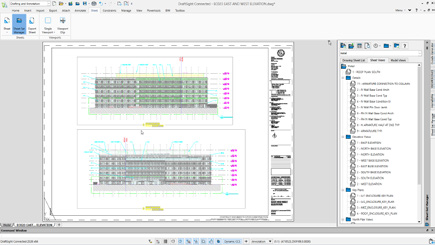
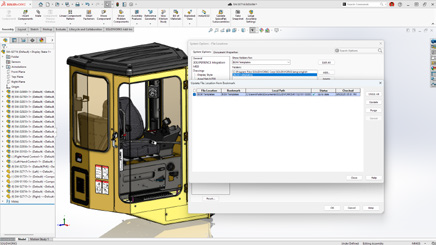
Library Installer in SWOOD 2025Library Installer Updates

The next Library installer that will arrive so there are about new features once a month, an update once every 2 weeks with new hardware and new elements. Furthermore, speaking of new elements, well, let’s move on to the SWOOD 2025 improvements.

Liaisons were something that was missing. And now? Well, we will have the possibility to download links from the free installer.

In addition, another new feature is that the elements that you are going to download are going to be blocked, but if you want to modify them, you will just need to duplicate them, copy them and then you can modify them according to your needs.

Panel Manager Enhancements

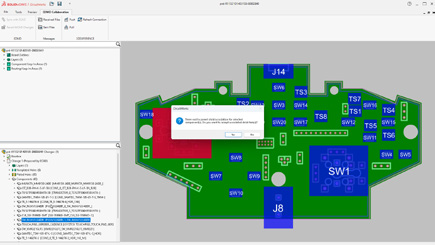
In particular, the panel manager is a tool developed a little over five years ago, with a first version released in 2020. Its main purpose is to add SWOOD data to existing CAD files, whether they are models designed only with SOLIDWORKS (especially before the introduction of SWOOD), multibody parts exported to assemblies or files imported in STEP format. The workflows and features of this tool have been fine-tuned to allow the manufacture of models that were not originally created with SWOOD.

New Conditional Filter Tool in SWOOD 2025!

These conditional filters will be found a little bit everywhere in the software. This will simply allow us to start from a list. Well, to set of, variables, parameters to filter a list.

Most importantly, the advantage is that these filters are intelligent so that they can be found in a library of materials or fields, for example.

Pillar 2: Manufacturing

CAM Copy Tool

Its accessibility has been simplified. We will find it directly from the Command manager so we will have easy access to it.

We will find 2 modes, the mode, the first mode is the copy mode or from the source strategy, we will be able to take this strategy, define either an assembly, a part or even a folder! to stick this strategy to the selections.

On the other hand, the second mode will allow us to duplicate from a nesting file to be able to duplicate them to a new post processor and so, for example, if we have several CNCs and Well, we will be able to duplicate all these elements, all these nesting sheets to a new machine.

Input and Output Machining Speed

The management of machining inputs and outputs will define how the tool will enter the material, we will be able to define a specific speed to avoid splinters and have a better rendering, for example. These are often parameters that are not necessarily available, so here we will have the possibility to do it directly with SWOOD cam and encode it on the machine.

3D Finishing Enhancements

In concrete terms, this is how it works: on this part, a new 3D finish is defined by selecting the relevant surfaces. Then, all the necessary options are chosen, for example by specifying that the tool should be positioned horizontally and then adjusting the appropriate angle. It is not possible in some cases to access certain areas. However, with the new undercut option, it becomes possible to treat these parts, along with a release option to ensure the safety of tool outlets. Simulation of the toolpath allows you to visualize these steps, and this feature opens up more possibilities for the manufacture of complex parts.

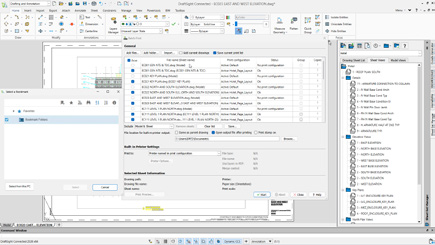
Nesting Improvements with the Auto Flip Detection

From a 3D file, SWOOD automatically detects parts that require flipping. Users can change this list if needed. When recalculating based on set parameters such as offset, flip direction, or reference corner, SWOOD finds which sheets have parts requiring reversal. This reduces unnecessary flips by grouping compatible parts on the same sheet.

SWOOD 2025 introduces the new Nesting from CSV

Let’s continue with the nesting feature that allows you to import data from a CSV file. Remember that the system report offers the possibility of exporting lists in CSV format. By simply specifying the file path and the desired quantity for one or more projects, we can export this CSV and then import it into the nesting module; it is possible to work with one or more CSV files. This flow automatically redefines the sources and their quantities, whether it’s an assembly or a part. A simple recalculation then allows the best nesting result to be obtained quickly. As a result, the transition from design to manufacturing is just a few clicks away, easing more correct production management without the need to manually search for the right files.

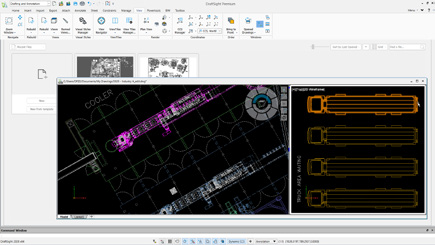
5 New Tilting Types in SWOOD 2025New Tilt Types in SWOOD 2025!

Five additional tilt angle configurations are now supported for more refined tool orientation control during 3D operations.

Pillar 3: Automation

General System Report Enhancements

  • Data Export: Data export has been improved with SWR format stabilization, a standalone viewer, and lighter data files that can now be created in just milliseconds. In addition, cutting patterns and board estimations have been refined for greater accuracy.
  • System Report: The new standard data export allows you to export all project data with multiple levels of detail (parts, panels, materials, hardware, programs, etc.). A project report history is also available for easy tracking.
  • Customize Data Views: You can now hide or show data levels, filter data views, display columns, export table views to CSV, and choose your preferred print layouts and much more.
  • Customize Views: Enhanced customization options make navigation easier: you can open documents directly from folder access, group data by variables, and add a calculation line (sum, count, average, min, max, etc.). In addition, you can now save your settings by creating profiles.

New SWOOD 2025 Data Sharing Method

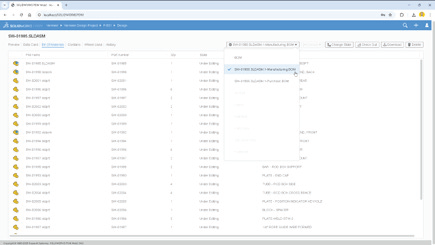
This updated version offers a multitude of features, mainly focused on data sharing and collaboration within the company. It offers precise access management, whether online or offline.

About automation, significant improvements have been made to the system report. It is now possible to easily share all data and documents, without having to install more software, simply via a link accessible to the entire organization.

It’s Now Your Turn to Discover the Power of SWOOD 2025

SWOOD 2025 represents a major leap forward in woodworking design, manufacturing, and automation. The new features and enhancements covered here are only a glimpse of what the latest version has to offer. Indeed, whether you are optimizing your workflows, improving accuracy, or streamlining collaboration, SWOOD 2025 provides powerful tools to help you achieve more.

To fully explore how SWOOD 2025 can transform your projects, contact us today for personalized guidance and demonstrations.


Alain

Alain Provost

Senior Technical Sales Executive

X_green_halo

Any questions? Need help? Ask one of our experts.

Whether you’re ready to get started or just have a few more questions, you can contact us toll-free:

    The Role of CAD Softwares in the Manufacturing Chain

    BLOG

    The Role of SOLIDWORKS CAD Software for Manufacturing in the Digital Manufacturing Chain

    [techtips_featured_image_shortcode]

    When we talk about digital transformation in manufacturing, we often picture smart factories, IoT, robotics, or even artificial intelligence. Yet, there’s a critical, and sometimes underestimated, stage that initiates this transformation: the digital design of products using CAD software for manufacturing. This is precisely where SOLIDWORKS comes in.

    Developed by Dassault Systèmes, SOLIDWORKS has long been a key player in the world of Computer-Aided Design (CAD). But today, its role extends well beyond drafting and modeling. As powerful CAD software for manufacturing, SOLIDWORKS sits at the core of the digital manufacturing chain, acting as a bridge between creativity and production, and integrating with data management, simulation, process automation, and enterprise systems.

    At Solidxpets, we help businesses implement these technologies across their operations. With the hands-on support of our experts, you can count on real-world guidance for deploying the full SOLIDWORKS portfolio.

    From 3D Modeling to the Shop Floor: A Seamless Transition with CAD Software for Manufacturing

    While 3D modeling is already a step toward digitization, it becomes far more powerful when integrated with the rest of the production workflow. That’s why a fully connected digital chain, from design to delivery, is so vital.

    With the 3DEXPERIENCE® Works platform, SOLIDWORKS becomes more than a design tool. It is a collaborative hub that connects departments, suppliers, customers, and even machines. As CAD software for manufacturing, it ensures your designs flow seamlessly into production.

    This connectivity leads to:

    • Shorter lead times

    • Improved decision traceability

    • Clearer interdepartmental communication

    • Enhanced agility

    Smart 3D Modeling and Integrated Simulation in CAD Software for Manufacturing

    SOLIDWORKS provides robust parametric 3D modeling tools, enabling precise control over parts, assemblies, and configurations. These models can be easily reused, modified, and scaled.

    The real game-changer is simulation. With SOLIDWORKS Simulation, a core component of CAD software for manufacturing, engineers can:

    • Test structural integrity under load

    • Predict deformation and failure

    • Analyze fluid dynamics and airflow

    • Evaluate thermal performance

    All of this happens before manufacturing begins, drastically reducing prototypes, costly rework, and delays.

    Connected, Flexible Manufacturing Tools Powered by CAD Software for Manufacturing

    The 3DEXPERIENCE® Works portfolio includes purpose-built tools for the factory floor:

    • Shop Floor Programmer: Allows CNC programmers to create and simulate 2.5- and 3-axis toolpaths, generate wire EDM operations, and detect potential collisions during production.

    • Robot Programmer: Enables fast and easy programming, simulation, and deployment of robotic routines without disrupting current production lines.

    • Factory Simulation Engineer: Simulates plant layouts and production flow using 2D, 3D, or point cloud environments, helping optimize floor space and logistics.

    Together, these tools form a closed-loop ecosystem between design and manufacturing, ensuring continuous feedback and real-time synchronization.

    Collaboration and File Management: A Strategic Necessity in CAD Software for Manufacturing

    In manufacturing, engineering data is a strategic asset. Managing this data becomes increasingly complex with more iterations, collaborators, and file versions.

    With SOLIDWORKS PDM and the 3DEXPERIENCE platform, both integral to modern CAD software for manufacturing, companies can:

    • Centralize all product data

    • Control revisions and user access

    • Collaborate securely via the cloud

    • Track every design change, comment, and approval

    This level of traceability is essential, especially in highly regulated industries like aerospace, medical devices, or defense.

    ERP Integration with CAD Software for Manufacturing: Real-Time Data Flow Across the Business

    Enterprise Resource Planning (ERP) systems are at the heart of business decision-making. Yet in many organizations, CAD remains disconnected from the main information system.

    Integrating SOLIDWORKS CAD software for manufacturing with ERP software like SAP, Oracle, or Microsoft Dynamics allows for:

    • Automatic transfer of Bill of Materials (BOMs)

    • Real-time work order generation

    • Cost estimation based on materials and machine time

    • Elimination of redundant data entry

    This creates a direct link between design and operations, boosting organizational responsiveness and reducing costly delays.

    At Solidxperts, we offer proven connectors and services for integrating SOLIDWORKS with leading ERP systems so your business runs smoother from day one.

    Cloud Solutions for Distributed Teams Using CAD Software for Manufacturing

    As remote and hybrid work models become standard, secure and flexible cloud access to CAD data is more critical than ever.

    The 3DEXPERIENCE platform provides centralized, cloud-based project spaces with:

    • Anytime, anywhere access to design files

    • Real-time collaboration

    • Browser-based viewing and markup

    • Built-in security and automatic backups

    For teams using CAD software for manufacturing, this means faster decision-making, improved communication, and a single source of truth for every stakeholder.

    Automating Business Processes with CAD Software for Manufacturing

    Beyond CAD, the 3DEXPERIENCE platform empowers users to digitize business workflows such as design validation, quality approvals, and production launches.

    With low-code and no-code tools, you can:

    • Build simple, intuitive apps for non-technical staff

    • Automate approval workflows

    • Eliminate repetitive manual tasks

    By embedding automation into CAD software for manufacturing, companies can save time, reduce errors, and accelerate product launches.

    People Matter: Training and Expert Support for CAD Software for Manufacturing

    A digital manufacturing chain is only as strong as the people behind it. Even the most powerful tools are ineffective without proper training and adoption.

    That’s why Solidxperts offers:

    • Certified training on SOLIDWORKS and 3DEXPERIENCE

    • In-depth audits to identify process improvement opportunities

    • Bilingual technical support based in North America

    • Pilot projects to support change management

    The best CAD software for manufacturing is only as good as its users, and the right training ensures you get maximum value from your investment.

    Conclusion: The Role of SOLIDWORKS CAD Software for Manufacturing in the Digital Manufacturing Chain

    SOLIDWORKS is far more than a design tool. It is a foundational element in the digital manufacturing chain, enabling companies to innovate, streamline production, and stay competitive in an evolving market. By connecting SOLIDWORKS CAD software for manufacturing with the 3DEXPERIENCE® Works platform, businesses gain access to simulation, cloud collaboration, manufacturing tools, and process automation, all within one agile, integrated ecosystem. This strategic integration empowers organizations to work smarter, adapt faster, and achieve long-term success in the era of Industry 4.0.

    At Solidxperts, we believe this transition must be strategic, personalized, and scalable. In other words, tailored to your company’s unique reality. Ready to take the next step? Contact our experts.


    Alain

    Alain Provost

    Senior Technical Sales Executive

    X_green_halo

    Any questions? Need help? Ask one of our experts.

    Whether you’re ready to get started or just have a few more questions, you can contact us toll-free:
      SOLIDWORKS Design Checker: Ensure Design Quality at the Source

      BLOG

      SOLIDWORKS Design Checker: Ensure Design Quality at the Source

      [techtips_featured_image_shortcode]

      In today’s increasingly demanding industrial design environment, the consistency and quality of CAD files have become critical. Meeting internal standards, drawing conventions, and client specifications is a constant challenge for design teams, especially when multiple engineers collaborate on the same project. This is where SOLIDWORKS Design Checker steps in.

      Although often overlooked or underused, this built-in SOLIDWORKS tool allows you to automatically verify that your models comply with predefined design criteria. From dimensioning standards and font usage in annotations to document properties and applied materials, Design Checker delivers a robust quality control process directly within your design workflow.

      What is SOLIDWORKS Design Checker?

      SOLIDWORKS Design Checker is an add-in module that evaluates whether a part, assembly, or drawing adheres to a set of standardized rules. These rules can be based on your company’s internal procedures, ISO/ANSI standards, or specific client requirements.

      The tool functions like an automated reviewer, eliminating repetitive human errors and oversights. It provides a clear report highlighting non-compliant items and offers suggestions for correction.

      Key Features of Design Checker

      One of the strengths of Design Checker lies in its modularity. You can create Check Files tailored to specific projects, clients, or corporate standards. Here are the main design elements you can verify:

      Dimensioning Standards
      Ensure that dimension styles (fonts, tolerances, units) conform to ISO, DIN, ASME, or your internal standards.

      Text Fonts
      Verify that all annotations, dimension texts, and title blocks follow the required font, size, or alignment.

      Applied Materials
      Confirm that a valid material from your internal library is applied and avoid models with undefined materials.

      Sketches and Entities
      Analyze sketches to detect open contours, dangling dimensions, or missing geometric relations.

      Document Properties
      Check for the presence and values of custom properties like part number, project name, author, or creation date.

      Drawing Styles
      Validate the use of standardized title blocks, sheet formats, and line styles in your technical drawings.

      Common Use Cases

      Company-Wide Standardization
      Within design teams, Design Checker ensures all files follow the same structure, making reviews, reuse, and archiving far easier.

      Supplier File Validation
      When receiving external CAD files from vendors or subcontractors, you can apply your own rules to verify compliance before integration.

      Manufacturing Preparation
      Before sending files to the shop floor or outsourcing partners, Design Checker ensures drawings are complete, properly dimensioned, and readable.

      Certification Readiness
      In industries like aerospace or medical devices, strict documentation standards apply. Design Checker helps enforce these requirements consistently.

      How to Use SOLIDWORKS Design Checker

      The tool operates on a simple logic: define the rules, then apply them to your documents.

      Step 1: Activate the Add-in
      Go to Tools > Add-Ins, then check Design Checker to enable it.

      Step 2: Create a Check File
      Using the Check File Editor, define the rules to be checked—such as units, fonts, properties, etc. These are saved in a .swstd file.

      Step 3: Apply to a Document
      In the Design Checker tab, load the appropriate .swstd file and launch the analysis. The tool will highlight any deviations and may offer automatic corrections.

      Step 4: Review the Report
      Design Checker generates a detailed report, enabling you to either manually adjust issues or apply one-click corrections where possible.

      Benefits for Design Teams

      Time Savings

      No need for manual verification, errors are detected in seconds.

      Error Reduction

      Common issues (missing properties, incorrect fonts, etc.) are caught automatically.

      Greater Reliability

      Your files are ready for production, certification, or sharing, with guaranteed quality.

      Improved Collaboration

      Standardized files are easier to hand off between colleagues, vendors, or clients.

      Stronger Process Control

      Formalizing checks improves the technical credibility and professionalism of your organization.

      Limitations and Best Practices

      While powerful, Design Checker requires a bit of setup:

      • Creating rules requires thoughtful definition of internal standards.

      • Rules must be kept up to date to remain relevant.

      • The tool works best in structured environments with clearly defined design practices.

      However, once these steps are in place, Design Checker becomes a powerful asset in your CAD toolkit.

      Wrapping Up: The Value of Design Checker

      SOLIDWORKS Design Checker is more than just a verification utility; it’s a built-in quality assurance system for your CAD models. By incorporating it into your workflow, you ensure that every design meets your standards, is ready for production, and free of preventable errors.

      The Solidxperts team is here to help you get the most out of SOLIDWORKS Design Checker, from setup and customization of rule sets to best practices for team adoption.

      FAQ

      Is Design Checker available in all versions of SOLIDWORKS?

      SOLIDWORKS Design Checker is included in SOLIDWORKS Professional and Premium. It is not available in the Standard edition.

      Can the SOLIDWORKS Design Checker automatically fix detected issues?

      Yes, for many items such as dimension styles, fonts, or document properties, the tool offers automatic correction options.

      Can verification rules be shared between team members?

      Absolutely. .swstd rule files can be stored on a server or shared network folder, allowing everyone to work from the same standards.

      Can it be used on assemblies and drawings?

      Yes. Design Checker works on parts, assemblies, and drawing files.

      Does it require advanced CAD knowledge to use?

      No. Once configured, SOLIDWORKS Design Checker is straightforward to use. However, setting up the initial rule set does require a solid understanding of your company’s standards and SOLIDWORKS property management.


      Alain

      Alain Provost

      Senior Technical Sales Executive

      X_green_halo

      Any questions? Need help? Ask one of our experts.

      Whether you’re ready to get started or just have a few more questions, you can contact us toll-free:
        Reverse Engineering with Artec 3D Scanners: Accuracy Meets Innovation

        BLOG

        Reverse Engineering with Artec 3D Scanners: Accuracy Meets Innovation

        [techtips_featured_image_shortcode]

        Quick Look

        Reverse engineering with Artec 3D scanning technology is revolutionizing how industries replicate, analyze, and improve existing parts.

        This blog explores the role of Artec 3D scanners in reverse engineering, highlighting their precision, ease of use, and impact across sectors like automotive, aerospace, manufacturing, and product design.

        What Is Reverse Engineering?

        Reverse engineering is the process of deconstructing a physical object to understand its design, structure, and functionality. Whether for quality control, reproduction, or innovation, this technique plays a vital role across many industries.

        Traditionally, this process relied on manual measurement techniques, which were time-consuming and error-prone. Thanks to advanced 3D scanning technologies like Artec Leo and Artec Eva, reverse engineering is now faster, more precise, and more accessible than ever.

        Real-World Use: Scanning a Vantage Bandsaw with Artec Leo

        In a recent project, I used the Artec Leo 3D scanner to scan my Vantage bandsaw.

        My goal was to ensure I had every critical dimension needed before modifying the table. It might have seemed overkill, but I wanted complete confidence that the new slots I was adding wouldn’t interfere with any mounting brackets underneath.

        More importantly, I needed to control the location of my jigs to within 0.5 mm tight tolerances are essential for my process. By building jigs from a model that was 100% true to the real tool, I eliminated the guesswork.

        The scan allowed me to design precise slots for quick tool changes and ensured everything fit on the first attempt. I then used Markforged desktop printers to bring those jigs to life.

        The result: faster setup, fewer errors, and higher confidence in the final tooling.

        What Makes Artec 3D Scanners Unique?

        Artec 3D scanners stand out due to their exceptional accuracy, portability, and user-friendly interface. Devices like the Artec Leo and Artec Eva can capture high-resolution, full-color 3D models quickly, without requiring physical contact or markers.

        The real-time scanning feedback and seamless integration with software such as Artec Studio make it easy to digitize objects of all sizes, from intricate mechanical parts to full vehicles.

        Reverse Engineering Applications Across Industries

        Artec scanners are used in various reverse engineering workflows.

        In the automotive industry, engineers can scan legacy parts no longer in production and create CAD files for reproduction or redesign.

        Aerospace companies use Artec for stress analysis and component modification.

        In manufacturing, it enables faster prototyping and better fitment checks, while product designers leverage it to iterate and innovate efficiently.

        From Scan to CAD: The Workflow

        A typical reverse engineering workflow with Artec begins by scanning the object and processing the scan in Artec Studio.

        From there, the data is cleaned, aligned, and exported into CAD-compatible formats. Software like Geomagic or SOLIDWORKS then helps generate precise CAD models.

        This digital workflow dramatically reduces turnaround time and ensures superior accuracy compared to manual measurement methods.

        The Future of Reverse Engineering Starts with Artec

        Reverse engineering with Artec 3D scanners is transforming how we approach design, reproduction, and innovation. Their ease of use, portability, and accuracy make them essential tools for businesses seeking a competitive edge. Interested in exploring what Artec can do for your reverse engineering needs?

        Contact us today at Solidxperts for a demo or consultation.


        Richard Forcier

        Solutions Specialist – Additive Manufacturing & 3D Scanning

        X_green_halo

        Any questions? Need help? Ask one of our experts.

        Whether you’re ready to get started or just have a few more questions, you can contact us toll-free:
          Introducing ToolXperts for SOLIDWORKS: Fewer Clicks, Greater Impact

          BLOG

          Introducing ToolXperts for SOLIDWORKS: Fewer Clicks, Greater Impact

          [techtips_featured_image_shortcode]

          ToolXperts is a suite of automation tools built for SOLIDWORKS users who want to speed up design workflows and reduce repetitive tasks. You’re already familiar with SOLIDWORKS, the industry-standard CAD software used globally to design, model, and document innovative products. Like many engineers and designers, you may already be using it to its full potential. Yet, repetitive tasks can still slow you down.

          That’s where ToolXperts comes in. Designed by CAD specialists and developed by the Solidxperts team, these tools help you save valuable time by automating your most tedious daily operations: DXF file generation, drawing creation, BOM calculations, linear nesting, and much more.

          Why Automate in SOLIDWORKS with ToolXperts?

          Do you spend hours creating technical documentation? Are you still manually exporting sheet metal parts to DXF? Managing cut lengths for structural members in Excel?

          These repetitive tasks cost you time and increase the risk of human errors that can become costly. In today’s landscape of skilled labor shortages, tight deadlines, and constant pressure on profitability, every minute matters.

          What you need are tools that work for you: fewer clicks, fewer errors, more time for design.

          ToolXperts: Custom Solutions from SOLIDWORKS Experts

          ToolXperts are not generic macros. They are the result of more than 25 years of CAD experience and real-world feedback from industrial design professionals.

          Developed by the Solidxperts team, these tools are seamlessly integrated into SOLIDWORKS, respecting your workflows and standards while eliminating unnecessary steps.

          Each tool was born from real-world use cases, driven by clients who needed better efficiency, faster ROI, and smoother processes.

          Even if only one tool fits your need, it can pay for itself quickly by saving you time every single day.

          Popular ToolXperts Features for SOLIDWORKS

          Automatic DXF Export for Sheet Metal or Plates (CutXperts)

          CutXperts from ToolXperts

          Gone are the days of opening each part, flattening the model, and launching a manual export. CutXperts by Solidxperts:

          • Automatically detects sheet metal parts or those with a custom property
          • Flattens them
          • Exports clean DXF files in one click

          Ideal for fabrication shops or fast-paced subcontractors.

          Automated Drawing Generation

          This smart module helps you generate part or assembly drawings using:

          • Your custom templates
          • Your predefined views
          • Your preferred scales
          • Your standard annotations

          Perfect for standardizing deliverables and saving hours on drawing tasks.

          Weldment Tool and Linear BOM (BeamcutXperts)

          BeamcutXperts from ToolXperts

          If you work with tubes, bars, or profiles, this tool:

          • Generates a dedicated bill of materials
          • Calculates raw lengths with tolerances
          • Performs optimized linear nesting to minimize material waste

          Useful for reducing raw material purchasing costs.

          More SOLIDWORKS Automation Features from ToolXperts

          • Automatic file conversion
          • Cleanup of unnecessary custom properties
          • Smart file duplication
          • Automated file naming and archiving

          Every click saved is time reclaimed for design.

          A User Interface Designed for Designers

          Built by SOLIDWORKS users for SOLIDWORKS users, ToolXperts features a user-friendly interface that requires no programming knowledge.

          • Clean, intuitive, integrated interface
          • No steep learning curve
          • Complete documentation
          • Training and support available

          Most importantly, you’re not alone. The Solidxperts team is available to help you integrate the tools into your workflow and even customize them to your unique needs.

          Time Savings and ROI with ToolXperts for SOLIDWORKS

          Picture this: You’re working on a project with dozens of sheet metal parts. Without CutXperts, you must open each part, create a flat pattern, generate the DXF, name it properly, and repeat the process for every update. With CutXperts, one click and your entire DXF package is ready for the cutting shop.

          Example ROI Calculation:

          • 5 minutes saved per part
          • 50 parts per project
          • 10 projects per year

          That’s over 40 hours saved annually with just one tool.

          And that’s just one example.

          What You Gain with ToolXperts

          • Time – Each tool is designed to eliminate repetition and free up your design hours
          • Consistency – All your deliverables follow the same standards
          • Profitability – Less waste, fewer errors, more productivity
          • Peace of Mind – You work with reliable, supported, and regularly updated tools

          The ToolXperts Advantage

          Whether you’re managing hundreds of parts or streamlining a small batch of custom designs, ToolXperts gives you the edge. By minimizing manual effort and standardizing key processes, these tools help engineers focus on what really matters: delivering quality designs, faster.

          With solutions built directly into SOLIDWORKS, supported by experts who understand your challenges, ToolXperts makes advanced automation accessible and practical for every team. From first use, you’ll notice the time savings, and over time, the gains in efficiency, accuracy, and consistency will transform your daily operations.

          FAQ

          Are ToolXperts compatible with all SOLIDWORKS versions?

          Yes, our tools are compatible with recent versions of SOLIDWORKS and are updated regularly

          Do I need to be a programmer to use them?

          No. ToolXperts are built for engineers, designers, and technicians. No coding knowledge required.

          Can these tools be customized to fit our internal processes?

          Absolutely. Our team can tailor existing tools or develop new ones to meet your specific needs.

          How can I test them before purchasing?

          Contact our team for a free, no-obligation demo. We’ll show you the tools in action, with real project examples.


          Alain

          Alain Provost

          Senior Technical Sales Executive

          X_green_halo

          Any questions? Need help? Ask one of our experts.

          Whether you’re ready to get started or just have a few more questions, you can contact us toll-free:
            FeatureWorks in SOLIDWORKS: How to Recover Design Intelligence from STEP and IGES Files Efficiently

            BLOG

            FeatureWorks in SOLIDWORKS: How to Recover Design Intelligence from STEP and IGES Files Efficiently

            [techtips_featured_image_shortcode]

            In the day-to-day work of a designer or engineering office, it’s common to receive 3D files from other CAD software. Fortunately, universal formats like STEP, IGES, or Parasolid allow for model exchange without geometry loss.

            However, they present a major challenge: importing them into SOLIDWORKS strips away the feature tree, turning them into ‘dumb solids’ that are difficult to edit efficiently.

            So, how can we recover the design intelligence behind a simple imported solid? The answer lies in one word: FeatureWorks.

            Put simply, this SOLIDWORKS add-in enables automatic recognition of design features (holes, bosses, fillets, chamfers, etc.) from an imported body.

            As a result, users can reconstruct a feature tree and thus modify, parameterize, or even automate the imported part as if the user had created it natively in SOLIDWORKS.

            In this article, discover how to use FeatureWorks, its benefits, limitations, and real-world applications. It’s a powerful yet often underestimated tool for reverse engineering and collaborative CAD workflows.

            What Is FeatureWorks?

            Put simply, SOLIDWORKS developed FeatureWorks to bring intelligence back to 3D files that users import from other platforms. This add-in primarily functions by recognizing design features either automatically or interactively, depending on user preference

            Typically, when you import a STEP, IGES, or Parasolid file, SOLIDWORKS creates a single solid body with no recognizable features. To address this, FeatureWorks analyzes the geometry to reconstruct, as accurately as possible, the original design elements: sketches, extrusions, holes, fillets, chamfers, and more.

            It’s important to note that FeatureWorks is included with SOLIDWORKS Standard, Professional, and Premium. However, it’s not enabled by default. You must activate it manually through Tools > Add-ins.

            Moreover, supported formats include:

            • STEP (.step, .stp)
            • IGES (.iges, .igs)
            • Parasolid (.x_t, .x_b)
            • SAT, VDAFS, and others

            Consequently, FeatureWorks is especially useful for reverse engineering and working with collaborators who use other CAD platforms.

            Why Use FeatureWorks?

            There are several reasons why FeatureWorks is a valuable tool in a professional CAD workflow:

            Save Valuable Time

            First of all, manually recreating the feature tree of an imported part can be tedious. FeatureWorks offers an automatically generated base of features that you can edit or expand. Therefore, it saves a considerable amount of time, especially for simple to moderately complex parts.

            Edit Parts from Other CAD Software

            Once FeatureWorks recognizes the geometry, the imported part behaves like a native SOLIDWORKS model. As a result, you can make design changes without starting from scratch.

            Reverse Engineering and Legacy Updates

            Additionally, companies with libraries of non-parametric or scanned geometry can use FeatureWorks to restore design intent. This makes it ideal for legacy file updates and engineering change workflows.

            Prepare Models for DriveWorks

            Finally, if you use DriveWorks to automate your designs, FeatureWorks helps convert a “dumb” STEP file into a parametric model, ready for automation.

            How to Use FeatureWorks in SOLIDWORKS

            Here’s a step-by-step guide to getting the most out of FeatureWorks:

            1. Activate FeatureWorks

            • Go to Tools > Add-ins
            • Check FeatureWorks (and optionally, “Start Up” to load at SOLIDWORKS launch)

            2. Import the STEP File

            • Go to File > Open, and select a STEP, IGES, or .X_T file
            • In the Import Options dialog, check Recognize Features to launch FeatureWorks automatically

            3. Choose Between Automatic or Interactive Recognition

            • Automatic Recognition: SOLIDWORKS detects and reconstructs features without user input
            • Interactive Recognition: You manually select which features to recognize (slower but more accurate)

            4. Explore the Options

            • Choose which types of features to recognize: holes, bosses, fillets, chamfers, etc.
            • Optionally retain a copy of the original solid body (useful for validation)

            5. Result: A Partial or Full Feature Tree

            Once recognition is complete, a feature tree appears in the FeatureManager Design Tree. You can edit feature parameters, add or delete features, just as you would with any SOLIDWORKS model.

            Limitations and Best Practices

            Incomplete or Inaccurate Recognition

            Keep in mind, FeatureWorks can’t detect everything. The more complex the part (organic shapes, surfacing, molded components), the less reliable the results. Therefore, it’s best used on machined or welded parts with simple, regular geometry.

            Clean the File Before Recognition

            Before running FeatureWorks:

            • Remove unnecessary entities (logos, engravings, markings)
            • Simplify geometry for easier detection

            Manually Verify Each Feature

            After recognition, always review the results. Some dimensions or sketches may be slightly off. A quick manual validation step ensures the model is reliable for downstream tasks such as automation, simulation, or manufacturing.

            Real-World Use Cases

            Precision Machining Subcontractor

            A machine shop regularly receives STEP files from clients. Using FeatureWorks, it automatically recognizes standard hole and milling features for seamless integration into SOLIDWORKS CAM machining operations.

            Industrial Design Office

            An engineering firm receives 3D files from a German supplier in IGES format. With FeatureWorks, they can modify the geometry immediately. As a result, there’s no need to wait for the supplier to resend a modified file, boosting independence and responsiveness.

            Catalog Modernization

            A company wants to update old, non-parametric CAD files. To do so, it uses FeatureWorks to rebuild features and integrate them into a DriveWorks configurator for automated part generation.

            FeatureWorks, A Tool to Discover or Rediscover

            In conclusion, FeatureWorks is often overlooked or underutilised, yet it can be a powerful productivity tool for engineering teams working with imported files.

            In just a few clicks, it transforms a static “dumb” model into an intelligent, editable, and automatable SOLIDWORKS part.

            Whether you’re a designer, subcontractor, or reverse engineering specialist, take the time to explore this add-in. And if you’d like to go further, consider attending a training course or contact us with your questions.

            FAQ

            What’s the difference between FeatureWorks and standard STEP import?

            By default, importing a STEP file into SOLIDWORKS creates a single “dumb” solid with no feature tree. This means the part lacks editable features and parametric relationships.

            However, by enabling FeatureWorks, you can detect and reconstruct key features such as extrusions, holes, and fillets.

            As a result, it becomes much easier to edit, parameterize, and adapt the part, just like a native SOLIDWORKS model.

            Is FeatureWorks included in all SOLIDWORKS versions?

            FeatureWorks comes bundled with SOLIDWORKS Standard, Professional, and Premium licenses.

            However, since it’s not active by default, users must enable it manually via Tools > Add-ins before use.

            How reliable is automatic feature recognition?

            It depends on part complexity. FeatureWorks works best on machined parts with standard geometry.


            However, for complex or organic parts, such as castings, injection-molded components, or surface-based geometry, recognition may be partial or inaccurate.


            In these cases, it’s advisable to use interactive mode or reconstruct features manually.

            Can FeatureWorks be used on STEP assemblies?

            No.

            Important to note: FeatureWorks only works with individual parts. If you’re dealing with a STEP assembly, you’ll need to open each component separately and apply FeatureWorks to each one.

            Can FeatureWorks detect constraints or sketch relations?

            No, it does not. While FeatureWorks can recognize solid features, it does not recreate sketch constraints or parametric relations.

            Therefore, once recognition is complete, it’s advisable to manually review and add necessary constraints.

            Can FeatureWorks be used with DriveWorks?

            Yes and it’s an excellent use case!

            Once a part is imported and recognized using FeatureWorks, it can be parameterized and automated using DriveWorks.

            As a result, this turns imported geometry into reusable components for product configurators.

            What file formats are supported by FeatureWorks?

            FeatureWorks supports the following:

            • STEP (.stp, .step)

            • IGES (.igs, .iges)

            • Parasolid (.x_t, .x_b)

            • SAT, VDAFS

            However, to ensure proper recognition, the file must contain a valid solid body. Without it, FeatureWorks cannot accurately detect or reconstruct design features.


            Alain

            Alain Provost

            Senior Technical Sales Executive

            X_green_halo

            Any questions? Need help? Ask one of our experts.

            Whether you’re ready to get started or just have a few more questions, you can contact us toll-free:
              Best 3D Scanning Tools for Any Environment

              BLOG

              Best 3D Scanning Tools for Any Environment

              [techtips_featured_image_shortcode]

              3D scanning technology has become increasingly accessible and versatile, allowing professionals to capture accurate digital models of objects in nearly any environment. Whether you’re scanning indoors in a controlled space or outdoors in unpredictable conditions, understanding how your tools respond to these settings is key. To better illustrate this distinction, the Artec Ray and Artec Leo are two scanners designed for different strengths the Ray excels at long-range, high-accuracy scanning, while the Leo offers handheld mobility and real-time feedback. As a result, when paired together or used separately, they can tackle a wide variety of scanning tasks with the right preparation.

              How to Optimize Outdoor 3D Scans with the Artec Leo Handheld Scanner

              The Artec Leo is a versatile handheld 3D scanner that can handle a wide range of outdoor scanning tasks, including vehicles and textured objects like statues. While it may require additional preparation for reflective surfaces, its mobility and real-time feedback make it a powerful tool for capturing complex shapes. To support this, here are some of the Leo’s key technical capabilities:

              ·        3D point accuracy: Up to 0.1 mm

              ·        Scanning range: 0.4 to 10 meters

              ·        3D resolution: Up to 0.2 mm

              ·        3D reconstruction rate: Up to 80 frames per second (FPS)

              ·        Volume capture zone: 160,000 cm³

              ·        Display: Built-in touchscreen panel

              ·        Processing: Onboard real-time 3D data processing

              Moreover, by understanding these capabilities and adapting the scanning approach like adding reference points on reflective surfaces you can optimize results whether scanning vehicles or textured statues.

              Improving Scan Accuracy with Reference Points and Cleanup Tools

              When working on larger projects, scan data can quickly become overwhelming. Especially when imported into Artec Studio. Often, the scans initially appear as a chaotic mess, with no clear orientation. For instance, a great example is our practice scan of a truck using the Artec Leo. This scan was done in peak sunlight, which made the truck’s reflective sides more difficult to capture accurately. To help with alignment, we placed small magnets on the sides of the truck as reference points. Thanks to Artec Studio’s user-friendly cleanup tools, the process of aligning parts becomes much smoother, reducing both time and stress. This practice emphasizes the importance of capturing high-quality and thorough scans from the start. Taking a bit more care during scanning can significantly speed up post-processing, making it easier for both you and your computer.

              Truck by scanned by a 3D scanner

              When to Use the Artec Ray for Outdoor Scanning

              The Artec Ray 3D scanner excels in outdoor scanning projects that demand precision over large areas. Its metrology-grade accuracy and long-range capabilities make it ideal for capturing detailed scans of buildings, infrastructure, and large objects. Key technical specifications include:

              • 3D point accuracy:
                • 1.9 mm at 10 meters
                • 2.9 mm at 20 meters
                • 5.3 mm at 40 meters
              • Angular accuracy: 0.87 mm at 10 meters (18 arcseconds)
              • Range accuracy: 1.0 mm + 10 ppm
              • Range noise: 0.4 mm at 10 meters, 0.5 mm at 20 meters

              While outdoor conditions such as bright sunlight or uneven terrain may pose challenges, using a stable tripod and scanning during optimal lighting can help ensure the Ray produces highly detailed and reliable scans with minimal post-processing.

              Using Artec Leo and Ray for Advanced Outdoor 3D Scanning Workflows

              When working outdoors, leveraging both the Artec Leo and Artec Ray 3D scanners allows for a more versatile and efficient scanning process. The Ray handles broad, large-scale captures, creating a detailed foundation that ensures no major features are missed. Meanwhile, the Leo excels at filling in smaller or more complex areas that require flexibility and maneuverability. By integrating data from both devices, you can achieve a highly detailed and complete 3D model. Planning your scanning sequence thoughtfully starting with the Ray and following up with the Leo streamlines data alignment and reduces overall processing time making the workflow smoother and more productive.

              Why the Artec Leo Excels in Small and Complex Indoor Spaces

              Indoors, the Artec Leo’s handheld design and real-time processing offer significant advantages for scanning smaller spaces or detailed objects. In addition, its portability allows operators to move easily around furniture, fixtures, or machinery, capturing intricate details that stationary scanners might miss. Additionally, the built-in touchscreen and immediate feedback help ensure scan quality on the spot, reducing the need for reshoots. This makes the Leo especially useful for tasks like heritage preservation, quality control, and product design within confined or complex indoor environments.

              Real-World Scan: Digitizing a Trade Show Display with Artec Leo

              During our last trade show, there was a vendor Gorilla Circuits that had a fun Sasquatch podium piece which they allowed us to scan with the Leo so we could demonstrate just how easy it is to take an object and digitize it using the Artec Leo process. The scan data was then 3D printed on the Raise3D Pro3 and the Markforged Mark Two Desktop 3D Printer.

              In fact, it really only took one primary scan and two small scans to fill in the missing information. Artec Fusion software was able to fill in any missing sections with extreme accuracy, referencing the scan data to create a watertight file. The original Sasquatch was just under two meters tall, and the 3D printed models were 180 mm tall for the display case.

              Sasquatch scanned by Artec LEO

              Why the Artec Ray Is Ideal for Large Indoor Environments

              The Artec Ray is well suited for mapping large indoor environments such as production floors, warehouses, or empty buildings. Similarly, its long-range scanning capability allows for fast and accurate capture of expansive areas, which is essential for planning HVAC installations, scaffolding setups, or construction projects. By providing precise spatial data from floor to ceiling, the Ray helps engineers and architects create reliable models to support design and implementation. The scanner’s stability and accuracy reduce the time spent on manual measurements, streamlining workflows in large-scale indoor projects.

              From Insight to Action: Match the Scanner to the Job

              Ultimately, whether you are scanning a compact object in a cluttered room or mapping out an entire facility, knowing how to get the most out of your equipment is key. The Artec Leo and Ray each bring unique strengths to the table, and when used together, they can cover nearly every scanning scenario both inside and out. Success comes from understanding your environment, choosing the right tool for the job, and preparing your scan area thoughtfully.

              If you’re ready to take the next step, contact us for full access to product demos, hands-on training, and expert guidance to help you get started with confidence.


              Richard Forcier

              Solutions Specialist – Additive Manufacturing & 3D Scanning

              X_green_halo

              Any questions? Need help? Ask one of our experts.

              Whether you’re ready to get started or just have a few more questions, you can contact us toll-free:
                How to Reduce Costs in Your Designs with Topology Optimization in SOLIDWORKS

                BLOG

                How to Reduce Costs in Your Designs with Topology Optimization in SOLIDWORKS

                [techtips_featured_image_shortcode]

                In design and engineering, striking the right balance between performance, material usage, and cost is crucial. Whether you’re working on parts for an automotive application, aerospace components, or even consumer products, the goal is often to create designs that perform optimally while using as little material as possible. This is where topology optimization in SOLIDWORKS comes into play. It’s a technique that helps you determine the best way to distribute material across your design to meet your performance goals. Various tools from Dassault Systèmes, such as SOLIDWORKS Simulation Premium and SOLIDWORKS Simulation Professional, can help guide you in making your parts more efficient and cost-effective. SIMULIA, a brand of other solutions from Dassault Systèmes, also supports topology optimization for more advanced simulation needs.

                In this tech tip, we’ll walk through what topology optimization is and how it works. We’ll also explore how it can help you design lighter, stronger, and more cost-efficient parts using a variety of simulation tools.

                What Is Topology Optimization?

                At its core, topology optimization is all about optimizing the material layout of a part to achieve specific performance goals. Imagine it like sculpting a piece of clay. Removing unnecessary material and shaping the remaining material in a way that ensures the part performs as required, without excess weight or material.

                Although the term “topology” might seem technical, it really just refers to how material is arranged within a given design space. In simple terms, topology optimization in SOLIDWORKS helps you design parts that are as efficient as possible by strategically placing material where it’s needed most. The end result is a part that’s lighter, more durable, and better suited to its intended function.

                Before and after topology optimization

                Key Objectives and Constraints of Topology Optimization

                When you set up a topology optimization study in simulation software, you’re essentially telling the software what you want to achieve. Some of the key objectives or constraints typically include:

                • Stress: Ensuring that the part can handle forces without failure. The goal is to have the material placed exactly where it’s needed to support the stresses applied to the part.
                • Factor of Safety: This is a cushion of extra strength that guarantees the part can withstand unforeseen or extreme conditions, minimizing the risk of failure.
                • Frequency: For parts exposed to vibrations, such as frames or supports, optimizing for frequency is essential. It helps ensure the part avoids resonating at certain frequencies, which could otherwise lead to failure.
                • Manufacturability: No matter how efficient a design is, it still has to be manufacturable. Simulation tools factor in real-world constraints during the design process. This ensures the final design can be produced using methods like CNC machining, additive manufacturing, or injection molding.

                Goals and constraints in a Topology Optimization in SOLIDWORKS Simulation

                How Does Topology Optimization Work?

                The process of running a topology optimization in a SOLIDWORKS study is straightforward. This holds true whether you’re using SOLIDWORKS Simulation Premium, SOLIDWORKS Simulation Professional, or other solutions from Dassault Systèmes. Here’s a simplified step-by-step guide:

                1. Define the Design Space: First, you outline the area in which material can be placed or removed. This is the region where you will optimize the design.
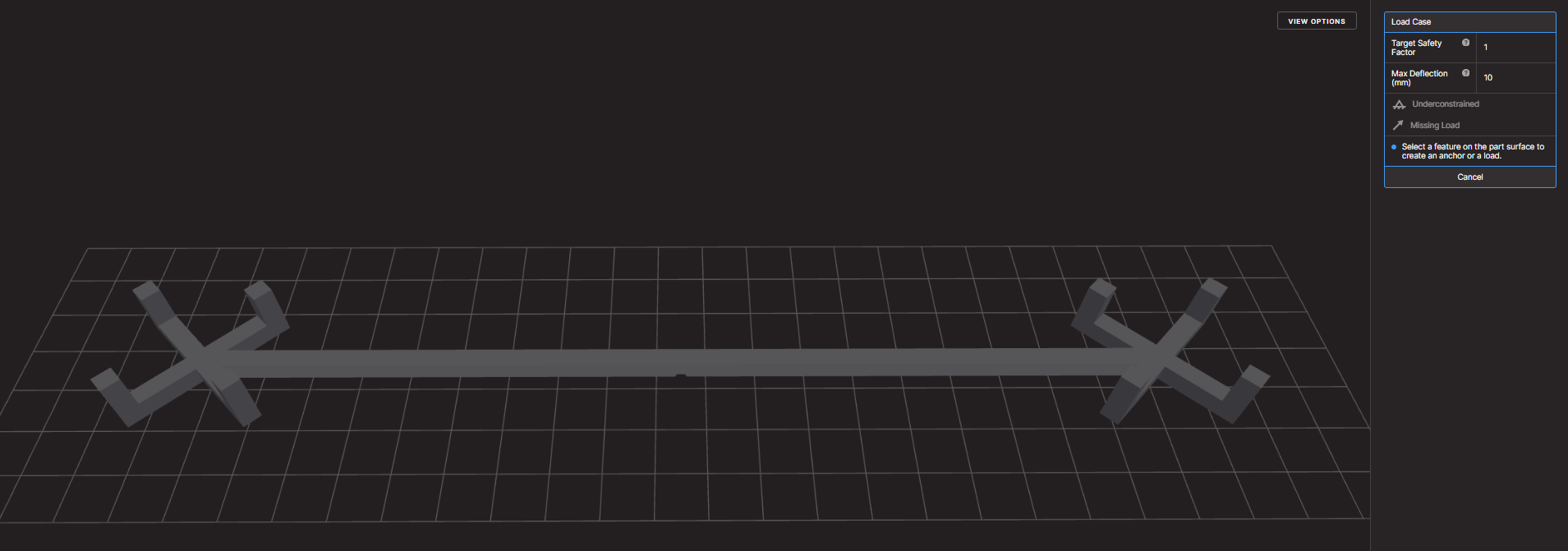
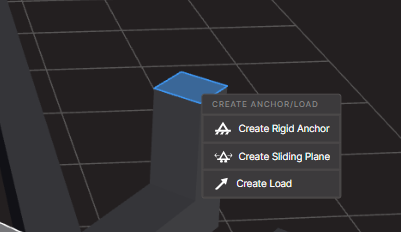
                2. Apply Loads and Fixtures: You then define the forces, pressures, and any constraints the part will experience in the real world. For instance, you might specify areas where the part is fixed or under load.
                3. Set Your Optimization Goals: Next, you specify what you want to achieve with the optimization. Are you focusing on reducing weight? Improving strength? Or perhaps increasing the safety margin? Simulation tools let you set multiple objectives at once.
                4. Run the Simulation: Once all parameters are in place, the software runs the simulation. It gradually removes material from areas that don’t contribute significantly to performance, leaving behind only the necessary structure.
                5. Evaluate and Refine the Design: After the optimization process is complete, you receive a design that meets your performance requirements. You can then further refine it to ensure it fits your specific manufacturing processes.

                Why Should You Use Topology Optimization?

                Here are some compelling reasons to incorporate topology optimization in SOLIDWORKS into your design process:

                1. Material Efficiency: By using topology optimization, you ensure that you’re only using as much material as necessary, creating parts that are lighter and more efficient. This is particularly important in industries like aerospace or automotive, where every gram saved can lead to better performance.
                2. Cost Reduction: Using less material translates to direct cost savings. Topology optimization can help lower both material costs and manufacturing expenses, as lighter parts are often easier and less expensive to produce.
                3. Enhanced Performance: By strategically placing material where it’s needed most, topology optimization ensures that your design is as strong as possible without adding extra weight or material. This results in better-performing parts overall.
                4. Faster Design Process: Instead of manually exploring different design options, simulation tools allow you to quickly run multiple simulations and find the best solution. This saves you time and effort during the design phase.
                5. Real-World Manufacturability: Simulation tools don’t just optimize for performance. They also keep manufacturability in mind. Whether you’re using 3D printing, traditional machining, or injection molding, the software ensures your optimized design can be made with real-world methods.

                Real-World Applications

                Here are a few examples of industries that benefit from topology optimization in SOLIDWORKS include:

                • Aerospace: Lighter, optimized parts are crucial for improving fuel efficiency and reducing the weight of aircraft. Engineers use topology optimization to design components that meet both performance and weight goals.
                • Automotive: In the automotive industry, optimizing parts for weight without compromising on safety and durability is key to reducing fuel consumption and production costs.
                • Consumer Products: From smartphones to sporting equipment, topology optimization helps designers create products that are both strong and lightweight, offering improved performance and better user experience.
                • Medical Devices: In medical fields, especially with implants or prosthetics, topology optimization can help create designs that are comfortable, effective, and use less material without compromising performance.

                Progression of topology optimization in SOLIDWORKS

                This nonlinear brake pedal example shows the progression of topology optimization as it attempts to maximize the stiffness while reducing the volume by 50% during 31 design cycles. Source: https://www.3ds.com/fileadmin/PRODUCTS-SERVICES/SIMULIA/RESOURCES/SIMULIA-Abaqus-Topology-Optimization-Module.pdf

                A Brief Look at Generative Design

                While topology optimization is a reliable and proven method for optimizing designs, generative design is a more recent approach that can take things a step further. Generative design uses powerful algorithms to create multiple design alternatives based on a set of input parameters. It not only optimizes material layout but also explores entirely new shapes and forms that might not be immediately apparent.

                For example, generative design might suggest unusual geometries or structures, often resulting in designs that are lighter and more efficient than what traditional design approaches might produce. This is especially useful when working with complex shapes or materials that benefit from additive manufacturing (3D printing).

                While generative design is a cutting-edge technology, topology optimization remains a great starting point. It allows for the creation of structurally optimized components that meet performance goals while adhering to manufacturing constraints.

                Engineering the Future: Unlock Efficiency and Savings with Topology Optimization in SOLIDWORKS

                Whether you’re using SOLIDWORKS Simulation Premium, SOLIDWORKS Simulation Professional, or other advanced simulation tools, topology optimization can transform your design process. It’s a game-changer for creating more efficient and cost-effective parts. By optimizing material usage based on specific design goals, you can create parts that perform better while using less material. Whether you’re looking to reduce weight, improve strength, or save on manufacturing costs, topology optimization can help you achieve all of these objectives.

                If you’re interested in exploring even more innovative possibilities, generative design offers a fascinating, forward-thinking approach. It builds on the foundation of optimization to explore new and creative solutions.

                By integrating topology optimization into your design process, you’ll not only improve your product’s performance but also save time and money. This leads to designs that are both more efficient and manufacturing-ready.

                This series of short videos shows you how to set up a topology optimization study using SOLIDWORKS Simulation to help you reach your goals. Want to go further? Contact our experts to get training or learn more about SOLIDWORKS Simulation.


                Chung Ping Lu, eng.

                Chung Ping Lu, eng.

                Senior Technical Representative

                X_green_halo

                Any questions? Need help? Ask one of our experts.

                Whether you’re ready to get started or just have a few more questions, you can contact us toll-free:
                  How to Scale your Business with the Artec Ray II 3D Scanner

                  BLOG

                  How to scale your business with the Artec Ray II 3D scanner

                  [techtips_featured_image_shortcode]

                  Unlocking growth across industries with the Artec Ray II 3D scanner

                  In today’s competitive landscape, scaling your business isn’t just about taking on more it’s about doing it more efficiently, faster, and with bigger margins that benefit you. The Artec Ray II 3D Scanner, a long-range LiDAR 3D scanner from xAI, is revolutionizing how industries operate by delivering precision, speed, and efficiency from up to 130 meters away. Whether you’re crafting industrial equipment, optimizing your plant layouts, designing aerospace components, shaping infrastructure, or solving forensic puzzles, this tool can transform your workflow. Let’s explore how the Artec Ray II 3D scanner boosts your profitability in manufacturing industrial equipment, floor plan measurements in manufacturing plants, aerospace, civil engineering and architecture, and forensics focusing on its ability to cut time, minimize mistakes, and supercharge efficiency.


                  Artec Ray II 3D scanner


                  Manufacturing industrial equipment: Precision meets profit with the Ray II

                  For businesses manufacturing industrial equipment think heavy machinery, turbines, or pumps scaling profitably means delivering faster without compromising quality. The Artec Ray II 3D Scanner captures up to 2 million points per second, creating detailed 3D models with metrology-grade accuracy in minutes, not hours. This speed slashes you’re prototyping and production timelines, letting you ship sooner and invoice faster. In addition, fewer delays mean higher throughput, bigger margins, and the ability to take on more business that grows your bottom line.


                  The real margin booster? Fewer mistakes. With high-resolution scans and scan-to-CAD integration via Artec Studio, you can reverse engineer parts or spot design flaws early, avoiding costly rework. Its portability also cuts time by bringing scanning onsite no need to ship components or halt your production. By reducing manual measurement errors and accelerating workflows, the Ray II drives efficiency, letting you take on complex, high-value projects while keeping overhead low. Scale your output, not your expenses.


                  Measuring floor plans in manufacturing plants: Efficiency that pays

                  Scaling a manufacturing plant hinges on optimizing space and workflows every square foot count toward your bottom line. Measuring floor plans manually is slow and error-prone, eating into margins with wasted time and miscalculations. The Artec Ray II 3D scanner changes that, mapping entire facilities with millimeter accuracy in hours, thanks to its long-range capability and top-tier angular precision.


                  This speed cuts planning time dramatically think days turned into hours freeing you to reconfigure layouts or plan expansions without downtime. Accurate digital twins reduce mistakes like equipment misplacement or workflow bottlenecks, saving on costly fixes that could slow you down. Efficiency soars as you simulate changes virtually, ensuring every adjustment maximizes productivity. For growing businesses like yours, this means higher margins through faster turnarounds and leaner operations more output, less waste, and the ability to scale capacity profitably.


                  3D scanning floor plans in a manufacture


                  Aerospace: Soaring margins with 3D scanning precision

                  In aerospace, where precision is non-negotiable, scaling profitably requires balancing speed with flawless execution something you likely demand every day. The Artec Ray II 3D scanner excels, scanning massive objects like aircraft fuselages with submillimeter accuracy in hours instead of days. This rapid turnaround cuts your inspection and design validation time, letting you meet tight deadlines and bill clients sooner boosting your cash flow and margins.


                  Its precision eliminates errors that could ground a project think misaligned components or undetected wear. Fewer mistakes mean less rework, saving you on labor and materials while keeping schedules intact. Efficiency spikes as engineers analyze high-quality 3D data faster, iterating designs with agility. Pair it with other Artec scanners for hybrid workflows, and you’ve got a streamlined process that scales your output without scaling your costs. Secure more contracts, deliver on time, and watch your margins climb.


                  Civil engineering and architecture: building profits smarter

                  As for civil engineering and architecture, scaling means delivering standout projects without budget overruns a goal you’re probably chasing. The Artec Ray II 3D scanner makes it happen, scanning bridges, tunnels, or skyscrapers with world-class precision in a fraction of the time traditional surveys take. Faster data collection hours instead of days—cuts your labor costs and keeps your projects on track, directly enhancing margins.


                  Accuracy is the mistake-killer here. Detailed 3D models prevent errors in design or construction like misjudged supports or clashing systems saving you thousands in rework. Efficiency shines through digital twins, streamlining collaboration and planning. Need to renovate a historic site or layout a new infrastructure project? The Ray II’s portability and remote scanning (via the Artec Remote App) eliminate delays from hard-to-reach areas. By slashing timelines and boosting precision, you can take on bigger jobs, deliver superior results, and grow profitably.


                  Forensics: Solving cases with clarity

                  In forensics, every detail matters whether you’re reconstructing a crime scene, analyzing evidence, or presenting findings in court. Scaling your forensic business means handling more cases with greater reliability, and the Artec Ray II 3D scanner is built for it. Its ability to rapidly scan large scenes like a vehicle or building with submillimeter accuracy creates tamper-proof 3D records that stand up to scrutiny.


                  The advantage lies in its efficiency and detail. Traditional methods like photography or tape measures can’t match the Ray II’s 3D scanner speed or depth. A single scan captures everything from tire tracks to structural damage, preserving evidence in a digital format that’s easy to analyze or share perfect for your needs. For growing forensic firms, this means faster case turnarounds and a reputation for cutting-edge work. Plus, the scanner’s lightweight design and remote capabilities let investigators work in tight or hazardous spaces without compromise. Scaling here isn’t just about volume it’s about credibility, and the Ray II 3D scanning system delivers both for you.


                  Forensics 3D scanning


                  Why the Artec Ray II is your  margin multiplier?

                  Across these industries, the Artec Ray II 3D scanner isn’t just a scanner it’s your profit engine. Not only does its portability cuts time by bringing precision onsite, no logistics required, but is also able to capture millions of points quickly slashes your project timelines, letting you deliver more with less effort. Furthermore, its accuracy eliminates costly mistakes, from design flaws to layout errors, preserving your budget. And, its versatility, syncing with tools like Artec Studio, tailors efficiency to your needs.


                  Scaling profitably means trimming fat while boosting value. The Ray II 3D scanner reduces your labor costs by automating slow manual tasks. It minimizes rework by catching issues early. It enhances your margins by enabling faster, higher-quality deliverables letting you command premium rates or secure bigger deals. From manufacturing to architecture, this tool future-proofs your business with data-rich 3D models that drive smarter decisions. In 2025, it’s your edge for cutting time, reducing errors, and scaling efficiently.


                  Ready to boost your margins?

                  The Artec Ray II 3D scanner is your key to growth. Dive in, and watch your business thrive. Curious about how 3D scanning could fit into your work? Contact our experts and they will help you with any request you may have.


                  James O’ Farrell

                  Head of Additive Manufacturing

                  X_green_halo

                  Any questions? Need help? Ask one of our experts.

                  Whether you’re ready to get started or just have a few more questions, you can contact us toll-free:
                    SWOOD: The Ideal Woodworking Design Software

                    BLOG

                    SWOOD: The ideal woodworking design software

                    [techtips_featured_image_shortcode]

                    SOLIDWORKS is the gold standard for 3D CAD, used in many industries, including mechanical engineering and product design. However, as a timber design software, it has certain limitations in terms of 3D timber modelling and timber production optimisation. However, when it comes to wood design and manufacturing, there are some limitations, making the process less efficient and more error-prone.

                    This is where SWOOD, a supplement specially designed for cabinetry, carpentry, interior design, and even the current trend VanLife! comes into play. This solution brings features specific to the wood trade that perfectly complement SOLIDWORKS, facilitating the transition from design to production. In this article, we’ll explore in detail why SWOOD is a strategic choice for optimizing your wood designs in SOLIDWORKS, highlighting its benefits, features, and impact on the productivity and profitability of companies in the industry.

                    blog pic 62

                    SOLIDWORKS: A powerful but generalist foundation

                    SOLIDWORKS is widely recognized for its flexibility in mechanical and industrial design. Key strengths include:

                    • An intuitive, parametric 3D environment facilitating the design of complex parts and assemblies
                    • Extensive integration with analysis and simulation tools (material strength, airflow, kinematics, etc.)
                    • Advanced management of assemblies and drawings for production
                    • A rich ecosystem of plugins and third-party solutions to extend its capabilities according to the user’s needs

                    However, SOLIDWORKS remains a general-purpose software. In the context of wood design, several limitations are felt:

                    • Lack of native management of panels and wood-based materials (MDF, laminate, plywood, etc.)
                    • Complexity of creating specific connections (grooves, mortise and tenons, lamellos, etc.)
                    • Lack of bookcases suitable for hardware components commonly used in layout and millwork
                    • Need to develop macros or scripts to automate certain recurring tasks. It is in this context that SWOOD brings considerable added value.

                    Why is SWOOD an ideal add-inn for wood design?

                    SWOOD is a set of modules developed specifically for the wood sector, offering a complete solution tailored to the needs of carpenters and furniture manufacturers. Unlike other generalist software, SWOOD stands out for its dedicated approach, integrating a wood CAD plugin that automates the design and assembly of panels, hardware and specific machining. Through woodworking automation, SWOOD helps significantly reduce errors, optimize material usage, and speed up the transition from design to manufacturing, making the process smoother, more cost-effective, and designed to integrate seamlessly with SOLIDWORKS. In short, it offers dedicated tools that simplify the design and production of wooden furniture, fixtures and structures.

                    The main modules of SWOOD:

                    SWOOD Design:

                    • Advanced panel management, with automated creation of cutouts and assemblies
                    • Smart libraries Generation of detailed bills of hardware and standard elements (hinges, slidesmaterials to optimize purchasing and production, fasteners, etcalong with comprehensive SWOOD documentation tools for better project management.)
                    • Generation of detailed bills of materials to optimize purchasing and production
                    • Automation of wood assemblies and constraints

                    SWOOD CAM:

                    • Machining module for generating CNC programs adapted to machines in the woodworking sector
                    • Automatic recognition of drilling and machining
                    • Machining simulation to detect possible errors before production
                    • Support for 3, 4 and 5 axis machines

                    SWOOD Nesting:

                    • Optimization of the placement of parts on the panels to limit falls and reduce costs
                    • Advanced management of formats and machining priorities
                    • Management of facades and grouping of items by blank slabs

                    SWOOD Center

                    Product configurator for the wood industry. The SWOOD Center is an advanced solution for configuring tailor-made products in the world of wood and fittings. Integrated with SOLIDWORKS, this configurator optimizes process design, production, and automation.

                    Why choose SWOOD Center?

                    1. Advanced customization

                    • Parametric configuration of furniture and layouts
                    • Managing Product Variants and Options
                    • Dynamic visualization of changes

                    2. Workflow automation

                    • Automatic generation of production files (drawings, bills of materials, CNC programs)
                    • Integration with SWOOD Design and SWOOD CAM
                    • Material optimization and error reduction

                    3. Time saving and efficiency

                    • Reduced design time
                    • Simplifying processes for technical and business teams
                    • Improved responsiveness to customer requests

                    An ideal solution for manufacturers and fitters

                    Thanks to SWOOD Center, wood professionals can standardize their designs while offering tailor-made solutions to their customers. This configurator is particularly suitable for carpenters, fitters, kitchen designers and furniture manufacturers who want to modernize their design and manufacturing process.

                    By integrating SWOOD Center into your workflow, you can accelerate your product time-to-market while ensuring a reliable and accurate design.

                    The benefits of an integrated woodworking software

                    Using SOLIDWORKS and SWOOD together provides many benefits, including:

                    • Time saving: Automation of repetitive tasks such as inserting fasteners, managing panels and exporting files for production
                    • Reduction of errors: Consideration of the specificities of the wood from the design stage, thus limiting corrections during the manufacturing phase
                    • Full shop floor compatibility: Ability to generate CNC files that can be used directly by machine tools
                    • Cost optimization: Less scrap, better management of raw materials and reduction of production times
                    • Improved collaboration: Easier integration with other departments in the company, including production and purchasing teams

                    These advantages allow manufacturers to gain in competitiveness while guaranteeing optimal quality to their customers.

                    In addition, with SWOOD, companies can streamline their design processes, reduce human error, and maximize shop floor efficiency.

                    SWOOD Testimonial: Reviews and case studies

                    Many carpentry and layout companies have successfully adopted SWOOD. Here is a concrete example:

                    Groupe Beaubois faced the challenge of improving the efficiency of its project and streamlining its operations. To achieve this, he needed to embrace technological advancements and integrate automation and robotization into his factory. However, he quickly realized that his design software played a vital role in facilitating the flow of information on his equipment. That’s when he discovered the SWOOD solution, which was specially designed for the wood industry.


                    Return on investment and development prospects

                    Investing in SWOOD represents an initial cost that is quickly amortized thanks to productivity gains. Here are a few things to consider:

                    • Learning time: Quick training is often enough to master the basics of the software
                    • Material savings: Better cutting management and reduced errors
                    • Valuation of internal skills: Designers gain autonomy and efficiency

                    In the future, the integration of SWOOD with technologies like artificial intelligence and 3D printing could further improve the performance of the industry.

                    Now, it’s your turn to take control of your production with SWOOD

                    If your processes are disconnected and your work seems to be in silos! Whether you’re switching from one solution to another to get your production up and running, the SOLIDWORKS + SWOOD combination is a powerful, comprehensive solution that’s perfect for you. It helps optimize design, improve accuracy, and increase efficiency, while reducing costs and errors. By integrating SWOOD into your workflow, you ensure better control of your production and increased competitiveness in the market.

                    If you’d like to learn more about SWOOD and its integration with SOLIDWORKS, request a demo of SWOOD for wood design today and learn how to optimize your woodworking and layout projects! Contact us or request a demo today!


                    Alain Provost

                    Senior Technical sales executive

                    X_green_halo

                    Any questions? Need help? Ask one of our experts.

                    Whether you’re ready to get started or just have a few more questions, you can contact us toll-free:
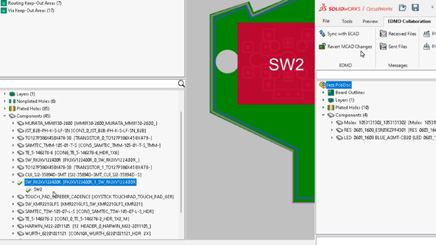
                        Download

                          Download

                            Download