Unlocking 3D Creativity: Designing Complex Shapes Made Easy

BLOG

Unlocking 3D Creativity: Designing Complex Shapes Made Easy

[techtips_featured_image_shortcode]

When it comes to the creative process, the 3D Sculptor and 3D Creator roles on the 3DEXPERIENCE platform provide a user-friendly interface that allows you to easily manipulate and shape complex parts. As a result, these tools offer a streamlined workflow and powerful CAD capabilities, making the design process more efficient and intuitive. With x3D Sculptor and 3D Creator at your fingertips, the art of crafting intricate shapes becomes a seamless journey.

3D Sculptor, 3D Creator, and the 3DEXPERIENCE Platform

The 3DEXPERIENCE platform roles 3D Sculptor and 3D Creator revolutionize the way designers and engineers approach complex shape design. By harnessing the power of these browser-based functionalities, you can break down intricate concepts into manageable steps, starting with basic shapes and gradually evolving them into sophisticated designs. In turn, this streamlined workflow not only enhances design flexibility but also enables quick iteration and realization of creative ideas. Furthermore, with advanced features tailored for various industries, 3D Sculptor and 3D Creator are paving the way for unlocking limitless creativity.


3D Sculptor Enhances Design FlexibilityA person seated in front of two computer monitors displaying 3D Sculptor and a 3D model

The 3D Sculptor role simplifies the creation of complex parts by starting from basic shapes and using advanced tools for intricate designs. More specifically, it allows easy manipulation of compound shapes and complex geometries, ensuring your creative vision is realized. Additionally, access to a variety of Sub-D tools within the xShape app enhances your ability to refine and perfect designs with precision and flexibility. These capabilities empower you to push the boundaries of design, achieving higher levels of complexity and detail.


  • Create complex parts using basic shapes
  • Use advanced features for working with compound shapes
  • Easily manipulate and shape complex geometries
  • Access additional Sub-D tools in the xShape app
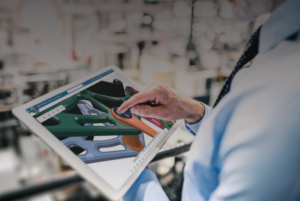
 

A person holding a tablet displaying 3D Creator and a colorful 3D model of a mechanical part

3D Creator Streamlines Your Design Workflow

With 3D Creator, on the other hand, the focus is on streamlining the design process. This tool provides traditional parametric modeling tools in its xDesign app, allowing you to easily create and modify designs using curves and surfaces. By comparison, the combination of Sub-D modeling in 3D Sculptor and parametric modeling in 3D Creator gives you the flexibility to mix and match tools as needed, ensuring that you have the right tools for the job.


  • Provides traditional parametric modeling
  • Allows for easy creation and modification of designs using curves and surfaces
  • Offers a seamless workflow with 3D Sculptor


3D Sculptor and 3D Creator for Complex Shapes

Overall, the advantages of using 3D Sculptor and 3D Creator for complex shapes are numerous. These tools not only enhance design flexibility but also streamline the design process, saving you time and effort. With their intuitive interfaces and powerful capabilities, you can easily create and modify complex geometries, whether you’re starting from basic shapes or working with compound parts. Additionally, these tools facilitate collaboration in design projects, allowing team members to work together seamlessly and share their ideas.


Simplifying the Creation of Complex Geometries

Creating complex geometries can be a challenging task, but with 3D Sculptor and 3D Creator, it becomes much simpler. To address this challenge, these tools provide a range of features and tools specifically designed to simplify the creation of complex shapes, including the use of simple shapes as building blocks. For example, whether you’re working with compound shapes or intricate parts, you’ll find that these tools offer the flexibility and precision needed to bring your designs to life. Ultimately, by starting with basic shapes and gradually building up the complexity, you can create unique and innovative designs without the limitations of traditional tools.


Enhancing Collaboration in Design Projects

Collaboration is a vital aspect of any design project, and 3D Sculptor and 3D Creator make it easier than ever to work together seamlessly. In practice, team members can collaborate in real-time, sharing their ideas and making modifications on the fly. As a result, this not only speeds up the creative process but also ensures that everyone’s input is taken into account. Therefore, whether you’re working on a design project with colleagues or collaborating with clients, 3D Sculptor and 3D Creator provide the necessary tools to enhance collaboration and bring your designs to life.


Step-by-Step Guide to Designing with 3D Sculptor

Now that you understand its main capabilities, designing with 3D Sculptor is a straightforward process that allows you to unleash your creativity and create complex shapes with ease. Here is a step-by-step guide to help you get started:

  • Start by launching the 3D Sculptor app in your browser.
  • Choose a basic shape to serve as the foundation for your design.
  • Use the push and pull technique to manipulate the shape and create the desired complex geometry.
  • Access additional Sub-D tools in the xShape app to refine and fine-tune your design.
  • Save your design and export it for further use or collaboration.


Starting Your First Project: Tips and Tricks

To set yourself up for success, start by selecting a basic shape that closely resembles your final design. This simplifies the process and provides a solid base upon which to build. From here, you can push and pull your base to manipulate the shape, adding layers of complexity and detail.


As you progress, don’t hesitate to experiment with different Sub-D tools. These tools are invaluable for refining and perfecting your design, allowing you to achieve the intricate details that will make your project stand out.

  • Begin with a clear idea of the complex shape you want to create
  • Start with a basic shape that closely resembles the final design
  • Utilize the push and pull technique to manipulate the shape and add complexity
  • Experiment with different Sub-D tools to refine and perfect your design

Advanced Techniques for Refining Your Designs

Once you’ve mastered the basics, it’s time to elevate your designs with advanced techniques. Combining parametric modeling techniques with Sub-D modeling can offer added flexibility and control. Additionally, experiment with different surface finishes and textures and discover unique effects that add depth and character to your creations. Ultimately, this hybrid approach allows you to fine-tune your designs with mathematical precision while retaining the creative freedom of Sub-D modeling.

Key Techniques for More Refined Designs

  • Use advanced Sub-D tools to add intricate details to your design
  • Combine parametric modeling techniques with Sub-D modeling for added flexibility
  • Experiment with different surface finishes and textures to enhance the visual appeal of your design
  • Take advantage of the collaboration features to gather feedback and make adjustments

Bring Complex Designs to Life with 3D Sculptor and 3D Creator

3D Sculptor and 3D Creator combine the creative freedom of Sub-D modeling with the precision of parametric design. Together, xShape and xDesign help you create complex shapes, refine ideas faster, and collaborate seamlessly on the 3DEXPERIENCE platform.


Ready to explore what 3D Sculptor and 3D Creator can do for your design process? Contact our team to find the right 3DEXPERIENCE solutions for your needs.

Frequently Asked Questions

What is a Role on the 3DEXPERIENCE platform?

A Role on the 3DEXPERIENCE platform refers to a set of permissions and capabilities assigned to a user, determining what actions they can perform within the software. Each role is tailored to specific functions or responsibilities, ensuring that users have access only to the tools and features necessary for their tasks. By assigning roles appropriately, organizations can optimize workflow efficiency and data security within the platform.

What are some techniques for designing complex shapes in 3D modeling?

Designing complex shapes requires a combination of creativity and technical skills. Some techniques include starting with basic shapes and gradually building up complexity, using Sub-D modeling tools for organic shapes, and leveraging parametric modeling for precise control over dimensions and features.

How do you ensure manufacturability when designing complex shapes?

When designing complex shapes, it is important to consider manufacturability. By utilizing tools like Manufacturing Definition Creator, you can create 3D and 2D definitions that ensure your design can be manufactured correctly. This helps eliminate potential issues and ensures a smooth transition from design to production.

What software tools are commonly used for designing complex shapes?

There are several software tools commonly used for designing complex shapes, with 3D Sculptor and 3D Creator being popular choices. These browser-based tools offer powerful CAD capabilities and streamlined workflows, making them ideal for tackling the challenges of complex designs and organic shapes.

What are the challenges faced when designing intricate geometries?

Designing intricate geometries can present several challenges. These include maintaining the integrity of the design while adding complexity, ensuring the manufacturability of the final product, and managing the interdependencies between various features and dimensions. However, with the right tools and techniques, these challenges can be overcome.

What role does parametric design play in creating complex shapes?

Parametric design allows designers to manipulate basic shapes and explore different possibilities in creating complex shapes. It provides the flexibility to modify dimensions, curves, and surfaces, making it easier to iterate and refine designs. The parametric approach streamlines the creative process and enables designers to achieve complex shapes efficiently.

X_green_halo

Any questions? Need help? Ask one of our experts.

Whether you’re ready to get started or just have a few more questions, you can contact us toll-free:

    Refreshed, Renewed, & Reinvigorated: The New Solidxperts Debuts at MMTS 2024

    BLOG

    Refreshed, Renewed, & Reinvigorated: The New Solidxperts Debuts at MMTS 2024

    [techtips_featured_image_shortcode]

    The Montreal Manufacturing Technology Show (MMTS) 2024 has come to a successful close, and Solidxperts is proud to have been a part of this exciting event. Held at the Palais des Congrès de Montréal from June 18-20, MMTS once again proved to be a cornerstone for the manufacturing industry, drawing thousands of professionals eager to explore the latest innovations.


    Unveiling the New Solidxperts Branding and Tradeshow BoothSolidxperts team at MMTS booth

    One of the most exciting moments for us at MMTS 2024 was the unveiling of our new Solidxperts branding and tradeshow booth. Our refreshed brand identity reflects our evolution as a company and our commitment to staying at the forefront of technology.

    The new Solidxperts tradeshow booth setupOur Impact at MMTS 2024

    Our booth was a hub of activity, attracting a diverse audience of industry leaders, engineers, and technology enthusiasts. Here’s a look at some of the highlights from the Solidxperts booth:


    Engaging Live Demonstrations

    Our live demonstrations were a standout feature of our booth. Captivating attendees with more than just our sharp-dressed team, our real-time showcases of SOLIDWORKS, 3DEXPERIENCE, and 3D printing always aim to provide valuable insight into what our tools can do, and what they can do for you!


    Showcasing the Latest 3D Innovations

    We were thrilled to introduce our latest offerings to the MMTS audience.

    Our advanced CAD and simulation tools as well as our cutting-edge 3D printing technologies truly stole the show.

    Everyone seemed particularly impressed to see how all these pieces come together to solve complex manufacturing challenges in creative and innovative ways.


    The Solidxperts tradeshow booth full of visitorsExpert Engagement

    Our team of knowledgeable experts was on-hand to engage with attendees, answer questions, and provide personalized advice.


    Valuable Networking Opportunities

    Every show, MMTS provides an excellent platform for networking, and this year was no exception. We were delighted to meet and connect with everyone, forging new relationships and strengthening existing ones.


    Next time you find yourself at an industry tradeshow, look us up and come say hi!


    Looking Ahead

    Reflecting on our participation in MMTS 2024, we are amped up and ready to empower innovation and enable design success. The positive feedback and enthusiastic response from our visitors have reaffirmed our dedication to providing top-tier solutions that meet your evolving business needs.


    Thank You!


    We extend our heartfelt thanks to everyone who visited our booth, participated in our demonstrations, and engaged with our team. Your support and interest drive us to continually push the boundaries of what’s possible in manufacturing technology.


    Stay connected with Solidxperts for more updates, insights, and upcoming events. Follow us on social media and visit our website, www.Solidxperts.com, to stay informed about our latest developments and opportunities.


    For more information about our products and services or to discuss how Solidxperts can support your business, don’t hesitate to reach out. We’re here to help, every step of the way.


    Contact us


    We look forward to participating in future events and continuing to lead the way in 3D design and manufacturing technology.

    X_green_halo

    Any questions? Need help? Ask one of our experts.

    Whether you’re ready to get started or just have a few more questions, you can contact us toll-free:

      The Ultimate Guide to Working with the 3DEXPERIENCE Platform and 3DEXPERIENCE Apps

      BLOG

      The Ultimate Guide to Working with the 3DEXPERIENCE Platform and 3DEXPERIENCE Apps

      [techtips_featured_image_shortcode]

      In our world of product design, efficient collaboration, and seamless lifecycle management are crucial. Thankfully, the 3DEXPERIENCE platform emerges as a powerful solution, offering a comprehensive suite of tools and applications designed to streamline the product development process. In this ultimate guide, we’ll delve into the intricacies of working with the 3DEXPERIENCE platform and explore the key features and functionalities of its associated apps.


      Understanding the 3DEXPERIENCE Platform


      At its core, the 3DEXPERIENCE platform serves as a business experience platform, providing robust product lifecycle management capabilities. This platform encourages and supports collaboration among your team members, allowing them to design products together, and guides them through the entire lifecycle from conception to final release.


      Roles and Apps


      Roles play a pivotal role in determining the apps and services accessible to you as a platform user. For mechanical designers working in collaborative teams, the Collaborative Designer for SOLIDWORKS role opens the gateway to a host of design routine-boosting functionalities.


      With this role, users can:


      • Search for, store, and manage files in collaborative spaces on the 3DEXPERIENCE platform in the cloud.
      • Share files with team members and leverage product lifecycle management features such as lock and unlock, tags, and revisions.
      • Access additional apps and services in the 3DEXPERIENCE Marketplace.


      The Collaborative Designer for SOLIDWORKS role comes with a set of apps that run within SOLIDWORKS and SOLIDWORKS Visualize, including:


      • Design with SOLIDWORKS
      • Render with SOLIDWORKS Visualize
      • Derived Format Converter (Optional)


      *You’ll need both the 3DSwymer and Collaborative Industry Innovator roles before you can get started with Collaborative Designer.


      Key Terms for Navigating the Platform


      To effectively navigate the 3DEXPERIENCE platform and the 3DEXPERIENCE Connector for SOLIDWORKS, understanding key terms is essential:

      Compass – The Compass 3dexperience serves as the gateway to the 3DEXPERIENCE platform, providing access to roles and apps.


      Role – Roles define the scope of apps and services available to users, tailored to specific job requirements. Administrators can create custom roles for users.


      Collaborative Spaces – Collaborative spaces are secure areas on the platform for storing and managing files, supporting version control, and enabling collaboration among team members.


      Physical Product – A physical product is a configuration of a part or assembly that can be manufactured, each with a unique part number for efficient searching.


      CAD Family and CAD Family Objects – CAD families encompass one or more configurations of a part or assembly. CAD family objects represent the root configuration, all saved in the same collaborative space.


      Installing and Connecting


      Installing the 3DEXPERIENCE apps requires several prerequisites, including platform credentials, a web browser, Java 11 JRE, SOLIDWORKS 2019 SP0 or later, and SOLIDWORKS Visualize Standard or Professional 2020 SP3 or later. Once installed, users can seamlessly connect to the platform and access the designated apps and services.


      To install the 3DEXPERIENCE apps:


      1. Close SOLIDWORKS and SOLIDWORKS Visualize.
      2. Log in to the 3DEXPERIENCE platform.
      3. If your company has an on-premises installation, contact your Administrator to get the sign-in link.
      4. On the top bar of the 3DDashboard, click the Compass.
      5. Under Me, click SOLIDWORKS.

              3dexperience

      6. Follow the prompts to download and install Design with SOLIDWORKS.


      Creating Collaborative Spaces


      Collaborative spaces are pivotal to the collaborative aspect of the platform. Users can create collaborative spaces to store, share, and manage files, providing a structured environment for efficient collaboration. Collaborative space owners and administrators have the authority to add members, assign access roles, and manage the collaborative space’s lifecycle.


      Getting Started with 3DEXPERIENCE Apps


      The 3DEXPERIENCE platform boasts a plethora of apps designed to cater to diverse needs. From project management to 3D model visualization, users can leverage these apps to enhance their workflow. The 3DDashboard serves as a portal, offering a centralized view of project and task information.


      Commonly Used Apps:


      3dexperience


      3DSpace: Create collaborative spaces for data storage, sharing, and controlled access.


      3dexperience


      3DSwym: Connect with communities for collaborative discussions, questions, and information sharing.


      3dexperience


      3DSearch: Find content from various sources with the ability to filter results using 6WTags.


      3dexperience


      3DPlay: A viewer for manipulating 3D models, providing advanced functionalities such as sectioning, measuring, and annotating designs.


      Managing Files in MySession


      The MySession widget plays a pivotal role in managing your SOLIDWORKS on the 3DEXPERIENCE platform. Open, save, and export files seamlessly, utilizing the context menu or action bar. The FAQ section provides valuable insights into common queries related to saving all your SOLIDWORKS files, collaborative spaces, physical products, and CAD families.


      The 3DEXPERIENCE platform, coupled with the Collaborative Designer for SOLIDWORKS role and associated apps, presents a comprehensive solution for modern product design and development. Whether you are a mechanical designer or a collaborative team member, this guide equips you with the knowledge to navigate the platform effectively, create collaborative spaces, and leverage the diverse range of apps available. Embrace the power of 3DEXPERIENCE for a seamless and collaborative product development experience.

      X_green_halo

      Any questions? Need help? Ask one of our experts.

      Whether you’re ready to get started or just have a few more questions, you can contact us toll-free:

        Reinvigorate your Engineering Passion at 3DEXPERIENCE World 2024: Take the 25th Annual Model Mania Challenge!

        BLOG

        Reinvigorate your Engineering Passion at 3DEXPERIENCE World 2024: Take the 25th Annual Model Mania Challenge!

        [techtips_featured_image_shortcode]

        It’s that time of year again, 3DEXPERIENCE World 2024 is quickly approaching, and our Xperts are beyond excited! Let’s embark on a journey of collaboration and creativity at 3DEXPERIENCE World 2024, where SOLIDWORKS users and Dassault Systèmes partners converge to explore the limitless possibilities of 3D design.


        This event serves as an excellent platform for both SOLIDWORKS fans like you, and Dassault Systèmes partners like us, to come together in a shared space for networking, collaboration, and fresh inspiration. It provides a unique opportunity for everyone in our industry who shares a common passion for all things 3D to connect, exchange ideas, and build valuable professional relationships. Join us for an enriching experience February 11-14th in Dallas, TX where the whole SOLIDWORKS community can interact and explore the exciting possibilities within the realm of 3D design.


        Model Mania – Where Design Magic Happens

        Guess what’s turning 25 this year? It’s our favorite SOLIDWORKS modeling championship – Model Mania! This is the big 25th edition, and whether you’re a seasoned pro or a budding design enthusiast, you’re not going to want to miss this chance to be part of the action.


        3DExperience 2024


        In-Person Excitement Returns to 3DEXPERIENCE World

        After a few years of virtual high-fives due to the pandemic, 2023 brought back the joy of in-person interactions. And guess what? This year, 3DEXPERIENCE World is going all-in on in-person! That means you – yes, you – can dive into the excitement of Model Mania by being right there in Dallas.


        How to Participate in the Model Mania SOLIDWORKS Challenge

        At 3DEXPERIENCE World, head over to the Model Mania booth in the Playground during the conference hours on Sunday, Monday, and Tuesday. This will be your chance to showcase your SOLIDWORKS skills and compete for 1st place.


        But, what’s the challenge?

        Six cubicles, each equipped with a desk, chair, and a laptop with the necessary software, await participants. First, you’ll receive a drawing of a part, Phase 1, and you’ll need to demonstrate your SOLIDWORKS Connected skills. Following successful completion of Phase 1, you’ll get a Phase 2 drawing, reflecting edits for the part.


        The challenge, judged for accuracy and speed, promises an exciting experience for all. Winners will be announced at the Playground Theater on Wednesday, February 14th, at 12:30 PM CST, and the event will also be broadcast simultaneously on SOLIDWORKS Live!


        Explore the 3DEXPERIENCE Hands-on Trial Zone

        While at the Model Mania challenge, the Hands-on Trial Zone awaits your discovery. This interactive area is designed to give attendees an up-close and personal experience with the latest innovations in 3D design and collaboration.


        Dive into the cutting-edge features of 3DEXPERIENCE Works, including:


        • SOLIDWORKS + Cloud Services: Uncover the ease of sharing SOLIDWORKS designs through new Cloud Services included in every license. Experience the power of cloud collaboration from any location, on any device, all powered by the 3DEXPERIENCE platform.


        • Next Generation Design: Engage in a hands-on exploration of next-generation design tools on the cloud, featuring freeform subdivision (SubD) modeling and browser-based CAD. This is where design possibilities meet practical application!


        • Simulation Showcase: Immerse yourself in a glimpse of the future with cloud-enabled simulation solutions for SOLIDWORKS users. Get hands-on with the newest and most advanced tools, powered by ABAQUS, and witness the potential of simulation-driven design.


        While you’re at the 3DEXPERIENCE Hands-on Trial Zone, take advantage of the opportunity to test drive the latest technology, gain valuable insights, and engage in discussions with industry experts. It’s a collaborative space where you can explore, learn, and share your design experiences.


        Spot the Xpert

        As 3DEXPERIENCE World 2024 unfolds, keep your eyes peeled for the SolidXperience team – your go-to Xperts for all things 3D design! Whether you’re a seasoned SOLIDWORKS user, a Dassault Systèmes partner, or someone exploring the vast world of 3D innovation, we’re here to connect with you.


        Feel free to strike up a conversation with any member of the SolidXperience group. We’re not just here to showcase our expertise; we’re eager to hear about your unique 3D design journey. Whether you have burning questions, exciting success stories, or are just curious to explore the possibilities, we’re all ears!


        We can’t wait to see you in Dallas!

        X_green_halo

        Any questions? Need help? Ask one of our experts.

        Whether you’re ready to get started or just have a few more questions, you can contact us toll-free:

          What’s New in DraftSight and 3DEXPERIENCE DraftSight 2024

          BLOG

          What’s New in DraftSight and 3DEXPERIENCE DraftSight 2024

          [techtips_featured_image_shortcode]

          Welcome to the future of drafting and CAD design with the latest releases of DraftSight 2024 and 3DEXPERIENCE DraftSight R2024x GA. As we embark on this journey of innovation, we’re excited to unveil the enhancements that not only elevate the capabilities of our industry-leading 2D drafting and 3D CAD solution but also redefine the user experience.


          In this article, we’ll delve into the key features that make DraftSight 2024 and 3DEXPERIENCE DraftSight R2024x GA stand out. From collaborative tools to advanced customization options, we aim to empower you with the tools you need to boost productivity and seamlessly bring your design ideas to life. So, buckle up as we explore the cutting-edge advancements that await you in these releases.

          Top New Features in 3DEXPERIENCE DraftSight 2024

          1.Support for CATIA Drawings – collaborate with clarity and precision.

          Ensuring you and your partners have the best experience when collaborating is at the top of the list. In DraftSight 2024 you can import CATIA model drawings from a local disk or the 3DEXPERIENCE platform. When you import a CATIA drawing you can expect it to behave as any other DWG file so you can easily edit the drawing.


          DraftSight and 3DEXPERIENCE DraftSight 2024


          Import CATIA model space drawings from a local disk or the 3DEXPERIENCE platform.


          2. Tool Palette Customization – accelerate drawing creation and ensure consistency.

          The tool palettes in DraftSight 2024 are designed to heighten your productivity. For starters, you can find all your frequently used commands and features in one place. Customization extends to predefined settings including layer, color, and line type, and ensures all newly created entities conform to the pre-defined standards across drawings.


          DraftSight and 3DEXPERIENCE DraftSight 2024


          Quickly insert an existing palette with the Import Palette functionality. You can also efficiently create new palettes simply by dragging and dropping or importing and exporting pre-existing palettes created in other 2D CAD solutions.


          3. Layer Palette – enhance the legibility of drawings with greater control of how inactive layer groups display.

          The new Layer Manager Palette provides quick access to all your layer commands in one place, including layers, layer states, layer previews, or isolating layers. There’s also a new Merge Layer command so you can merge multiple layers into a single layer for better control and management. Last, with the new Visibility Enhancement command you can specify how objects in inactive layer groups appear in drawing areas.


          DraftSight and 3DEXPERIENCE DraftSight 2024


          Accessibility to the tool palette has been simplified in the new CAD General workspace.


          4. Export Sheet Command – rapidly create new drawings from existing files without loss of detail.

          Your wish is our command. With all the new commands in DraftSight 2024, you can stay more productive than ever, including when it comes to dealing with sheets. With the new Export Sheet command, you can export all visible entities from an active sheet viewport and entities from the sheets to the new drawing. In addition, you can enhance the readability of a specific section, area, or view of the drawing with exported entities that are scaled views of model space, title block, and other annotative entities, such as dimensions and notes.


          DraftSight and 3DEXPERIENCE DraftSight 2024


          Export all visible entities of the active sheet viewports in model space to a new drawing with the new Export Sheet command.


          5. Enhanced User Interface – easily navigate 3D models and reduce eyestrain.

          To reduce eyestrain and enhance feature function visibility there’s a new default Dark mode. There’s also a new View Navigator so you can easily switch between standard and isometric views or parallel and perspective views of a model. Its interface acts as a 3D orientation indicator that lets you see the current view direction.


          DraftSight and 3DEXPERIENCE DraftSight 2024


          The user interface features a new default dark mode to reduce eyestrain and enhance feature function visibility.

          Upgrade Your Drafting Workflow with 3DEXPERIENCE DraftSight 2024

          With DraftSight 2024 and 3DEXPERIENCE DraftSight R2024x GA, you’re not just keeping pace, you’re surging ahead. Whether you’re collaborating with precision through CATIA drawings, streamlining your workflow with customizable tool palettes, or enjoying the enhanced legibility offered by the Layer Palette, these releases are designed to make your design journey smoother and more efficient. The Export Sheet Command and the Enhanced User Interface are the cherries on top, ensuring that you not only create with precision but do so with reduced eyestrain and enhanced visual clarity.


          As you explore the latest capabilities, we invite you to elevate your drafting experience, embrace innovation, and make the most of the tools that DraftSight 2024 and 3DEXPERIENCE DraftSight R2024x GA bring to your fingertips. If you have any questions, comments, concerns, or just want some Xpert guidance, reach out to our dedicated DraftSight teams today to learn more about how we can help bring your designs to life!

          X_green_halo

          Any questions? Need help? Ask one of our experts.

          Whether you’re ready to get started or just have a few more questions, you can contact us toll-free:

            Getting Started with Share and Markup on the 3DEXPERIENCE Platform

            BLOG

            Getting Started with Share and Markup on the 3DEXPERIENCE Platform

            [techtips_featured_image_shortcode]

            Welcome to our tutorial on how to get started with Share and Markup, the powerful collaboration tool on the 3DEXPERIENCE platform. Share and Markup allows you to seamlessly collaborate with various stakeholders, even if they don’t have the 3DEXPERIENCE platform or SOLIDWORKS. Whether you need to share your designs within or outside your organization, this tutorial will walk you through the process step by step, ensuring a smooth and efficient collaboration experience.

            Introduction to Share and Markup

            Share and Markup is a collaboration feature that simplifies the process of working with stakeholders who may not have direct access to the 3DEXPERIENCE platform or SOLIDWORKS. It allows you to share your designs and collaborate efficiently, all from within your SOLIDWORKS environment.

            Enabling Share and Markup

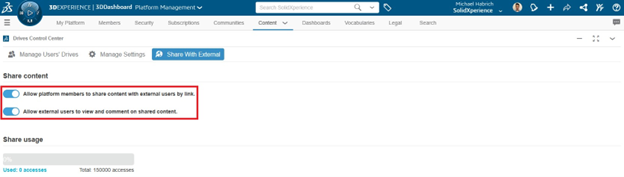
            Before you can start using Share and Markup, your platform administrator must enable the “Allow platform members to share content with external users by link” and “Allow external users to view and comment on shared content” options in the Platform Management dialog. This step ensures that you have access to these collaboration features.


            the 3DEXPERIENCE Platform


            Sharing Your Design

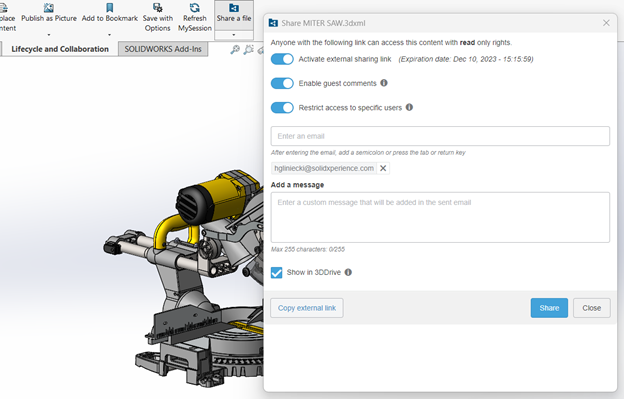
            • Click on the “Share a File” command in SOLIDWORKS.
            • Choose the format in which you want to share your design (e.g., 3DXML, PDF, or STEP).
            • Configure options like “Enable guest comments” and “Restrict access to specific users”.
            • Enter the email addresses of the recipients.


            the 3DEXPERIENCE Platform

            Accessing Shared Models

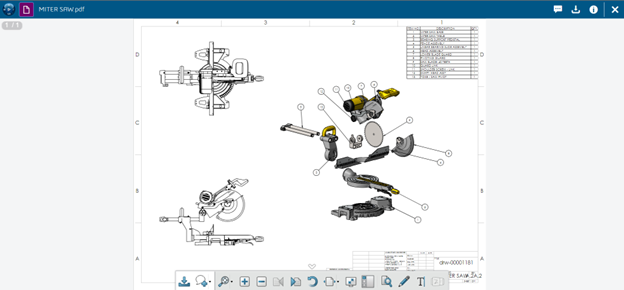
            Recipients will receive an email with a link to access the shared model. They may need to set up a free 3DEXPERIENCE ID account if they don’t already have one. Once they click the link, they can access and view the model in the 3DPlay viewer.

            the 3DEXPERIENCE Platform

            the 3DEXPERIENCE Platform

            Marking Up and Commenting

            Recipients can mark up and comment on the model using intuitive tools in 3DPlay. They can save their markups/comments as snapshots, making it easy to provide feedback.

            Sending Back Markups

            To send the markups/comments back to the designer, recipients can use the “Send” button from the Comments window. They can add additional messages if needed.

            Managing Access

            You have the ability to manage access to shared models and revoke it at any time. This feature is useful when a stakeholder no longer requires access or if project roles change.

            Use Cases

            • Sharing 2D Drawings: Share 2D drawings with suppliers or partners for quotes or reviews.


            the 3DEXPERIENCE Platform


            – Sharing for Machining: Share 3D files for machining or 3D printing, and easily update the model as needed.


            the 3DEXPERIENCE Platform


            • Sharing Lightweight Designs: Share lightweight 3DXML models for easy viewing on various devices, perfect for marketing presentations.

            Simplify Design Collaboration with Share and Markup

            Share and Markup makes it easier to share SOLIDWORKS designs, collect feedback, and collaborate with internal or external stakeholders through the 3DEXPERIENCE platform. Recipients can view models, add comments, and return markups without needing a SOLIDWORKS license, while designers retain control over access and shared content.


            Whether you are requesting a supplier quote, reviewing a design with a customer, or sharing a model for machining or 3D printing, Share and Markup helps reduce communication delays and keep feedback connected to the design.


            Contact the Solidxperts team for support with Share and Markup or other 3DEXPERIENCE collaboration tools.

            X_green_halo

            Any questions? Need help? Ask one of our experts.

            Whether you’re ready to get started or just have a few more questions, you can contact us toll-free:

              3DEXPERIENCE SOLIDWORKS Offline Mode

              BLOG

              3DEXPERIENCE SOLIDWORKS Offline Mode

              [techtips_featured_image_shortcode]

              Working offline in 3DEXPERIENCE SOLIDWORKS allows you to continue working on your CAD models even when you don’t have an internet connection. Here are the steps to work offline in 3DEXPERIENCE SOLIDWORKS: 


              Step #1: Save Your Files Locally 


              1 – Open the 3DEXPERIENCE SOLIDWORKS application on your computer.


              2 – Log into the 3DEXPERIENCE platform.


              3 – Open the model or file you plan to work on while offline. You can do this by either dragging and dropping it into SOLIDWORKS or choosing “Open from 3DEXPERIENCE.”


              4 – Make sure to lock the file and its components on the platform to prevent others from making changes while you work offline.


              5 – The file is now cached locally on your computer.


              Step #2: Switch to Offline Mode 


              1 – In the upper right corner of the SOLIDWORKS interface, click on your user icon.


              2 – Click the globe icon next to ‘Work Offline.’


              solidworks 3dexperience


              3 – A dialog box will appear, providing information about working offline and allowing you to set the offline time (up to 30 days).


              4 – Click ‘OK’ to switch to offline mode.


              solidworks 3dexperience


              Step #3: Work Offline 


              1 – While working offline, you can make changes to your locally cached files.


              2 – Save your changes using local save options like ‘Save to This PC’ or ‘Save As New.’


              solidworks 3dexperience


              3 – You can continue working on your files without an internet connection.


              Step #4: Save Your Files Back Online 


              1 – To switch back to online mode, click your user icon again and then click the globe icon next to ‘Work Offline.’


              2 – Open the files you saved locally while offline.


              3 – Use the SOLIDWORKS save options, including ‘Save to 3DEXPERIENCE,’ to save your files back to the 3DEXPERIENCE platform.


              4 – Your files are now synchronized with the online platform, and you can continue working online.


              solidworks 3dexperience 

              Remember that you can work offline for a maximum of 30 consecutive days. Ensure you plan your offline work in advance and save the necessary files locally before going offline. Additionally, create desktop shortcuts for locally installed apps to access them while offline. 


              Working offline in 3DEXPERIENCE SOLIDWORKS allows you to be productive even when you don’t have an internet connection. This feature can be particularly useful for remote work or situations where a stable internet connection is not available. 

              X_green_halo

              Any questions? Need help? Ask one of our experts.

              Whether you’re ready to get started or just have a few more questions, you can contact us toll-free:

                Defying Limitations: Bowhead Corporation, SOLIDWORKS, and the 3DEXPERIENCE Platform

                BLOG

                Defying Limitations: Bowhead Corporation, SOLIDWORKS, and the 3DEXPERIENCE Platform

                [techtips_featured_image_shortcode]

                Christian Bagg, co-founder of Bowhead Corporation, is an admitted adrenaline junkie and outdoor enthusiast. After a snowboarding accident left him paralyzed from the waist down, all Bagg could think about was returning to his “normal” activities. His passion drove him to invent a mountain bike that accommodated the inability to use his legs. Although he was psyched to get back in the saddle again, another life-changing event lay just around the corner.


                Bagg loaned one of his bikes to a camp for disabled children. There he witnessed a 14-year-old girl with cerebral palsy, who rarely spoke, return excited and energized from her first-ever experience of complete freedom on a bike. “Best day of my life!” she exclaimed. Her incredible joy galvanized Bagg’s mission: His company, Bowhead Corporation, would make access to mountain trails, woodland hikes, and the beauty of the great outdoors a reality for people around the world who have disabilities.


                https://www.youtube.com/watch?v=88KPf6_Tq2A


                Designs Evolve as Company Grows

                With SOLIDWORKS 3D CAD, Bowhead Corp. introduced its innovative hybrid ATV/mountain bike a year ahead of schedule. Along with streamlining design efficiency, SOLIDWORKS Simulation enabled the Bowhead team to reduce its need for prototypes, which helped the company produce the bike with dramatically lower costs.


                The first Bowhead Reach bike was delivered in November 2018. The company quickly learned that some riders were jumping over obstacles while sailing the bike up to eight feet in the air.


                Bowhead Corporation, SOLIDWORKS, and the 3DEXPERIENCE Platform


                This prompted Bowhead to modify the base design by beefing up the shock absorber. It also replaced the throttle and braking controls with forearm paddles and built helmet-mounted bite throttles for use by quadriplegics.


                “Now we have three bikes. We [also] have customer service, operations, engineering, and inventory management,” says Bagg. “SOLIDWORKS plays a role in every piece of our company.”


                The growing company needed a data management and collaboration solution to continue working as an efficient and unified team.


                Everyone on the Same Page

                With 800 to 900 parts, Bowhead bikes are complex. “The [cloud-based] 3DEXPERIENCE platform became a way to manage an engineering company, not just to engineer the parts,” notes Bagg. “It was a funny moment realizing … that SOLIDWORKS and the 3DEXPERIENCE platform were more than just engineering tools,” he recalls. “They became this sort of marriage counselor between operations and customer service and engineering. It was a way for everyone to look at a problem in a focused manner and then deal with it as a team.”


                Bowhead Corporation, SOLIDWORKS, and the 3DEXPERIENCE Platform


                Modifications during product development can originate from the shop floor, designers, managers, and even customers. “When you are working with a complex product like ours, it is very important that you stay on top of the changes,” says Mechanical Engineer Sanket Patil. “A simple change affects everything, be it in your assembly or processes.”


                The browser-based aspect of the 3DEXPERIENCE platform brings familiarity to any user who accesses the internet. “One of the things that I really enjoyed was giving access to the platform to non-CAD users who needed access to it because they do so much with the data,” notes Patil. “I didn’t have to hold their hand [or teach them anything]. I sent them a link where they created their user credentials, and they started using the system like pros from day one.”


                “You find different ways of using the tool that wouldn’t be obvious to an engineer. By using 3DEXPERIENCE, things become less obscure, and everyone starts speaking the same language. As a communication tool, we finally have one way to bring everybody together.”

                -Christian Bagg, co-founder of Bowhead Corporation


                Control As a Positive Force

                Managing all product data, parts, inventory, and bills of material is critical for Bowhead’s operational efficiency, collaboration, and success.


                VP of Engineering Roger McPherson notes, “… to maintain the quality of our product, control is really important. The 3DEXPERIENCE platform has been useful for us in that way. We must make sure that our changes—and they come from everywhere—are managed whether from builders, customers, quality, or suppliers. We must manage that [data in an automated way].”


                “All of our data is on the platform,” adds Patil. “We use the maturity states to control if a particular document or a part file or a drawing is being worked or if it’s released. This helps us to understand what is in the latest revision or what is the latest state of a drawing or a file.” Before using the 3DEXPERIENCE platform, Bowhead’s revision control was basically renaming a part file to something like “revision 1.11.2,” or “FINAL final revision.”


                Great Communication Prevents Delays

                Clear communication eliminates confusion and prevents duplicate or missed work, which improves productivity and speeds up the development process. When information is shared openly and effectively, all team members can make informed decisions faster and more effectively.


                “As you grow your company, you really must grow the way you communicate. Having a cohesive, one-stop shop for communication has been, from a management side, the biggest addition of the 3DEXPERIENCE platform to the SOLIDWORKS engineering platform,” says Bagg.


                For example, the company’s assembly team can now see inside the glass doors of an engineering room, so they feel like part of the engineering team. The 3DEXPERIENCE platform enables all key departments to give feedback on the design earlier in the process, which can help prevent misunderstandings and associated delays downstream.


                Secure and Easy File Sharing

                “We quite frequently share information (3D data and 2D drawings) with external stakeholders [via the 3DEXPERIENCE platform],” says Operations Specialist Tatiana Place. Some suppliers use the files to produce Bowhead parts. Others use 2D drawings to supplement the 3D model. Bowhead also sends files to a firm that supports the company’s engineering change processes when Bowhead’s in-house team needs additional help.


                Place loves how the 3DEXPERIENCE platform has replaced cumbersome and confusing email communications and supports its collaboration with suppliers. “[The platform] has enabled us to amplify our workforce and continually innovate the rate that we come up with ideas,” concludes Place. “I can’t imagine a world without 3DEXPERIENCE right now.”


                If you’d like more information about how the 3DEXPERIENCE platform can improve your data management, collaboration, and communication, contact our dedicated team of Xperts to learn how to make the platform part of your SOLIDWORKS workflow.

                X_green_halo

                Any questions? Need help? Ask one of our experts.

                Whether you’re ready to get started or just have a few more questions, you can contact us toll-free:

                  Demystifying the 3DEXPERIENCE Shop Floor Programmer: Everything You Need to Know

                  BLOG

                  Demystifying the 3DEXPERIENCE Shop Floor Programmer: Everything You Need to Know

                  [techtips_featured_image_shortcode]

                  In the world of modern manufacturing, where precision and efficiency reign supreme, the role of a Shop Floor Programmer has emerged as a crucial cog in the production machine. But what exactly does a Shop Floor Programmer do, and why is it so vital in today’s manufacturing landscape? In this article, we’ll demystify the Shop Floor Programmer role, both on the 3DEXPERIENCE platform and on the production floor, and shed light on why it’s an indispensable part of the quickly digitalizing modern manufacturing process.


                  The Shop Floor Programmer: A Key Player in CNC Machining

                  At its core, the Shop Floor Programmer is the mastermind behind the CNC (Computer Numerical Control) machines on the shop floor. These professionals are responsible for translating intricate design blueprints and concepts into a language that machines can understand and execute. In essence, they bridge the gap between design and reality, turning digital visions into tangible products.


                  Structured Roles on the 3DEXPERIENCE platform

                  Roles on the 3DEXPERIENCE platform are meticulously designed to mirror vital positions within the industry, ensuring that users have access to the apps, tools, and capabilities on the platform they’ll need to excel in their position. The Shop Floor Programmer role is no exception, as it’s crafted to empower professionals in CNC machining and shop floor management with a comprehensive toolkit to meet the demands of manufacturing.


                  Equipping Shop Floor Programmers for Success

                  To excel in the Shop Floor Programmer role, on the 3DEXPERIENCE platform, and in the manufacturing industry at large, individuals need a combination of technical prowess and a deep understanding of the manufacturing process. Here are the essential tools and skills that empower them to thrive:


                  1. CNC Programming Expertise: Proficiency in CNC programming is at the core of the role. This includes understanding the intricacies of toolpath generation, G-code programming, and machine kinematics.


                  1. CAD Design Familiarity: A solid grasp of computer-aided design (CAD) is essential for maintaining CAD-associativity and ensuring that design changes seamlessly propagate to CNC programs.


                  1. Simulation Proficiency: Mastery of simulation tools is crucial to validate CNC programs, detect potential issues, and optimize machining operations. This requires an eye for detail and a knack for problem-solving.


                  1. Machining Process Knowledge: Shop Floor Programmers must be well-versed in various machining processes, tool assemblies, and CNC accessories to create efficient and collision-free programs.


                  1. Adaptability: The modern manufacturing landscape is constantly evolving. Shop Floor Programmers must stay updated with the latest industry trends and technologies to adapt to changes effectively.


                  1. 3DEXPERIENCE platform Mastery: Finally, expertise in navigating and utilizing the 3DEXPERIENCE platform’s features and capabilities is fundamental. This includes harnessing the CNC Programming Wizard, CAD-associative instant update, toolpath verification, and more.


                  By equipping themselves with these essential tools and skills, professionals can excel in the Shop Floor Programmer role, ensuring the seamless translation of design concepts into high-precision, real-world products. This structured approach not only empowers individuals but also elevates the entire manufacturing process, contributing to enhanced efficiency, reduced downtime, and ultimately, greater success in the industry.


                  How does the Shop Floor Programmer role on the 3DEXPERIENCE platform help?

                  The Shop Floor Programmer role on the 3DEXPERIENCE platform provides users with a comprehensive set of tools and features that significantly enhance their daily tasks and responsibilities in CNC machining and shop floor management.


                  1. Streamlines CNC Programming: The role simplifies the creation of CNC programs by offering an intuitive programming wizard. This means that users, even those with limited programming experience, can efficiently generate CNC programs for a wide range of machining operations, reducing the time and effort required.


                  1. Ensures CAD-Associativity: Users can maintain strong associativity between their CNC programs and the original CAD designs. This instant-update feature ensures that any design changes are automatically reflected in the CNC program, reducing the risk of errors, and ensuring that the manufacturing process remains synchronized with design updates.


                  1. Facilitates Toolpath Verification: Shop Floor Programmers can quickly verify and fine-tune toolpaths using the platform’s toolpath verification and editing capabilities. This enables them to identify and rectify any issues before they lead to costly errors during actual machining, reducing downtime and material wastage.


                  1. Enables Advanced Simulation: The role empowers users to visualize and simulate CNC programs in a virtual environment. This capability allows them to detect accessibility problems, tool collisions, or other potential issues before they occur on the shop floor. It’s like having a digital testing ground to ensure program safety.


                  1. Supports Prismatic and Wire EDM Operations: Users can create CNC programs for both prismatic machining and Wire EDM operations, expanding their capabilities to handle a wide variety of manufacturing needs.


                  1. Maximizes Machine Tool Utilization: Shop Floor Programmers can optimize CNC programs to reduce non-value-added motions, minimize machining cycle times, and prevent collisions with other in-process parts. This efficient programming helps maximize machine tool utilization, leading to increased productivity.


                  1. Mitigates Production Risks: By considering the physical environment of the CNC machines, tool assemblies, and accessories, the Shop Floor Programmer role helps reduce the risk of unexpected issues and production delays. Users can create CNC programs that are tailored to the specific machine and tooling, ensuring a smoother production process.


                  1. Leverages Intellectual Property: Users can define and store machining processes as templates, standardizing and automating repetitive tasks. This not only saves time but also ensures consistency in manufacturing, leveraging the company’s intellectual property and enhancing productivity.


                  1. Facilitates Rapid Response to Changes: With native associativity between machining programs and engineering/manufacturing data, users can quickly adapt to design changes or variations. This ability to respond effectively to engineering or manufacturing changes ensures a smoother transition from design to production.


                  In essence, the Shop Floor Programmer role on the 3DEXPERIENCE platform equips users with the tools and capabilities needed to streamline CNC programming, reduce errors, optimize machining processes, and mitigate production risks. It empowers them to excel in their daily jobs by making CNC programming more efficient, precise, and adaptable to the demands of modern manufacturing.


                  Why the Shop Floor Programmer Matters

                  The Shop Floor Programmer plays a pivotal role in ensuring that the manufacturing process runs smoothly and efficiently. By creating efficient NC programs and validating them through simulation, Shop Floor Programmers help minimize downtime due to errors or unexpected issues during production. They employ strategies to optimize toolpaths, reduce non-value-added motion, and avoid collisions, ultimately reducing the machining cycle time and maximizing machine tool utilization.


                  Shop Floor Programmers consider the physical environment of the CNC machines, tool assemblies, and accessories, reducing the risk of unexpected problems that could lead to production delays. Storing and reusing machining processes as templates not only saves time but also ensures consistency in manufacturing, leveraging a company’s intellectual property for greater productivity. With strong associativity between machining programs and design data, the Shop Floor Programmer role enables concurrent engineering, shortening the design-to-manufacturing cycle and allowing rapid responses to changes.


                  In conclusion, the Shop Floor Programmer is not just a behind-the-scenes operator; they are the orchestrators of precision and efficiency on the manufacturing floor. Their ability to create, validate, and optimize CNC programs, while seamlessly integrating them with design data, is instrumental in meeting the demands of modern manufacturing. As technology continues to advance, the role of Shop Floor Programmers will only become more critical in ensuring that businesses stay competitive and deliver top-quality products to the market.

                  X_green_halo

                  Any questions? Need help? Ask one of our experts.

                  Whether you’re ready to get started or just have a few more questions, you can contact us toll-free:

                    Top Improvements to SOLIDWORKS Browser-Based Roles

                    BLOG

                    Top Improvements to SOLIDWORKS Browser-Based Roles

                    [techtips_featured_image_shortcode]

                    At the forefront of CAD innovation and engineering design quality of life, the 3DEXPERIENCE platform is constantly looking for ways to improve how the world’s engineers and product designers work. From improving their options for browser-based 3D modeling to adding new, more accessible tools and collaboration opportunities, the 3DEXPERIENCE platform adds new features as often as the world starts a new design! In this blog, we’ll discuss some of the most recent upgrades, improvements, and additions to the browser-based roles on the 3DEXPERIENCE platform to see how both designers and non-CAD users, worldwide, can benefit and enjoy a more accessible, more fluid daily design and product development routine. 


                    Without further ado, let’s dive into the R2023x FD02 release. 

                    1 . User Experience Quality-of-Life Upgrades 

                    New Default Dashboard

                    Now, you can access all your roles in one convenient location – the SOLIDWORKS Creator Home dashboard. This dashboard is designed to help keep you organized and reduce screen clutter, allowing you to quickly access your 3DEXPERIENCE roles. 

                    • Get easy access to all your roles in one place. 


                    System Status Menu

                    Enhance system performance and accurately track issues with the new System Status menu. This menu allows you to easily check the status of your network and server connections, so you can quickly identify any underlying problems that may be impacting performance. 

                    • Ensure a smooth connection and a successful design experience before you start any project. 


                    Design in the Context of HomeByMe in 3D Creator

                    You can now take advantage of 3D Creator’s parametric capabilities and test for fit, function, and aesthetics when bringing your HomeByMe designs into the environment. HomeByMe, a free home design and furnishings solution by Dassault Systèmes, allows you to measure, reference, and mate to geometry in one place, ensuring your design fits your specifications. Easily share your 3D Creator models back to the HomeByMe community. 

                    • Design in a more realistic, life-like setting, and take advantage of parametric capabilities. 


                    Selective Save

                    With the Selective Save feature, you can improve your collaborative workflow by saving parts of an assembly without interruption. You can quickly identify which components are locked, deselect them, and save only the components that you are currently working on. This eliminates the need to ask someone to unlock a file.  

                    • Work more efficiently and without interruption. 


                    Lock Status and Unlock Requests

                    With the latest tools, you can quickly and easily identify which elements are locked and by whom, and then instantly send unlock requests directly to the right people in real-time. No more waiting for someone to unlock a file.  

                    • Collaborate seamlessly, knowing exactly which components are blocked and who to contact for immediate access. 


                    Sketch Pattern

                    The Sketch Pattern command now offers increased control and flexibility when creating patterns with the new Skip Instance checkbox. This is a helpful tool when you don’t want certain instances of the pattern to be created in overlapping or whole areas. With the Skip Instance feature, you can quickly add or remove instances from your pattern without disrupting the overall pattern. 

                    • It’s now much easier to create the exact pattern you need for your design. 


                    Hide/Show Options in Measured Command

                    The Measure command now offers added control and time-saving features with the Hide/Show Options. These options allow you to quickly capture measurements related to internal and hidden components that are located behind other geometry, so you don’t have to leave the Measure command to get the measurements you need. 

                    • With the Hide/Show Options, you can save time and have more control over your measurements. 


                    Volumetric Section View

                    By using Volumetric Section View, you can create a bounding box to divide your design into sections, allowing you to view the internal components without being distracted by additional elements. With this view, you can focus solely on the task at hand, giving you the ability to gain a better understanding of your design. 

                    • Easily cut through the clutter and gain clarity in your designs. 


                    2 . Manufacturing Definitions 

                    Section Views

                    With a new 3D view type, you can easily create professional representations of internal features and dimensions for downstream communication. This makes it easier to define manufacturing information for internal component geometry. 

                    • Capture design intent and internal details of complex components more clearly. 


                    Bent Leader Option

                    You can now customize how you display your drawings with the new bent leader option in Manufacturing Definition Creator. This feature allows you to create annotations with bent leaders that meet ASME and ISO standards for radius and diameter dimensions, giving you more control over the look of your drawings. 

                    • Be confident that all your drawings are compliant with industry requirements. 


                    STEP A242 Export

                    You can now use 3DPlay to share, view, and mark up STEP A242 files for downstream communication and manufacturing. This format provides the industry-supported model-based definition (MBD) workflows. 

                    • Export 3D annotations more efficiently. 


                    3 . Freeform Design 

                    Align Vertices Command

                    The Align Vertices command has been updated. Now, when using shift-select, the first two entities you select will define the alignment axis for all the remaining points. 

                    • Specify vertices for alignment more easily. 


                    Bend and Flex Tool

                    When using the Flex tool, the robot manipulator and range manipulator are now offset from one another, making them easier to use. Additionally, the Bend tool now offers a Limit Bend option that allows you to ensure the deformation of a specific design region without bending the region beyond the manipulator. With this new option, you can easily control the exact shape and form of your design. 

                    • Make your design intent clearer and gain increased control. 


                    Improved Copy/Paste

                    With improved Copy and Paste, placing a copied instance of a subdivision (Sub-D) body is easier than ever. When you Copy and Paste, a preview of the new instance appears in yellow, allowing you to accurately locate it in the desired position. You also have the option to scale and flip the instance. 

                    • Create complex Sub-D geometry faster and more easily. 


                    Reflect Command

                    Creating a mirrored instance of an existing subdivision body is now even easier. Simply duplicate the existing body and use the mirror tool to flip the object along the desired axis. This will create a mirrored instance of the original body which can be modified independently of the original. 

                    • Easily create a mirrored instance of a subdivision body. 


                    Crease Command

                    Save time with the new and improved Crease Command! When you apply a crease, the affected entities will remain selected, allowing for further modifications without having to reselect them. 

                    • Save clicks and streamline crease creation. 


                    4 . Sheet Metal Design 

                    Enhanced Workflows and Mini Dialogs for Custom Walls

                    The Wall on Edge feature includes enhanced workflows and mini-dialogs that provide quick access to the sketch option and help to streamline the creation of custom walls and flanges. The workflow is shorter than before and the mini-dialogs are user-friendly, making it easier to use on smaller devices such as mobile phones and tablets. 

                    • Create custom non-rectangular walls and flanges quickly and easily with the new Wall on Edge feature. 

                    5 . Structure Design 

                    Machine Learning for End Cap and Plate Placement

                    With the Design Assistant Selection capabilities, you will get suggestions for multiple end cap or plate placements. Simply click on one of the endcaps and the Design Assistant will automatically populate a suggestion for the other endcaps or plates and propagate them for you. 

                    • Reduce time spent on manual work by quickly placing multiple end caps or plates. 


                    Find out more

                    Whether it’s communicating with colleagues or outside stakeholders, trying to add tools to a design more efficiently, encouraging experimentation with easy-to-use features, or just making your everyday designing more enjoyable, the 3DEXPEREINCE platform’s browser-based roles seek to make your daily design routines easier and more fluid, so you can focus on innovation. 


                    Watch this 3DEXPERIENCE presented video to see these enhancements in action:https://www.youtube.com/watch?v=JdBwc4Obc9Q


                    For more information or to request a 3DEXPEREINCE platform demo, contact the Xperts today!

                    X_green_halo

                    Any questions? Need help? Ask one of our experts.

                    Whether you’re ready to get started or just have a few more questions, you can contact us toll-free:

                        Download

                          Download

                            Download