1. Introduction
AI assistants are now part of SOLIDWORKS. They are called Virtual Companions: you write to them in plain language, and they answer questions or carry out certain tasks directly in your session.
One question comes up often among users: “I don’t know what to ask them.”
That is exactly what the Explore SOLIDWORKS AI feature is for. It opens a small library of examples sorted by theme, so you can see at a glance what AI can do for you. This article presents the feature, what it contains, and who it is for.
Who is this article for?
-
SOLIDWORKS users who are curious about AI but haven’t tried it yet.
-
Managers and administrators who want to understand what their team can get out of it.
💡 Key takeaway. Browsing the library doesn’t change anything in your document. It’s a safe place to explore.
2. Quick Start
Getting there takes only a few clicks:
-
Find the AI icon in the Quick Access Toolbar, at the top of the window, next to the Options gear icon.
-
Click the small arrow next to the icon.
-
Choose Explore SOLIDWORKS AI.
The Explore SOLIDWORKS AI window opens after a few seconds. You can also reach it from the Virtual Companions tab of the Task Pane.

The menu offers three choices:
-
Explore SOLIDWORKS AI: the library of examples.
-
Virtual Companions: the chat pane where you talk to the assistants.
-
Request New AI Features: to suggest ideas to SOLIDWORKS.
 Good to know. Virtual Companions require access to the 3DEXPERIENCE platform. If the icon is missing on your computer, your administrator can check your access.
3. What’s Inside “Explore SOLIDWORKS AI”
A home page that presents the possibilities
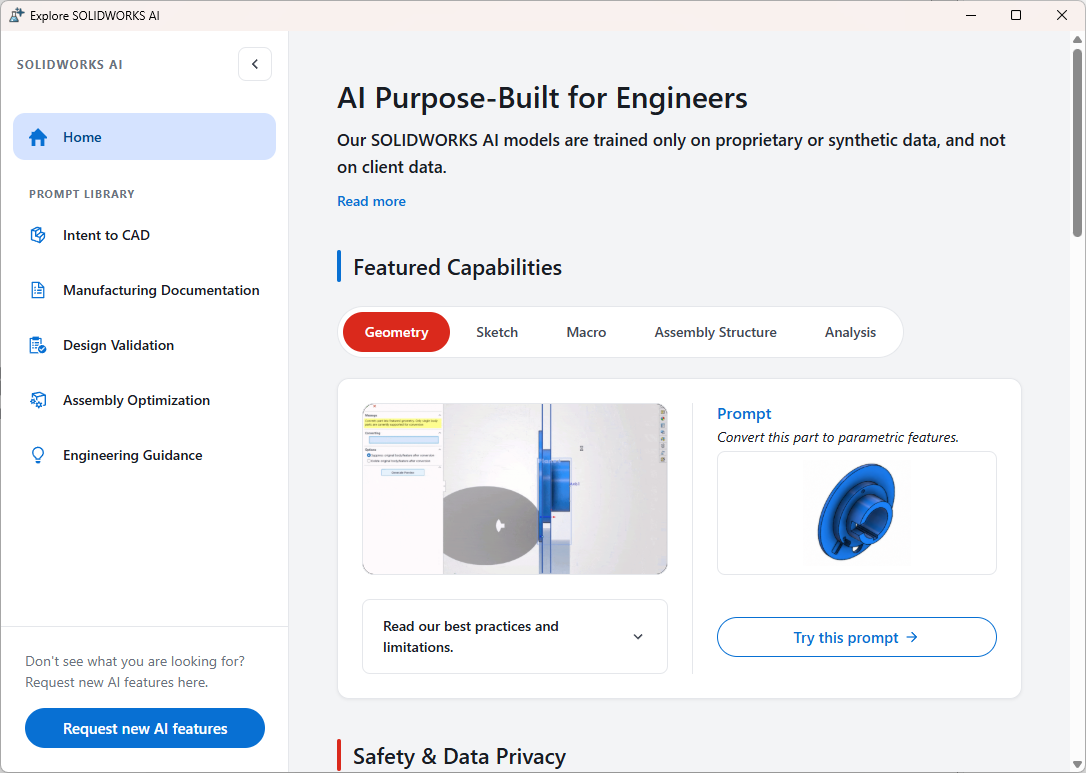
The home page, titled AI Purpose-Built for Engineers, highlights five Featured Capabilities: Geometry, Sketch, Macro, Assembly Structure and Analysis. Each one shows a sample prompt and a preview of the expected result. A reminder appears right at the top: SOLIDWORKS AI models are trained only on proprietary or synthetic data, and not on client data.
A prompt library in five categories
|
Category |
In brief |
Examples |
|---|---|---|
|
Intent to CAD |
Turn an image or imported geometry into editable sketches and features. |
6, plus 2 tools |
|
Manufacturing Documentation |
Produce drawings, assembly instructions and models for manufacturing. |
7 |
|
Design Validation |
Measure the impact of a change and check the quality of a design. |
2 |
|
Assembly Optimization |
Create, analyze and lighten assemblies. |
5 |
|
Engineering Guidance |
Advice, manufacturability, analysis, repair, automation and rendering. |
19 |
Three companions, three specialties
|
Companion |
Specialty |
In practice |
|---|---|---|
|
AURA |
Enterprise knowledge and know-how |
Answers questions using help content and community content. |
|
LEO |
Engineering disciplines |
Acts on your model: drawings, macros, optimization. |
|
MARIE |
Science and research |
Research-oriented. |
A simple rule of thumb. To understand, think AURA. To do, think LEO.
4. A Closer Look at Each Category
Here is what each category brings to the table, with a few sample prompts.
Intent to CAD: from idea to model
This category is for starting from an image or imported geometry and ending up with a model you can edit. You’ll find prompts such as “Convert this image to a sketch” or “Convert this part to parametric features”, along with everyday design tasks like finding all fillets with a 2 mm radius and updating them to 3 mm. Two tools round out the section: Picture to Mechanism converts an image into a sketch block mechanism, and Image to Mesh generates a mesh model from a set of images.
Manufacturing Documentation: the deliverables
You’ll find drawing generation (including sheet metal parts with their flat pattern), an automatic dimension scheme, draft assembly instructions, an exploded view, a mean-tolerance version of the model, and nesting a part.
![Screenshot to insert: the Manufacturing Documentation category and its examples]
Design Validation: check before you ship
Just two examples, but well targeted: generate a log of a design change’s impact on a part and its assembly, and find the underdefined sketches in an assembly.
Assembly Optimization: smoother and lighter
You’ll find assembly structure generation from a description (the example offered: “Create a car assembly with 4 wheels and an engine”), an analysis of why an assembly is slow, SpeedPak generation, hole creation, and replacing physical threads with cosmetic threads.
Engineering Guidance: everyday help
This is the richest category. It groups together:
-
guidance: grouping fasteners into a folder, selecting suppressed components, understanding the difference between a sketch fillet and a feature fillet;
-
design for manufacturing checks: spotting what isn’t CNC friendly, thin sections or fragile geometry;
-
analytics: the lifecycle status of a component, who created a part;
-
repair: understanding what’s wrong with a sketch or with rebuild errors;
-
automation and parameterization: macros, global variables, scaling, patterns;
-
materials and a 1080p render.
What it shows.
The examples range from very simple actions to more ambitious tasks. The library is as useful for inspiration as it is for discovery: you quickly spot the requests that match your daily work.
⚠️ A starting point, not a finished product. AI-generated results are drafts to be checked. A generated drawing, for example, often needs manual finishing (view placement, annotations, tables).
5. Frequently Asked Questions
Does opening the library change anything in my document? No. Nothing runs until you launch an example.
What is the difference between AI features and Virtual Companions? AI features are built into the usual commands. Companions are assistants you chat with.
Is my data used to train the AI? According to the window itself, no: the models are trained only on proprietary or synthetic data, not on client data. Your company may still have its own policy on this topic.
How much does it cost? AI usage is measured with a token system. Your reseller can tell you what is included in your contract.
I don’t see “Explore SOLIDWORKS AI” in my menu. Why? Your version may be older, or your 3DEXPERIENCE platform access may not be set up yet. Updating to SOLIDWORKS 2026 SP4 or later takes care of the first case.
The window is blank when it opens. It loads its content from the web: give it a few seconds.
6. Feature History
|
Version |
What happened |
|---|---|
|
SOLIDWORKS 2026 SP2 and earlier |
No “Explore AI” button. |
|
SOLIDWORKS 2026 SP3 / FD03 |
First “Explore AI” example prompts. |
|
SOLIDWORKS 2026 SP3.2 |
Addition of the Virtual Assistant command, which opens a menu of examples. |
|
SOLIDWORKS 2026 SP4 / FD04 (September 2026) |
Updated prompt library: skills, examples, FAQs, learning resources and privacy information brought together in one place. |
Have an idea, a question, or an example that worked well for you? Leave a comment and we’ll update this article.
Further Reading
-
SOLIDWORKS AI overview: AI Product Design with AI Tools
-
SOLIDWORKS Virtual Companions: SOLIDWORKS AI Overview
-
What’s New in SOLIDWORKS 2026 (manufacturer PDF): https://files.solidworks.com/Supportfiles/Whats_new/2026/english/whatsnew.pdf
-
3DEXPERIENCE Community — SOLIDWORKS Design AI R2026x FD04: SOLIDWORKS Design: AI – R2026x FD04