When should you save a design as a Physical Product versus a Representation in 3DEXPERIENCE?
Choosing the correct object type is one of the most important decisions when managing CAD data in the 3DEXPERIENCE platform. Using Physical Products and Representations correctly improves data organization, reduces unnecessary PLM complexity, simplifies lifecycle management, and keeps SOLIDWORKS assemblies performing efficiently. This guide explains the differences, best practices, and recommended workflows for common engineering scenarios.
How Do You Manage CAD Data in 3DEXPERIENCE?
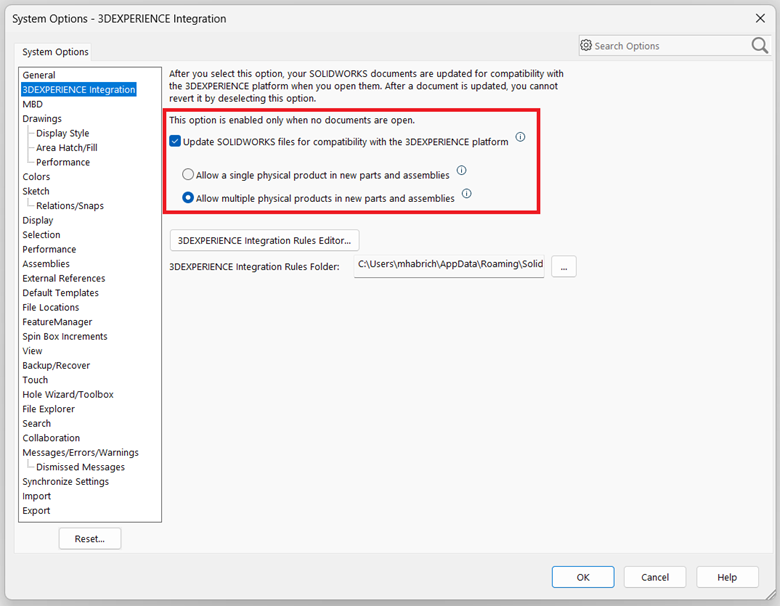
First off, if you want more control over what gets saved, check out the “3DEXPERIENCE Compatibility” option under System Options. By using the Configuration Manager in SOLIDWORKS, you can decide whether to save your configurations as a physical product or just as a representation.
So, what’s the difference?
- Physical products are usually what we use to represent the actual manufactured design, complete with an item (part) number on the platform.
- On the other hand, Representations are more for our internal design process. They stay linked to the physical product but don’t get their own item number.
Think of a representation as a way to show, for example, an exploded view of a product without creating a whole new part number.
What Is the Best Way to Manage Prototype and Production Parts?
When it comes to prototypes or production parts and assemblies, it’s generally a good idea to stick to one physical product per part or assembly file. This way, each physical product on the platform represents a single manufactured item, capturing everything from lifecycle details to the enterprise item number.
Of course, there will be times when you need additional configurations to help with your design in SOLIDWORKS. In these cases, it’s smarter to save them as Representations, so you’re not cluttering up the system with extra Physical Products that aren’t really necessary.
To make this process smoother, be sure to enable the “Update SOLIDWORKS files for compatibility with the 3DEXPERIENCE platform” option for everyone. Also, if you go into System Options under 3DEXPERIENCE Integration and select “Allow a single physical product in new parts and assemblies,” you’ll find your workflow gets a lot simpler, and faster, because there’s less PLM data flying back and forth.
You can certainly choose to allow multiple physical products on new parts and assemblies, no problem! But make sure everyone is on board. Choose one way of working for everyone on your platform, without switching back and forth, to keep everything simple and clean.
How Should Purchased and Library Parts Be Managed?
Now, for parts and assemblies we buy externally, the rules are a bit different. These usually sit in a library and aren’t something we revise or modify. So, treat these with the same care, but understand they have their own set of guidelines.
How Many Configurations Should a Part File Contain?
If you’ve got a part file with up to 20 configurations, you’re good to go with Physical Product configurations without worrying about performance. But if you’re dealing with more than 20 configurations, it’s better to stick to one Physical Product configuration per file. Each configuration should get its own part file to keep things running smoothly.
What Is the Best Practice for Assembly Configurations?
The same rule applies to assembly files: one Physical Product configuration per file is the way to go for top performance. Again, save each configuration in a separate assembly file.
Let’s Look at Some Common Scenarios
Of course, every project is unique, so let’s dive into a few specific scenarios.
Cast & Machined Variations
When you’re managing cast and machined variations of a part, SOLIDWORKS configurations make it easy to capture these differences. The approach you take depends on whether you need to treat these variations as a single part number or manage them separately.
If both the cast and machined versions share a part number, keep them in the same file with one Physical Product configuration. Save the cast and intermediate machined states as Representations. If they need separate part numbers and lifecycle management, create individual part files and physical products for each.
Mirrored Parts
For mirrored parts, think left-hand and right-hand versions with unique part numbers—create separate files, each with its own Physical Product configuration. If both versions are part of the same product, go ahead and put them in a single file with two lifecycle-coupled Physical Product configurations.
Sheet Metal Parts – Flat and Folded States
For sheet metal parts where the flat and folded versions share a part number, use one Physical Product configuration for the folded state and a Representation for the flat pattern. If each variation needs its own revision management and lifecycle, create separate part files for each, with one Physical Product configuration and a Representation configuration for the flat state.
Weldment Parts
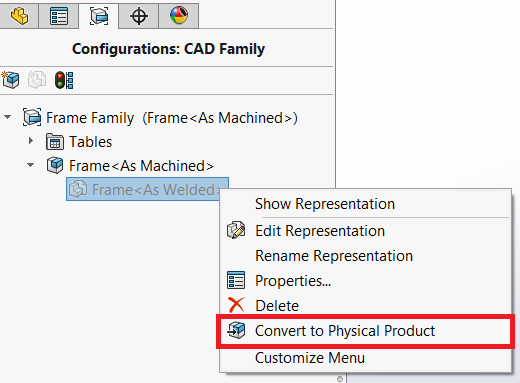
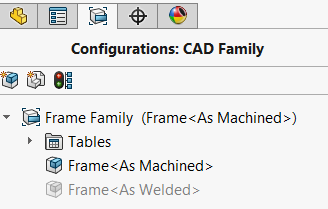
For weldments, if the “As Machined” configuration represents the final product, use that as the Physical Product configuration and save the “As Welded” configuration as a Representation. If both need to be managed separately, convert the “As Welded” configuration to a Physical Product configuration so both are represented individually on the 3DEXPERIENCE platform.
3DEXPERIENCE PDM Best Practices to Keep in Mind
- Use the Configuration Manager from the get-go.
- Upgrade any existing files before going live.
- Stick to one Physical Product configuration per file to keep things simple and efficient.
- Only create multi-product files if all the products share a lifecycle.
Following these best practices will help you build a more efficient, scalable, and organized 3DEXPERIENCE environment. A consistent approach to managing Physical Products and Representations improves collaboration, simplifies engineering change management, and keeps your SOLIDWORKS data easier to maintain as projects grow.
Need help optimizing your 3DEXPERIENCE PDM workflow? Our certified specialists can help you implement best practices, migrate your data, train your team, and get the most from your 3DEXPERIENCE platform. Contact Solidxperts to start your 3DEXPERIENCE journey with confidence.