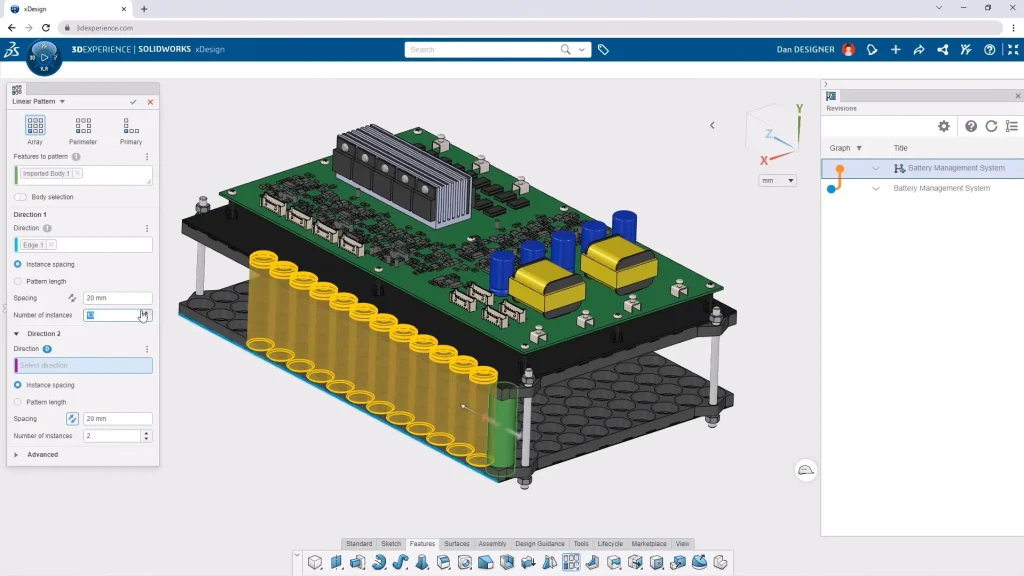
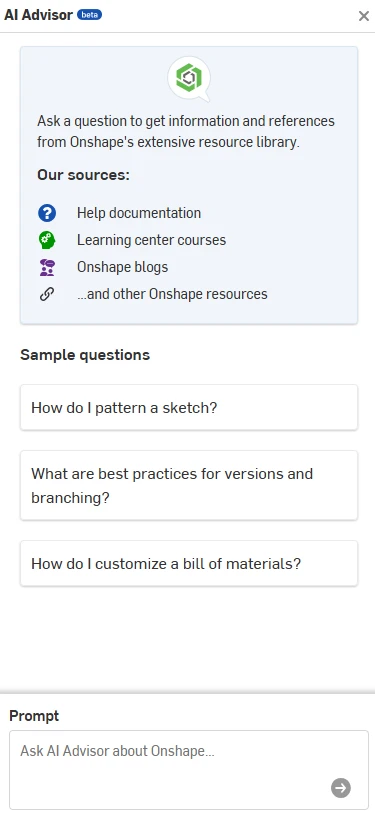
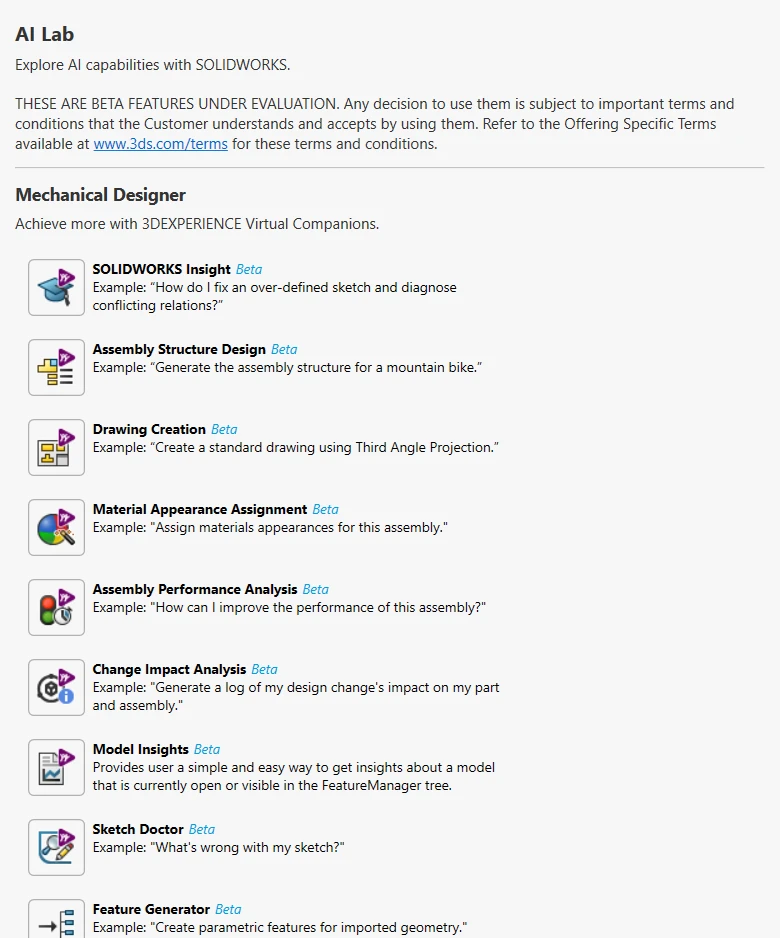
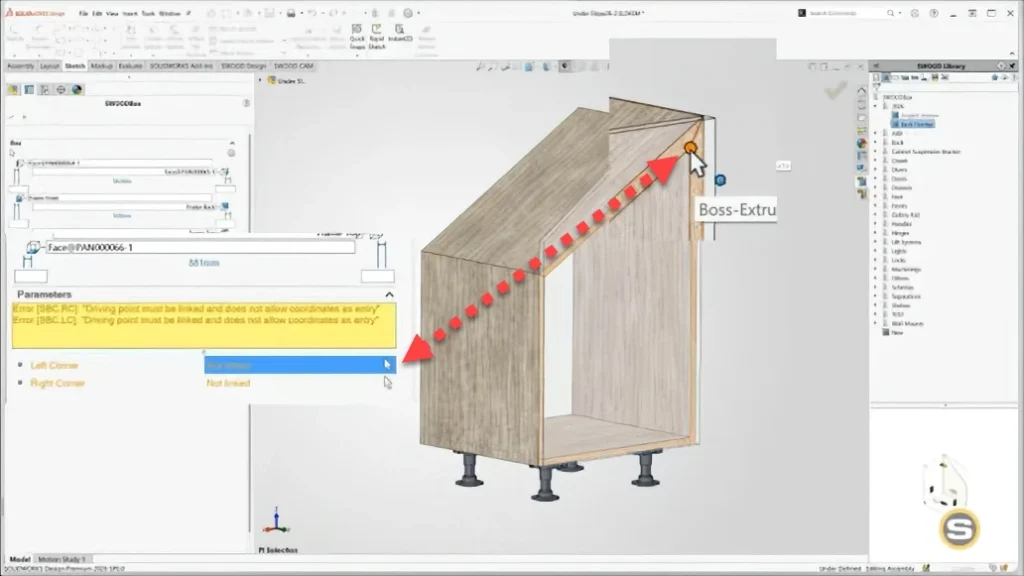
3DDrive vs. 3DSpace: What’s the Difference?

BLOG

3DDrive vs. 3DSpace: What’s the Difference?

[techtips_featured_image_shortcode]

The 3DEXPERIENCE platform includes a powerful set of tools designed to support collaborative product development. Two of the most commonly used apps for storing and managing files are 3DDrive and 3DSpace.

At first glance, they can look similar, but they’re built for very different purposes. Understanding how each one is meant to be used will help your team work more efficiently and avoid confusion down the road.

What Is 3DDrive?

Think of 3DDrive as the 3DEXPERIENCE equivalent of tools like Dropbox or OneDrive.

3DDrive allows you to:

  • Store and access files from anywhere

  • Edit and collaborate on documents in real time

  • Share files easily, including with external users

  • Integrate with other cloud storage services

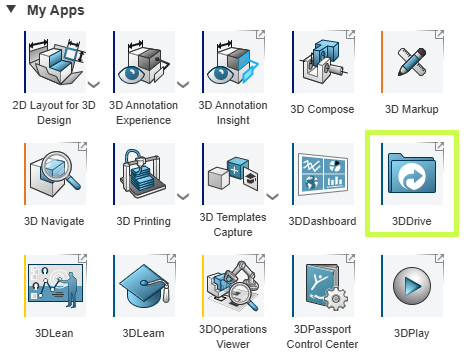
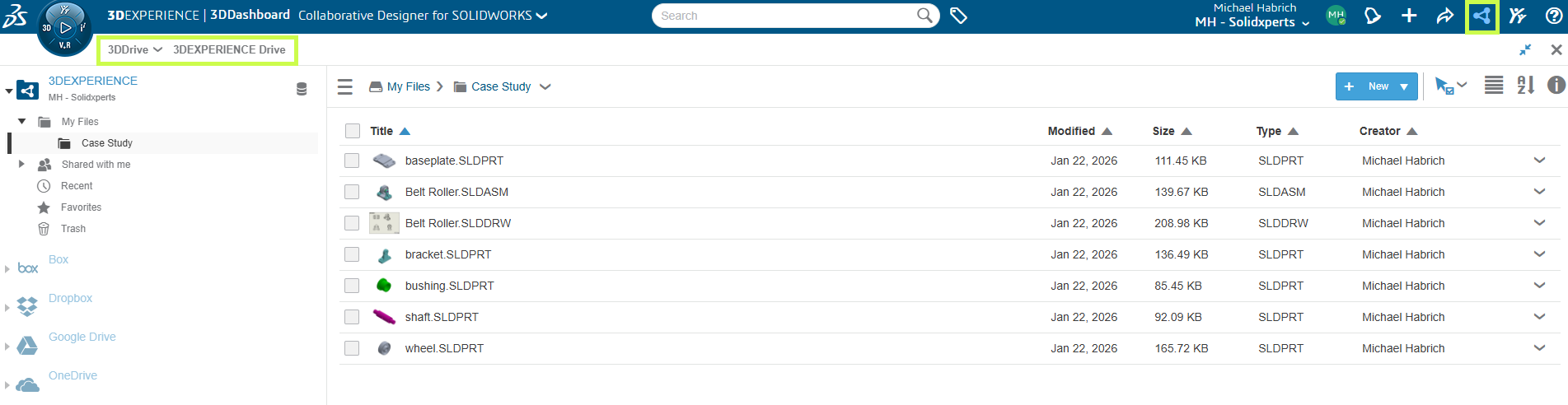
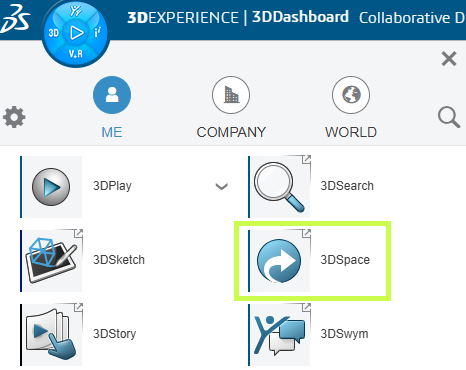
You’ll find 3DDrive under My Apps in the 3DEXPERIENCE platform, and it’s also accessible directly inside SOLIDWORKS.

3DDrive interface in the 3DEXPERIENCE platform for cloud file sharing and management

3DDrive uses a familiar folder based structure and focuses on flexibility and convenience. It’s a great choice for:

  • General file sharing

  • Early-stage collaboration

  • Working with customers, suppliers, or partners outside your organization

What it doesn’t include is built-in product data management there’s no revision control, lifecycle states, or formal approval process.

3DDrive interface in the 3DEXPERIENCE platform for cloud file sharing and management

What Is 3DSpace?

3DSpace is built for teams that need structure, control, and traceability.

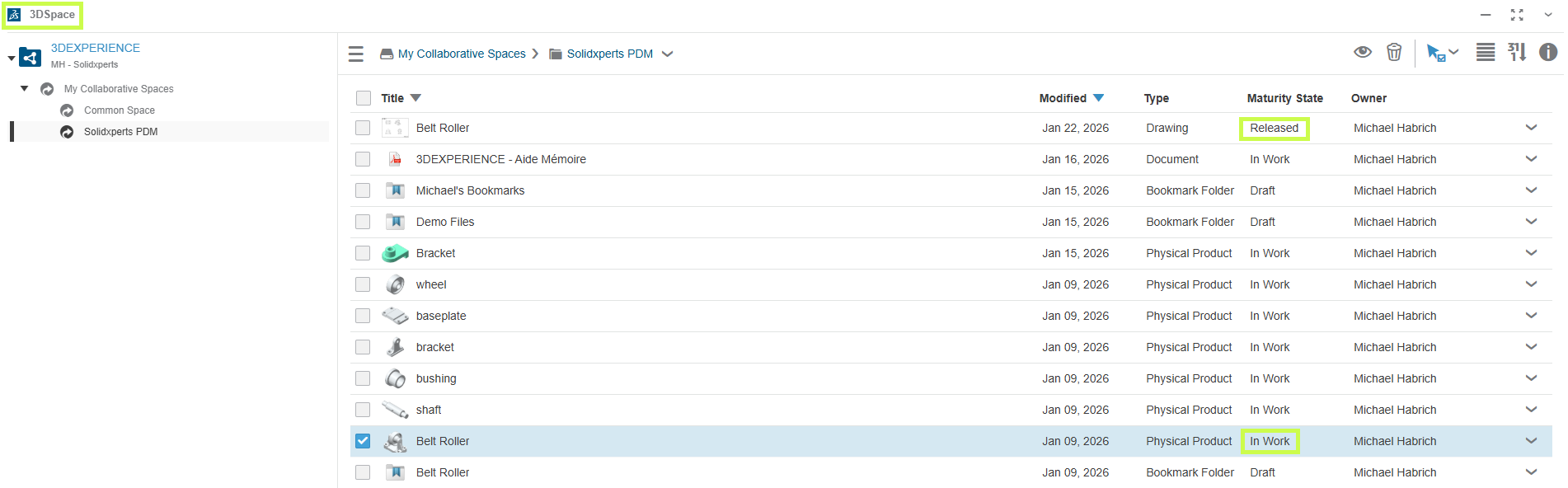
3DSpace interface in the 3DEXPERIENCE platform for product data management and revision control

Instead of simple folders, 3DSpace is organized around Collaborative Spaces, where teams work together on shared project data. Within 3DSpace, you can:

  • Control access and permissions

  • Track revisions and history

  • Assign maturity states like In Work and Released

  • Lock files to prevent conflicting edits

These capabilities make 3DSpace a strong foundation for PLM-driven workflows, including:

  • Engineering change processes

  • Approval workflows

  • Long-term product data management

3DSpace is ideal for engineering teams that need confidence in version control and data integrity.

3DSpace interface in the 3DEXPERIENCE platform for product data management and revision control

3DDrive vs. 3DSpace: Which Should You Use?

The short answer: it depends on how you work.

  • 3DDrive is best when:

    • You need fast, flexible file sharing

    • You collaborate frequently with external users

    • You want a familiar, lightweight cloud storage experience

  • 3DSpace is best when:

    • You need controlled access and revision tracking

    • Your team is ready for PLM-style workflows

    • Data accuracy, traceability, and approvals matter

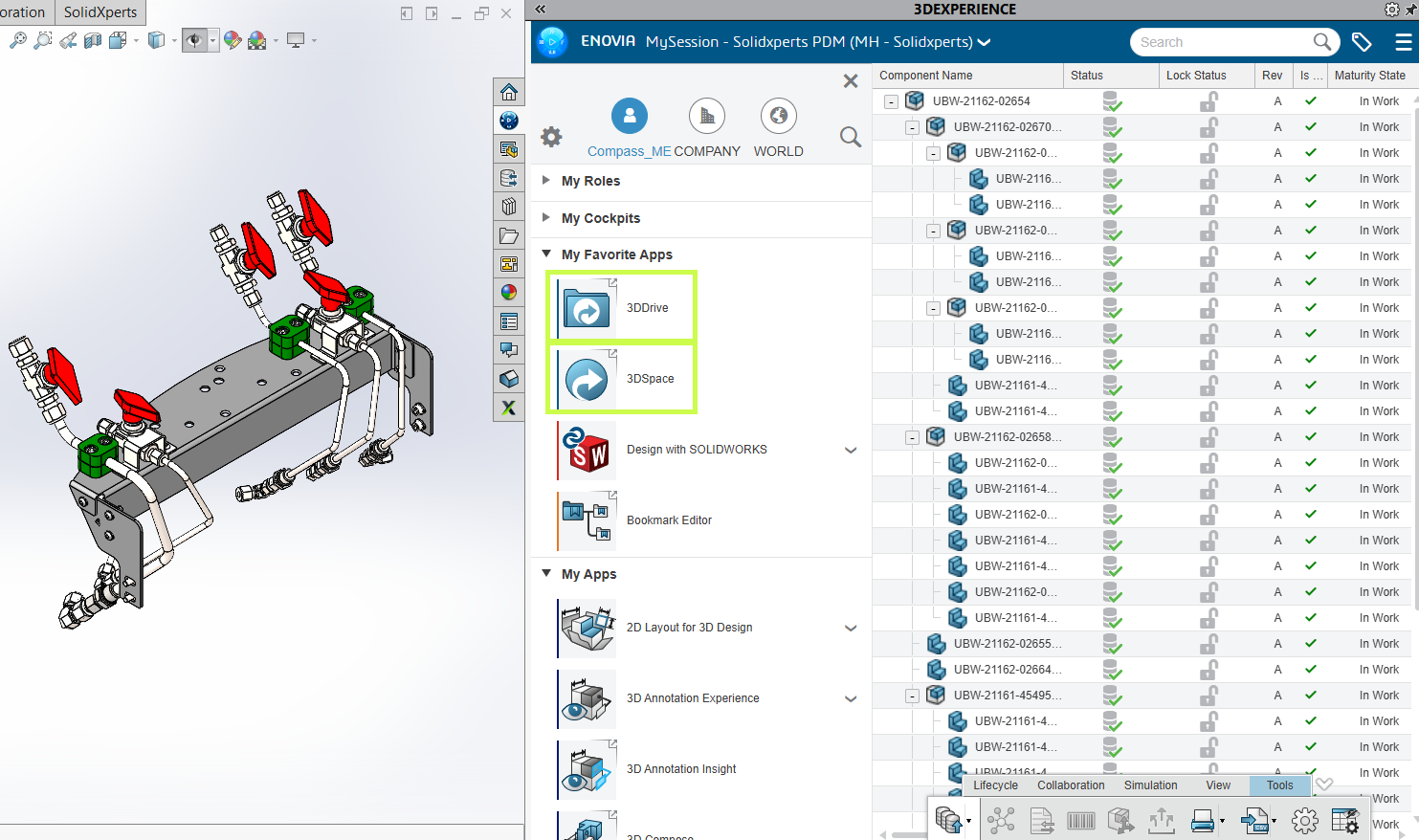
The good news is that both apps integrate directly with SOLIDWORKS, so you can access the right tool without leaving your design environment.

Comparison between 3DDrive and 3DSpace in 3DEXPERIENCE showing file sharing and product data management

Final Thoughts

3DDrive and 3DSpace aren’t competing tools. They’re complementary. Many teams start with 3DDrive for simple collaboration and gradually introduce 3DSpace as their data management needs grow.

Not sure which approach makes the most sense for your team? That’s where we come in.


Michael Habrich

3DEXPERIENCE Specialist

X_green_halo

Any questions? Need help? Ask one of our experts.

Whether you’re ready to get started or just have a few more questions, you can contact us toll-free:


    How SOLIDWORKS AI Is Being Positioned by Manish Kumar

    BLOG

    How SOLIDWORKS AI Is Being Positioned by Manish Kumar

    [techtips_featured_image_shortcode]

    The Future of Work: Shifting from Automation to Value Creation

    In the age of AI, I am often asked: What is the true nature of “value”? For engineers, the pressure to reduce costs and optimize workflows is constant. Historically, we turned to simple task automation. Today, AI is shifting the focus from merely speeding up repetitive tasks to amplifying human ingenuity.

    Redefining Value in Engineering

    What is the real value of an engineer? It isn’t clicking a mouse to create a sketch; it is problem-solving and innovation.

    Consider a visit to the doctor. Is a doctor’s value found in typing notes into a chart, or in the focused diagnosis and long-term health planning they provide? Today, many doctors use specialized AI companions to handle transcription, allowing them to give patients their undivided attention.

    Similarly, an engineer’s value lies in ideation and rapidly converting concepts into virtual twins for experimentation. The manual steps—the clicks to create geometry—are a means to an end. While some fear AI will take away the “enjoyable” parts of CAD, we must ask: do you enjoy the manual execution, or the creative breakthrough? Automating the “busy work” of drawing creation lets us return to the reason we became engineers in the first place: creative problem-solving.

    The Human Role in an AI-Driven Future

    A common concern is that AI will replace human oversight. I strongly disagree. When designing a turbine blade or an aircraft engine, human validation is critical—lives depend on it.

    AI acts as a multiplier, not a replacement. If an engineer produces one design today, AI might help them produce ten tomorrow. This actually increases human responsibility. Engineers must review more outputs, ensure regulatory compliance, and make higher-level decisions. AI expands our capabilities, but it does not originate ideas. Just as AI image generators require a human prompt and refined intent, 3D CAD will always require human direction.

    This is the democratization of design. Thirty years ago, SOLIDWORKS brought CAD to every desktop, democratizing 3D CAD. Today, AI is the next wave of that movement, making 3D modeling accessible so more people can solve massive, complex problems.

    Embracing the Multiplier

    As I said at 3DEXPERIENCE World in February: AI is the engine; you are the driver.

    Professionals should never underestimate their worth. AI is a tool to unlock your potential, and the gap between early adopters and those who resist will only continue to grow. Learning to make AI work for you is the key to staying at the forefront of the innovation revolution.

    So, I ask you: which of your tasks could be delegated to agentic AI, or virtual companions, to help you better showcase your true value? I look forward to hearing from you and seeing what our future holds.

    X_green_halo

    Any questions? Need help? Ask one of our experts.

    Whether you’re ready to get started or just have a few more questions, you can contact us toll-free:
      Why SOLIDWORKS Is Leading the AI Revolution in CAD

      BLOG

      Why SOLIDWORKS Is Leading the AI Revolution in CAD

      [techtips_featured_image_shortcode]

       SOLIDWORKS and its parent company, Dassault Systems, have been ahead of the competition when it comes to all things AI. SOLIDWORKS started developing AI features, also known as Smart Features, decades ago, giving their software a lead above the competition. While continuing to invest and stay ahead of the pack, all new AI assistants are now directly available within the application, ensuring that integration is seamless.

      Follow along in this blog, because I want to show you all the amazing features SOLIDWORKS has already implemented over the year, along with what is in store for the future. By the end, I will have shown how the recent attempts of our competition’s software do not hold a candle to the advances SOLIDWORKS has already made, let alone what is in store for the future.

      Past Additions of Machine Learning and Artificial Intelligence

      For over a decade, SOLIDWORKS has been continuously adding features that make use of machine learning and artificial intelligence. From features such as Smart Mates or Smart Fasteners to new AI Drawing Creation, SOLIDWORKS has been working to optimize engineer time, and reduce the number of tedious repetitive tasks.

      Excelling in time optimization for years, SOLIDWORKS has continued making tools designed with engineering resources in mind. Tools like Fully Defined Sketch and Selection Accelerators have been available for years, helping make the sketching and selection processes faster. Always improving, SOLIDWORKS took the predictive selection accelerator from the Fillet command, and added it into Chamfers in recent years, making seamless group selection even easier than before in both features.

      Machine Learning and Artificial Intelligence

      Users can go from this underdefined sketch to this fully defined sketch in 3 quick clicks!

      Machine Learning and Artificial Intelligence 2

      There have even been productivity increasing tools in the assembly environment for just as long! Smart Fasteners and Smart Mates have allowed engineers to snap together parts and fill their holes with fasteners for over a decade. Even before the general public heard about AI and chatbots, SOLIDWORKS has been working to implement AI based features to improve the engineering experience.

      Current SOLIDWORKS AI Tool Additions

      In 2026, SOLIDWORKS continues this trend of improving the engineering experience through implementing countless new features in the most recent as well as future updates. Some such features include AI Drawing Creation, AI Assembly Creation, Automatic Fastener Recognition, Command Predictor, and Pattern Assistant, to name a few. With these tools, SOLIDWORKS will become even smarter, and can predict an engineer’s next move; whether that move is dropping a nut into place, or needing to add a pattern of bolts in one swift movement. SOLIDWORKS can now even assist engineers in making sure the most efficient patterning methods are being used, as an efficiency check to young engineers.

      SOLIDWORKS AI Tool Additions

      Tools, like Automatic Fastener Recognition, make use of a database of thousands of fastener files, allowing the SOLIDWORKS AI to determine if a part is a fastener as soon as it is dragged in to your current project. This recognition will allow the system to offer better mate conditions and groupings, for instance pairing a new nut to your existing bolt.

      Additionally, features like AI Drawing Creation and AI Assembly Creation take processes out of the engineers hands and begin these processes in the system background before bringing the engineer in for confirmation. From laying out standard views and annotations, to organizing folder structures in assemblies, SOLIDWORKS continues to assist in simplifying and standardizing these initial steps in creation and documentation.

      SOLIDWORKS AI Tool Additions

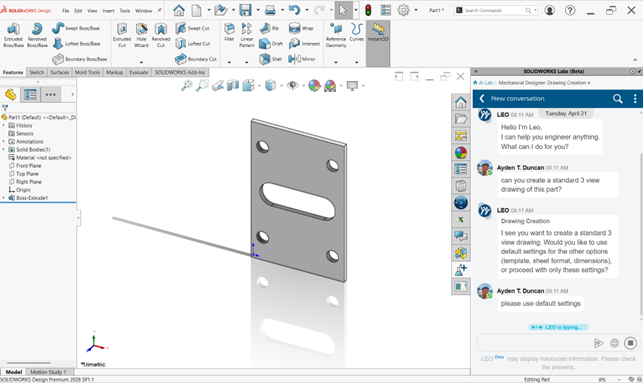
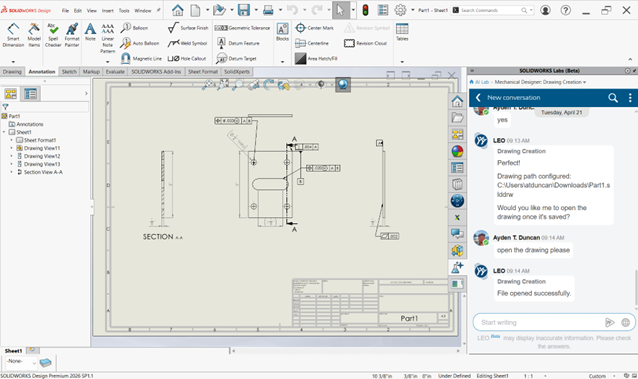
      With the use of SOLIDWORKS AI Drawing Creation, a simple conversation with LEO about the desired settings and defaults leads to a drawing created faster than ever before!

      SOLIDWORKS AI Tool Additions

      Addition of AI assistants in SOLIDWORKS

      SOLIDWORKS AI Assistants

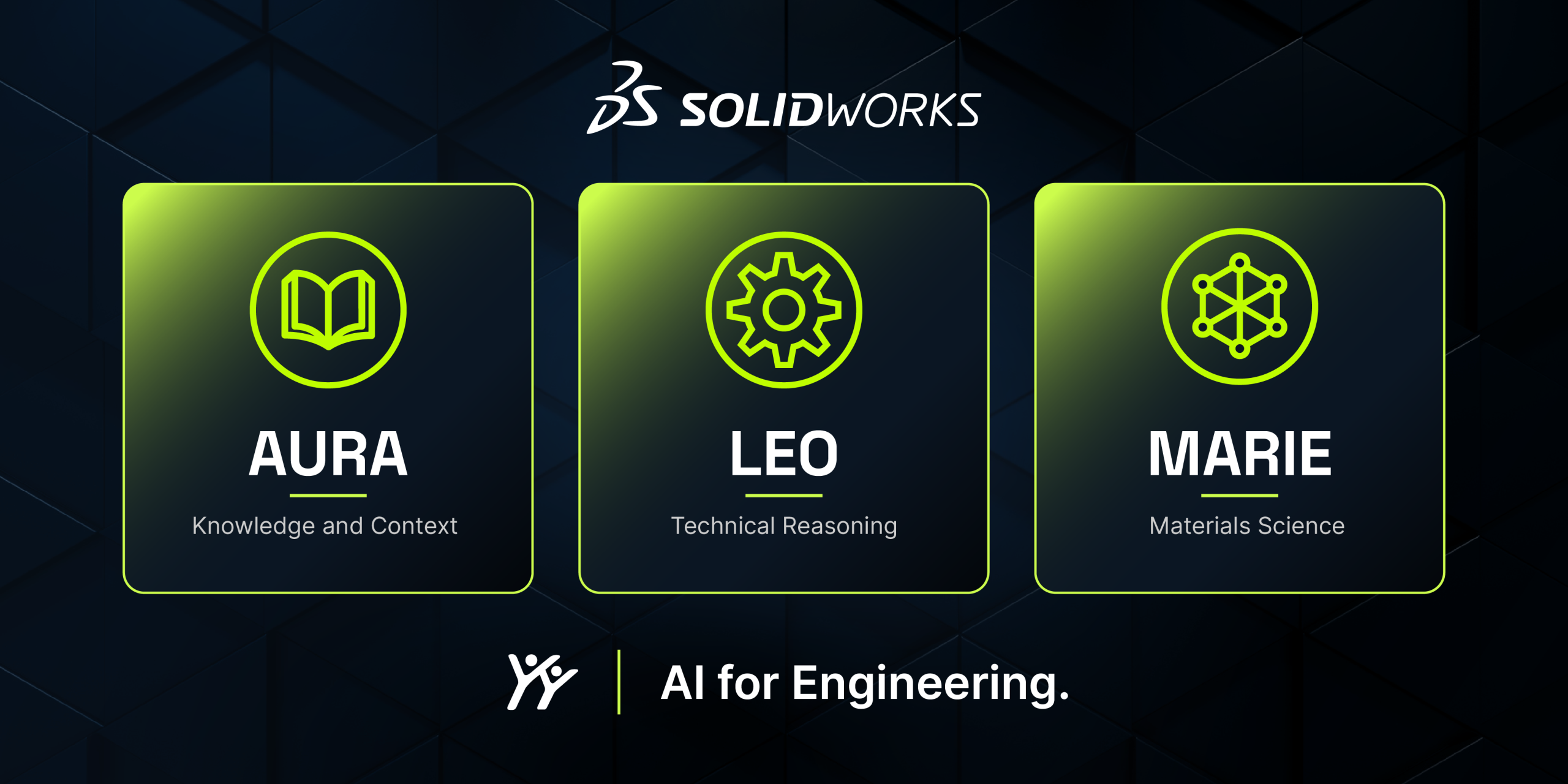
      The most recent additions of artificial intelligence to SOLIDWORKS include the three all new AI assistants; AURA, LEO, and MARIE. Each serves a unique role throughout the CAD Design process, as described below.

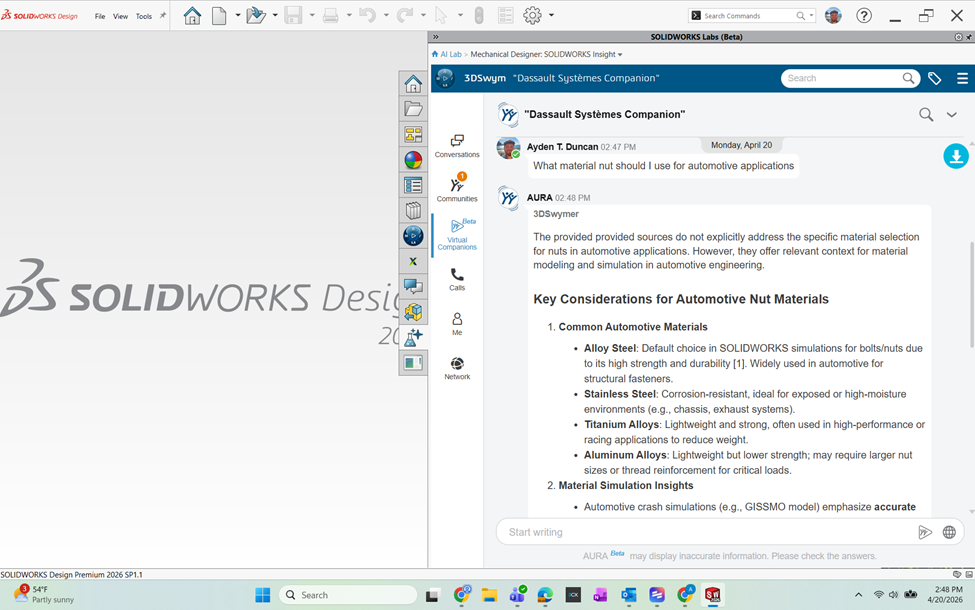
      AURA is the starting point of any great project, even before you draw your first sketch. AURA holds the ability to leverage knowledge from both web and enterprise sources, making it your one stop shop for rapid confirmation. For questions regarding basic design rules and suggestions, or even searching your company’s knowledge base, AURA can answer it all.

      After the first steps with AURA are completed, LEO takes the reins. LEO can help users effectively solve many complications through the design process, helping validate your design and optimize your processes. Throughout both mechanical design, as well as simulation, LEO can take your prompts to generate assembly structures, as parametric features, run studies, and even help resolve design errors. For both answering questions, and offering solutions, LEO can solve many engineering headaches.

      The last assistant in the lineup is MARIE, your scientific research specialist. With expertise in materials science, chemistry and more, your thorough scientific research can be simplified. With this third member of the SOLIDWORKS AI trifecta, you have an assistant in your corner for every part of the engineering design process.

      Competitors attempts at replication

      Outside of SOLIDWORKS, many competitors have tried their hand in implementing AI for the benefit of users. While many companies have had good feature additions in recent years, it is hard to compare them to the decades of experience and additions seen in SOLIDWORKS. The following sections detail some of these features within the competing software, and shows how SOLIDWORKS has taken the lead in all things AI.

      For starters, Autodesk has invested in AI in Fusion 360. However, you will find no such features in Inventor. Looking into these, features like CAM hole recognition have existed in SOLIDWORKS for some time. The drawing AI tool seems to be in the early stages, having very little interaction or flexibility. Fusion can add relationships and dimensions automatically, much like Fully Define Sketch (something that has existed in SOLIDWORKS for nearly 20 years). The main hurdle that Autodesk will have to overcome is that their files don’t talk to each other, unlike the fully associative files found in SOLIDWORKS, making their AI feature development harder.

      Other competitors like Siemens have three main enhancements, Magnetic Snap, Automated Drawings, and a design copilot, all things that have existed or do now exist in SOLIDWORKS. Lastly, Onshape has a lot of potential due to their cloud-based nature, however the content released as of now is just in the infancy stage.

      The Bottom Line: SOLIDWORKS AI is Changing the Game

      After looking at the history of feature development, as well as a brief look at the competition, you can see that SOLIDWORKS continues to be designed with the engineer in mind. From features that increase productivity by decreasing repetition, to tools that give you a head start in the design process, SOLIDWORKS is a lifesaver. Many competitors’ Artificial Intelligence ambitions are just beginning, so SOLIDWORKS is working hard to maintain the lead they already have, while pushing engineering design technology to the next level. Our SOLIDWORKS Technical Team has been ahead of the pack when it comes to learning and using AI, so please contact us with any questions, and find out what makes us the Solidxperts.


      Alain

      Alain Provost

      Senior Technical Sales Executive

      X_green_halo

      Any questions? Need help? Ask one of our experts.

      Whether you’re ready to get started or just have a few more questions, you can contact us toll-free:

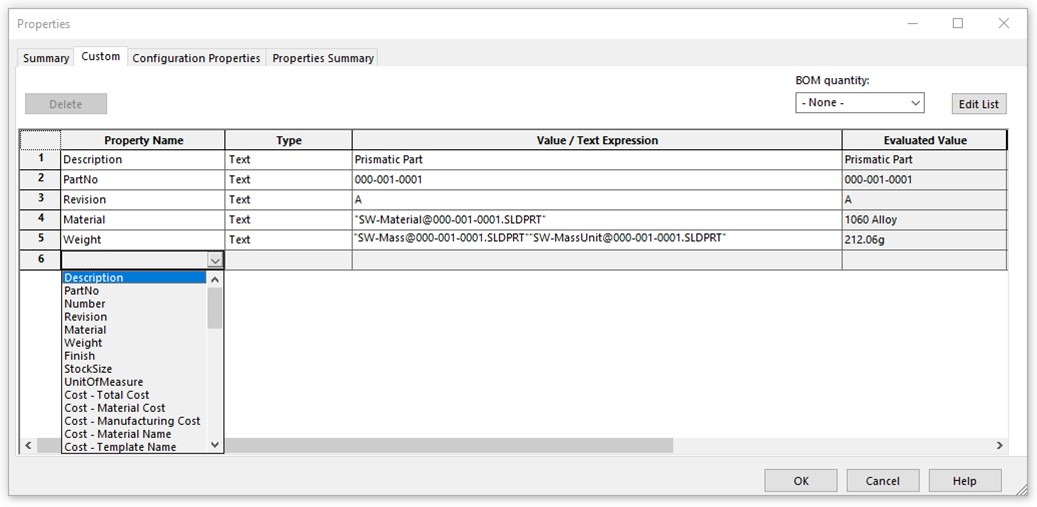
        Resolving issues with part name display in eDrawings compared to SOLIDWORKS

        BLOG

        Resolving issues with part name display in eDrawings compared to SOLIDWORKS

        [techtips_featured_image_shortcode]

        It is quite common for information shared with the workshop through eDrawings not to appear exactly as expected. In fact, part names may seem incorrect, incomplete, or simply different from what the engineering team sees in SOLIDWORKS.

        As a result, this is a question we are regularly asked: “Why are part names not the same in eDrawings as in the SOLIDWORKS assembly?”

        So, if you use eDrawings as a viewer for shop floor personnel, this article is for you. Let’s take a few minutes to understand why this happens and more importantly, how to fix it in a sustainable way.

        The Typical Context: eDrawings as a Workshop Support Tool

        In many manufacturing companies, eDrawings is used to:

        • View assemblies without a SOLIDWORKS license;

        • Visualize complete machines on the shop floor;

        • Quickly identify parts to manufacture or assemble;

        • Reduce paper drawings.

        It is an excellent tool as long as the displayed information is clear and consistent.

        However, in some cases, workshop users are faced with:

        • Cryptic file names;

        • Internal references that are not meaningful;

        • Part names different from those used by engineering.

        A Key Point to Understand: eDrawings Does Not Interpret, It Displays

        First of all, it is important thing to clarify: eDrawings does not “guess” anything. It simply displays the information coming from SOLIDWORKS, based on the assembly structure, the properties defined on each part, and the export options used. Therefore, if the display does not meet your expectations, it is almost never an eDrawings bug, but rather a source data or configuration issue.

        The Three Most Common Causes

        In practice, three main causes explain this behavior:

        1. The displayed name is the file name, not the business designation

        By default, eDrawings often displays the part file name (.SLDPRT) instead of:

        • The business designation;

        • The part number;

        • The workshop-oriented description.

        Example: PLT_4587_V3.SLDPRT instead of Conveyor support plate – 10 mm steel

        For the shop floor, the added value is… very limited.

        2. Custom properties are not being leveraged

        Additionally, in SOLIDWORKS, you most likely already have:

        • Description

        • Part Number

        • Internal reference

        • Customer name

        But if these properties are not filled in consistently or eDrawings is not configured to display them, they become useless for the workshop.


        3. The eDrawings export process is not standardized

        Finally, an export performed quickly, by different users and without a clear procedure often results in:

        • inconsistent displays;

        • different habits from one project to another.

        As a result, the workshop gradually loses confidence in the tool.

        Recommended Best Practice: Think “Workshop” Directly in SOLIDWORKS

        In reality, the solution is not in eDrawings…it starts in SOLIDWORKS.

        Here is a simple and effective approach:

        Use a workshop-oriented property

        For example:

        • Description

        • or Workshop_Description

        This property should be clear, readable and free of unnecessary CAD jargon.

        Standardize how properties are filled in

        Apply the same logic to all parts:

        • same property name

        • same text convention

        • same language

        Ultimately, this is a small effort on the engineering side…but delivers significant gains on the production side.


        Structuring the eDrawings Export for the Workshop

        To ensure consistency, the eDrawings export should:

        • always come from an up-to-date assembly;

        • follow a simple, documented procedure;

        • display useful information, not technical noise.

        This is exactly why a short internal procedure is often an excellent idea.

        eDrawings: An Excellent Tool, When Properly Prepared

        eDrawings is neither a design tool nor a PDM system. It is a technical communication tool.

        In other words, like any communication, quality depends on what is sent, not only on the tool itself.

        As a result, when best practices are in place the workshop gains autonomy, the unnecessary questions decrease, and the interpretation errors are reduced.

        From Confusion to Clarity: Making eDrawings Work for the Workshop

        If part names displayed in eDrawings do not match what you expect, know that you are not alone, it is not inevitable, and it is almost never a bug. More often than not, it is an opportunity to review how information is prepared and transferred to the workshop.

        Very often…a few simple adjustments are enough to turn eDrawings into a true production support tool.

        FAQ

        Why do part names in eDrawings differ from those in SOLIDWORKS?

        eDrawings displays information coming from SOLIDWORKS files, typically the file name or custom properties. If these data are not standardized or workshop-oriented, the display may appear inconsistent.

        Is this an eDrawings bug or limitation?

        No. In most cases, the issue lies in how data is structured upstream in SOLIDWORKS, not in eDrawings itself.

        What is the best practice to display clear part names on the shop floor?

        Use a dedicated, readable SOLIDWORKS property such as Description or Workshop_Description, filled consistently across all parts.

        Is a SOLIDWORKS license required on the shop floor?

        No. eDrawings allows assembly viewing without a SOLIDWORKS license, making it a cost-effective solution for workshop use.

        What is the tangible benefit for the company?

        A clear and standardized eDrawings display helps to:

        • reduce interruptions between engineering and production

        • limit interpretation errors

        • improve overall operational efficiency


        Alain

        Alain Provost

        Senior Technical Sales Executive

        X_green_halo

        Any questions? Need help? Ask one of our experts.

        Whether you’re ready to get started or just have a few more questions, you can contact us toll-free:
          Guide: Getting Started with AI in SOLIDWORKS

          BLOG

          Guide: Getting Started with AI in SOLIDWORKS

          [techtips_featured_image_shortcode]

          Artificial Intelligence is quickly becoming part of everyday engineering workflows, but if you’re a SOLIDWORKS user, the big question is usually:

          “Where do I even start?”

          The good news is that AI in SOLIDWORKS isn’t something separate you need to learn from scratch. It’s already being integrated into the tools you use every day through the 3DEXPERIENCE platform.

          In this guide, we’ll walk through everything you need to get started, step by step:

          • Required software and prerequisites

          • Activating the 3DEXPERIENCE platform

          • Installing the Design with SOLIDWORKS connector

          • Accessing AI tools like the new AI Labs tab

          No fluff, just what you need to get up and running.

          Step 1: Understand What “AI in SOLIDWORKS” Actually Means

          Before jumping into setup, it’s important to clarify something:

          AI in SOLIDWORKS isn’t a single feature. It’s a set of capabilities delivered through the 3DEXPERIENCE platform.

          Today, that includes things like:

          • Design assistance and recommendations

          • Automation of repetitive tasks

          • Data-driven insights

          • Early access tools in AI Labs

          In other words, AI is layered into your workflow, not replacing it.

          Step 2: Confirm Your Prerequisites

          Before you can access any AI-driven tools, you’ll need a few key components in place.

          Required Software

          • SOLIDWORKS 2026 (or newer)

          • Active subscription (required for cloud services integration)

          Platform Access

          • A 3DEXPERIENCE platform account

          • Assigned roles (including Collaborative Designer for SOLIDWORKS)

          System Requirements

          • Stable internet connection

          • Admin rights for installation

          • Browser access to the platform

          If you’re missing any of these, that’s your starting point.

          Step 3: Activate the 3DEXPERIENCE Platform

          AI functionality depends on your connection to the 3DEXPERIENCE platform.

          How to Activate:

          • Check your welcome email from Dassault Systèmes
          • Click the activation link
          • Set your password and log in
          • Access your platform dashboard

          Once inside, you should see your roles and available apps.

          Still confused? Follow our Getting Started guide:
          Getting Started with the 3DEXPERIENCE Platform

          Step 4: Install the 3DEXPERIENCE Launcher

          Before installing any apps, you’ll need the 3DEXPERIENCE Launcher.

          Steps:

          • Log into your 3DEXPERIENCE platform
          • Navigate to the Compass (top-left menu)
          • Scroll down to My Apps and locate Design with SOLIDWORKS.
          • Select the app to begin the installation.
          • Click Install Launcher when prompted
          • Run the installer

          This tool acts as the bridge between your browser and desktop applications.

          Step 5: Install “Design with SOLIDWORKS”

          This is the most important step.

          The Design with SOLIDWORKS connector is what links your desktop SOLIDWORKS environment to the platform, and enables AI-driven features.

          Installation Steps:

          • In the platform, search for Design with SOLIDWORKS
          • Click Install
          • Accept default settings (recommended)
          • Complete installation
          • Restart your machine if prompted

          Once installed, your environment is officially “connected.”

          Having trouble? Check out our installation guide:
          Connect SOLIDWORKS Desktop to the 3DEXPERIENCE Platform

          Step 6: Launch SOLIDWORKS from the Platform

          This step is often missed, however, it is absolutely critical.

          First Launch:

          • Go to the platform
          • Click Open on Design with SOLIDWORKS
          • Launch SOLIDWORKS from the browser

          Why this matters:

          This ensures:

          • Your session is authenticated
          • The connector is active
          • Cloud services are initialized

          If you launch SOLIDWORKS directly from your desktop first, you may not be connected properly.

          Step 7: Verify the 3DEXPERIENCE Add-in

          Once SOLIDWORKS opens, confirm everything is working.

          Check:

          • A 3DEXPERIENCE tab appears in the task pane
          • Add-in is enabled under:
            Tools > Add-ins

          If it’s not active:

          • Enable it manually
          • Restart SOLIDWORKS if needed

          This confirms your system is fully connected.

          Step 8: Access the AI Labs Tab

          Now we get to the interesting part.

          With everything configured, you should have access to AI Labs, where new AI-driven tools are introduced.

          Where to Find It:

          • Inside SOLIDWORKS (Task Pane)
          • Look for AI Labs tab

          What You’ll Find:

          • Experimental AI features
          • Early access tools
          • Workflow enhancements powered by AI

          These features evolve quickly, so expect changes over time.

          Step 9: Start Using AI Features (Practical Examples)

          Once inside AI Labs or connected tools, start small.

          Good First Use Cases:

          • Automating repetitive design steps
          • Getting design suggestions
          • Exploring data-driven insights

          What Not to Expect:

          • Fully automated design generation
          • “One-click engineering”

          AI is there to assist, not replace your expertise.

          Step 10: Best Practices for Getting Started

          This is where most teams succeed or struggle.

          ✔ Start Small

          Don’t try to overhaul your entire workflow.

          ✔ Focus on Real Problems

          Look for:

          • Repetitive tasks
          • Bottlenecks
          • Manual processes

          ✔ Validate Everything

          AI suggestions still require engineering judgment.

          ✔ Train Your Team Gradually

          Adoption works best when it’s incremental.

          Final Thoughts: Where AI in SOLIDWORKS Is Headed

          AI in SOLIDWORKS is evolving, but the direction is clear:

          • More automation of low-value tasks
          • Better decision support
          • Deeper integration with simulation and data

          And importantly:

          SOLIDWORKS isn’t being replaced, it’s being enhanced.

          For most teams, the real opportunity isn’t jumping ahead, it’s simply getting started.

          For more information on AI in SOLIDWORKS, reach out to us through our website:
          SOLIDWORKS AI: Transform Your Design with Artificial Intelligence


          Michael Habrich

          3DEXPERIENCE Specialist

          X_green_halo

          Any questions? Need help? Ask one of our experts.

          Whether you’re ready to get started or just have a few more questions, you can contact us toll-free:
            Connecting SOLIDWORKS Desktop to the 3DEXPERIENCE Platform

            BLOG

            Connecting SOLIDWORKS Desktop to the 3DEXPERIENCE Platform

            [techtips_featured_image_shortcode]

            The 3DEXPERIENCE platform includes a wide range of powerful, web-based apps, but many teams prefer to continue designing in the familiar SOLIDWORKS desktop environment. The good news? You don’t have to choose one or the other.

            By combining SOLIDWORKS desktop with the Design with SOLIDWORKS connector, you can keep your existing workflows and interface while taking full advantage of cloud-based file storage, sharing, and collaboration.

            In this article, we’ll walk through:

            • Installing the Design with SOLIDWORKS connector

            • Launching SOLIDWORKS with the 3DEXPERIENCE connection enabled

            • Saving files directly to the platform

            • Managing your local cache for best performance

            Installing Design with SOLIDWORKS

            First, once your 3DEXPERIENCE tenant is activated, or you’ve been invited to an existing one , linking SOLIDWORKS desktop to the platform is quick and straightforward.

            • In the 3DEXPERIENCE interface, click the Compass icon in the upper-left corner.

            • Scroll down to My Apps and locate Design with SOLIDWORKS.

            • Select the app to begin the installation.

            Installing Design with SOLIDWORKS

            During installation, you’ll be prompted to:

            • Install all granted roles, or

            • Install only the roles required for the Design with SOLIDWORKS connector

            Installing Design with SOLIDWORKS

            The installer will then allow you to choose:

            • The installation directory

            • The location of your 3DEXPERIENCE cache

            By default, the cache is stored in C:\3DEXPERIENCE. Since the cache is managed directly from within SOLIDWORKS, you typically won’t need to access this folder manually.

            The cache is stored in C:\3DEXPERIENCE

            Once installation is complete, the connector is added to your system.

            Enabling the 3DEXPERIENCE Add-In in SOLIDWORKS

            Before using the connector, take a moment to confirm the 3DEXPERIENCE add-in is enabled in SOLIDWORKS.

            • Launch SOLIDWORKS.

            • Go to Settings > Add-Ins.

            • Verify that the 3DEXPERIENCE add-in is installed and checked.

            Enabling the 3DEXPERIENCE Add-In in SOLIDWORKS

            This ensures SOLIDWORKS can communicate properly with the platform.

            Launching SOLIDWORKS with the Connector

            One important workflow change to be aware of is how you launch SOLIDWORKS.

            • Launching SOLIDWORKS from a desktop shortcut or system search opens the standard desktop version without the 3DEXPERIENCE connection.

            • To use the connector, launch Design with SOLIDWORKS instead.

            This starts SOLIDWORKS with full 3DEXPERIENCE functionality enabled.

            You can also:

            • Use the dropdown next to Design with SOLIDWORKS to check for updates or uninstall

            • Create a dedicated desktop shortcut for Design with SOLIDWORKS, allowing you to access cloud functionality without opening a web browser

            Launching SOLIDWORKS with the Connector

            Saving Files to the 3DEXPERIENCE Platform

            Once connected, saving files to the cloud is seamless.

            You can:

            • Use Save to 3DEXPERIENCE from the File menu (alongside Save and Save As), or

            • Use the 3DEXPERIENCE Task Pane, added by the add-in

            The task pane lets you:

            • Browse your tenant

            • Search for existing data

            • Right-click and save files directly to the platform

            And if needed, you can still save files locally, the connector doesn’t force you into a cloud-only workflow.

            Saving Files to the 3DEXPERIENCE Platform

            Managing the 3DEXPERIENCE Cache

            When you open or edit files stored on the platform, they’re downloaded locally to your 3DEXPERIENCE cache. Keeping this cache clean can significantly improve performance.

            The 3DEXPERIENCE add-in makes cache management easy:

            • Delete individual cached files

            • Use the cleanup tool to remove files older than a specified date

            The cleanup utility is smart. It automatically skips:

            • Files referenced by assemblies

            • Files not yet saved to the platform

            • Files that are currently locked

            This helps you clear space without risking your data.

            Saving Files to the 3DEXPERIENCE Platform

            Final Thoughts

            The Design with SOLIDWORKS connector bridges the gap between SOLIDWORKS desktop and the 3DEXPERIENCE platform, giving you the best of both worlds. You get cloud-based collaboration and data management without changing how you design.

            If you need help installing the connector, optimizing your workflow, or rolling this out to your team, your Solidxperts team is here to help.

            Looking to learn more?

            • Explore additional articles and tutorials

            • Connect with other users and experts

            • Or reach out to us! We’re always happy to help you get the most out of your tools


            Michael Habrich

            3DEXPERIENCE Specialist

            X_green_halo

            Any questions? Need help? Ask one of our experts.

            Whether you’re ready to get started or just have a few more questions, you can contact us toll-free:
              7 Myths About AI: Demystifying Bias and Technological Limits

              BLOG

              7 Myths About AI: Demystifying Bias and Technological Limits

              [techtips_featured_image_shortcode]

              Every wave of innovation in artificial intelligence (AI) brings real technological progress, along with a dramatic rise in hype. With every breakthrough, new narratives emerge: AI is portrayed as “magical,” endowed with its own will, on the verge of becoming superhuman, or conversely as something completely uncontrollable by law.

              As a result, this fog of myths makes AI opaque to the public, complicates decision-making for organizations, and distracts attention from the real technical and societal challenges.

              In this article, we aim to clarify two key questions:

              • What are the main myths currently surrounding AI?

              • And what technical, physical, and social realities help dismantle them?

              The Major Myths Shaping Our View of AI

              Several myths structure today’s collective imagination about artificial intelligence.

              “AI has agency.”
              The idea that AI systems act on their own initiative, with intentions, goals, or desires.

              “Superintelligence is imminent.”
              The belief that we are only a few years, or even months, away from a general intelligence far surpassing human capabilities.

              “AI can be objective or impartial.”
              The assumption that algorithms are inherently neutral because they rely on computation.

              “AI has a clear definition.”
              As if AI referred to a single, clearly defined technology, when in reality no universal definition exists.

              “Ethical guidelines are enough to protect us.”
              The perception that voluntary ethical charters are sufficient safeguards against harmful AI uses.

              “AI cannot be regulated.”
              The claim that technological innovation moves too fast for legal systems to keep up.

              “AI can solve any problem.”
              The idea that AI is a universal solution applicable to any technical, economic, or social challenge.

              In reality, these myths stem from a mixture of marketing, science fiction, and technical misunderstanding. To move beyond them, we need to return to what AI actually is today.

              1. Agency and Consciousness: AI as a “Stochastic Parrot”

              One of the most common misconceptions is attributing intention to AI. We often talk about what AI “wants,” “decides,” or “thinks.” Yet modern systems, especially large language models (LLMs), function much more simply.

              Models That Predict, Not Understand

              An LLM does not interpret your sentences in the human sense. Technically, it:

              • receives a sequence of tokens (pieces of words) as input

              • computes a probability distribution over the next token using a trained neural network

              • selects or samples the next token according to this distribution

              • repeats the process until a complete response is produced

              This mechanism relies on massive statistical correlations learned during training. At no point does the system possess:

              • semantic understanding of concepts

              • an internal model of the world comparable to a human’s

              • independent intentions or goals

              In other words, what researchers sometimes call a “stochastic parrot”: a machine that reproduces learned language structures in sophisticated probabilistic combinations.

              Anthropomorphism as a Persistent Bias

              If these systems appear to “think,” it is largely because humans naturally anthropomorphize systems that display seemingly intelligent behavior. This cognitive bias is central to many misunderstandings about AI today.

              2. Superintelligence and the Resource Wall

              Another dominant narrative suggests that we are on the verge of general superintelligence, held back only by corporate caution. However, the actual infrastructure behind AI tells a different story.

              The Data Wall: A Finite Resource

              Today’s large models rely on enormous volumes of high-quality human-generated data: text, conversations, code, and multimedia content. But this resource is not infinite.

              Estimates suggest that high-quality training data suitable for ever-larger models could be largely exhausted between 2026 and 2032. Beyond that point:

              • existing datasets would be reused repeatedly, yielding limited improvements

              • or synthetic data would be used, introducing new risks and feedback loops

              Physical Constraints and Diminishing Returns

              The idea of unlimited growth in model power faces several practical limits.

              Energy and cooling constraints
              The computing density required for training and deploying the largest models pushes data centers toward limits in:

              • electrical grid capacity

              • cooling infrastructure needed to dissipate heat

              Hardware limits
              GPUs and other accelerators are approaching physical limits in terms of performance per watt and cost efficiency.

              Diminishing returns
              Scaling models by increasing parameters, data, or compute still improves performance, but each additional gain becomes smaller relative to the resources invested.

              These “resource walls” do not prevent progress, but they challenge the idea of a straightforward path toward limitless superintelligence.

              3. Objectivity and Impartiality: AI as a Mirror of Human Bias

              AI is often presented as a way to eliminate human bias. In reality, AI systems frequently inherit and sometimes amplify existing inequalities.

              Data Bias: Who Is Represented?

              Models can only generalize effectively if training data represent a sufficiently diverse set of situations and populations.

              When datasets are imbalanced, performance degrades unevenly. Studies have shown, for instance, that some facial recognition systems exhibit error rates up to 35% higher for darker-skinned women than for white men.

              This is not an isolated bug. It reflects underlying representation biases in the data.

              Design Bias: Optimization Choices Matter

              Even with balanced datasets, models reflect the priorities of their designers:

              • How is overall accuracy balanced against fairness between groups?

              • Which metrics are optimized during training and deployment?

              • What trade-offs are accepted between false positives and false negatives?

              These decisions directly shape who benefits from an AI system and who may be harmed. Claims of algorithmic objectivity often overlook these design choices.

              4. The Plural Architecture of AI

              Contrary to popular belief, “artificial intelligence” does not describe a single unified technology. Instead, it is an umbrella term covering a broad and heterogeneous set of methods, theories, and applications.

              A Hierarchy of Often-Confused Concepts

              Many people use AI, Machine Learning, and Deep Learning interchangeably, although they represent different levels of abstraction.

              Artificial Intelligence (AI)
              The broader field of computer science focused on creating systems capable of performing tasks that require human-like cognitive abilities.

              Machine Learning (ML)
              A subset of AI in which systems learn patterns from data rather than relying solely on explicit programming.

              Deep Learning (DL)
              A specialized ML approach using multi-layer neural networks to process complex data such as images, speech, or language.

              Divergent Definitions

              The meaning of AI changes depending on perspective.

              • Scientific definition: a research discipline exploring computational models of cognition.

              • Technological definition: systems capable of perceiving their environment and taking actions accordingly.

              • Popular definition: a largely anthropomorphic vision attributing awareness or autonomy to machines.

              A Fragmented Ecosystem

              AI is not monolithic. It includes multiple research traditions and technical approaches.

              Two historical families illustrate this diversity:

              Symbolic AI
              Systems based on logical rules and expert knowledge.

              Connectionist AI
              Statistical approaches based on large datasets and neural networks, including modern language models.

              Narrow AI vs General AI

              Today’s systems belong entirely to narrow AI, designed to perform specific tasks such as:

              • playing chess

              • recognizing objects in images

              • detecting fraud

              • generating text

              Artificial General Intelligence (AGI), capable of learning any intellectual task a human can perform, remains a speculative concept.

              5. Ethics, Marketing, and the Need for Regulation

              In response to AI risks, many organizations have adopted ethical charters and voluntary guidelines. While useful, these tools have clear limitations.

              Ethical Marketing

              Without enforcement mechanisms, many ethical charters function more as reputation tools:

              • they reassure stakeholders

              • they improve brand image

              • but they rarely prevent high-risk systems from being deployed

              Toward Enforceable Regulation: The EU AI Act

              Contrary to the myth that AI cannot be governed, regulatory frameworks are emerging.

              The European Union’s AI Act proposes a risk-based approach:

              • Unacceptable risk systems are banned

              • High-risk systems must comply with strict requirements including transparency, traceability, documentation, conformity assessments, and human oversight

              • Minimal risk systems face limited regulation

              The goal is not to slow innovation, but to ensure that AI systems remain accountable within existing legal frameworks.

              6. AI Is Not a Magic Wand

              Perhaps the most persistent myth is that AI can solve any problem.

              In reality, successful AI systems are:

              • specialized, designed for specific tasks such as image recognition, text summarization, fraud detection, or code generation

              • limited in common sense, often failing when faced with situations outside their training distribution

              • highly context-dependent, relying on data quality, system integration, and human oversight

              The same model may perform extremely well in a well-defined environment yet fail dramatically when conditions change or when real-world usage diverges from intended scenarios.

              AI as a Component, Not a Strategy

              For organizations, AI should be viewed as:

              • a technical component within a larger system architecture

              • integrated into a broader strategy involving governance, metrics, risk management, and human supervision

              The wrong question is:

              “How can we add AI everywhere?”

              The better question is:

              “On which well-defined problems does AI provide a real advantage compared to existing solutions?”

              Moving Beyond the Myths

              Today’s AI is neither a conscious entity, nor an imminent superintelligence, nor a universal solution.

              It is a set of powerful techniques deeply grounded in real-world constraints. These systems are limited by physical infrastructure such as energy, cooling, and hardware, as well as by the availability of data and computational resources. They are also shaped by the social structures and human biases embedded in the data and objectives guiding their development.

              By dismantling the myths surrounding AI, autonomous agency, imminent superintelligence, perfect objectivity, legal ungovernability, or universal applicability, we can ask better technical questions, design safer systems, and build more effective regulatory frameworks.

              Ultimately, understanding these realities allows us to treat AI for what it truly is: a powerful but specialized tool that must be used with rigor, transparency, and human oversight.

              If you have questions about AI and its practical applications, our experts are here to help. Contact us to start the conversation.


              Benoit Bilodeau

              Senior Solutions Architect

              X_green_halo

              Any questions? Need help? Ask one of our experts.

              Whether you’re ready to get started or just have a few more questions, you can contact us toll-free:

                SWOOD and Material Management: From Design to Wood Manufacturing

                BLOG

                SWOOD and Material Management: From Design to Wood Manufacturing

                [techtips_featured_image_shortcode]

                Material is More Than Just a Visual Appearance

                In the furniture, cabinetry, and commercial millwork industries, material selection plays a critical role. It impacts not only product aesthetics, but also manufacturability, cost control, quality, and production repeatability. Yet, in many organizations, material management is still treated as a secondary concern, often limited to a visual texture or a late-stage production note.

                As a result, this approach frequently leads to well-known issues. Designers and production teams may face inconsistencies between design and the shop floor, incorrect panel selection, edge banding errors, material waste, and costly rework. In addition, standardizing internal processes becomes much more difficult.

                At a time when companies are striving to improve operational efficiency and production reliability, these issues can quickly turn into costly bottlenecks.

                This is where the combination of SOLIDWORKS and SWOOD makes a real difference. By integrating intelligent material management directly into the design phase, SWOOD transforms materials into structured, manufacturing-ready data. As a result, this information remains consistent throughout the entire digital workflow.

                The Limitations of Material Management in SOLIDWORKS

                SOLIDWORKS is a powerful and flexible CAD platform, widely recognized for its robustness and parametric capabilities. In addition, it offers advanced material handling for mechanical design, including physical properties, mass calculations, and rendering. However, when applied to wood-based design, certain limitations quickly emerge.

                In fact, native SOLIDWORKS materials are primarily intended for mechanical applications. As a result, they do not fully address the realities of wood manufacturing, such as:

                • engineered wood panels,

                • commercial panel thicknesses,

                • wood grain direction,

                • supplier-specific decors,

                • edge banding compatibility,

                • or CNC manufacturing constraints.

                As a result, designers often rely on generic materials and manual adjustments. This information remains disconnected from manufacturing processes, forcing production teams to reinterpret design intent. The lack of continuity increases error risks and severely limits automation.

                Why Material Management Is Critical in Wood Design?

                In wood design, materials are never neutral. A panel is not simply a thickness and a color. Instead, it represents a supplier, a finish, compatible edge banding, machining rules, and cost implications.

                Without proper material definition, several issues can arise. For example, poor material management can lead to:

                • incorrect panel usage in production,

                • edge banding mismatches,

                • nesting inefficiencies,

                • inaccurate material cost estimates,

                • and inconsistencies across similar projects.

                On the other hand, structured material management allows companies to:

                • ensure design-to-production consistency,

                • reduce manual data entry,

                • improve communication between departments,

                • and secure manufacturing outcomes early in the design process.

                In this context, materials become a strategic data asset, just as critical as dimensions or tolerances.

                How SWOOD Structures Material Management?

                Material Libraries Designed for the Wood Industry

                SWOOD introduces material libraries specifically developed for cabinetry, furniture, and millwork professionals. Unlike generic CAD materials, these libraries are designed to reflect real manufacturing requirements. As a result, SWOOD materials include production-relevant parameters such as:

                • actual panel thickness,

                • material type (MDF, melamine, plywood, solid wood, etc.),

                • grain direction,

                • tolerances,

                • and attributes required for bills of materials and cut lists.

                These libraries can be standardized company-wide, ensuring consistent practices across all projects and designers.

                Direct Link Between Materials and CNC Manufacturing

                One of SWOOD’s key strengths is the direct connection between materials and manufacturing processes. Because of this, materials are no longer used only for visualization. Instead, they actively drive CNC machining behavior.

                Based on the selected material, SWOOD can:

                • adapt machining strategies,

                • select appropriate tools,

                • control cutting depths,

                • and automatically prepare data for production.

                This significantly reduces manual adjustments on the shop floor and improves manufacturing reliability, even for highly customized projects.


                Edge Banding and Decor Management

                Edge banding is a critical aspect of wood manufacturing. SWOOD enables intelligent associations between panels and compatible edge banding materials.

                Decors are not used solely for visualization. They are also embedded into:

                • bills of materials,

                • cut lists,

                • nesting data,

                • and shop floor documentation.

                By automating these relationships, SWOOD minimizes human error and ensures consistent data from design through production.

                From Design to Manufacturing: A Controlled Digital Continuity

                SWOOD is built around the concept of digital continuity. Data defined during design is the same data used for manufacturing, without re-entry or reinterpretation.

                A typical workflow includes:

                1. Designing furniture or millwork in SOLIDWORKS with SWOOD Design.

                2. Applying structured, manufacturing-ready materials.

                3. Transferring data directly to SWOOD CAM and SWOOD Nesting.

                4. CNC production driven by consistent and reliable information.

                This approach improves traceability, reduces lead times, and increases overall production confidence.

                The Impact on Costs and Industrial Performance

                Effective material management directly impacts business performance. By integrating materials early in the design phase, companies can:

                • improve material cost estimation accuracy,

                • reduce waste and scrap,

                • optimize panel nesting,

                • standardize internal workflows,

                • and accelerate onboarding of new employees.

                These benefits are especially valuable for growing organizations that need scalable and repeatable processes.

                Which Companies Benefit Most from SWOOD Material Management?

                SWOOD material management is particularly valuable for:

                • furniture manufacturers,

                • commercial millwork companies,

                • industrial cabinet makers,

                • CNC woodworking shops,

                • and organizations seeking to structure or automate their design-to-production workflows.

                Regardless of company size, this approach increases reliability, productivity, and competitiveness.

                Why SWOOD Is the Best Solution for Wood Design in SOLIDWORKS

                SWOOD does not replace SOLIDWORKS, it enhances it. It adds a critical industry-specific layer tailored to wood manufacturing requirements. By combining SOLIDWORKS’ parametric power with SWOOD’s manufacturing intelligence, companies gain a coherent, scalable, and production-oriented environment.

                This integration unlocks the full potential of the digital manufacturing chain, from design through CNC production.

                Material as a Core Element of the Digital Wood Workflow

                In modern wood manufacturing, materials can no longer be treated as simple visual properties. Instead, they must be managed as essential design and manufacturing data that supports the entire production process.

                When material management is structured properly, companies gain much better control over their operations. With SWOOD, wood manufacturers can reduce errors, better control material costs, and improve overall production reliability.

                Ultimately, integrating materials early in the design phase helps create a more consistent and efficient workflow from design to manufacturing.

                Looking to improve your material management and secure your digital workflow from design to production? Solidxperts helps wood manufacturing companies implement SWOOD, train their teams, and optimize their design-to-production processes.

                FAQ

                What are the financial benefits of materials management with SWOOD?

                Materials management with SWOOD reduces manufacturing errors, rework, and material waste. By standardizing materials from the design stage, companies improve the accuracy of cost estimates, optimize nesting, and reduce scrap, generating a measurable return on investment from the very first projects.

                How does SWOOD contribute to reducing production errors?

                SWOOD eliminates information gaps between the design office and the shop floor. Materials defined during the design phase are used directly in CNC manufacturing, without re-entry. This digital continuity significantly reduces errors related to incorrect panels, incompatible edges, or incorrect machining parameters.

                Does SWOOD improve the productivity of the design office?

                Yes. By using standardized material libraries, designers spend less time checking or correcting material information. Projects are faster to design, more consistent, and easier to reuse, improving overall engineering productivity.

                What is the impact of SWOOD on time to market?

                By reducing manual approvals and last-minute adjustments, SWOOD accelerates the transition from design to manufacturing. With reliable data from the design stage, time to market is shortened and bottlenecks between departments are reduced.

                Does managing materials with SWOOD facilitate company growth?

                Yes. SWOOD helps structure internal processes, which is essential for supporting growth. Standardized practices, reduced reliance on key experts, and faster onboarding of new employees allow the company to grow without a proportional increase in operational risks.

                How can the ROI be concretely measured after implementing SWOOD?

                ROI can be measured through several indicators: reduced scrap, shorter design time, fewer production errors, improved panel utilization, and shorter delivery times. These indicators are easily observable before and after implementation.

                Is SWOOD profitable for a wood industry SME?

                SWOOD is particularly well-suited to SMEs. The gains from reduced errors, optimized material usage, and improved productivity quickly offset the initial investment. Many SMEs see a return on investment within a few months, especially when producing diverse or custom projects.

                Does SWOOD help secure internal knowledge and standards?

                Yes. SWOOD’s material libraries and design rules allow for the formalization of company standards. This reduces reliance on individual knowledge and safeguards expertise, even in the event of staff turnover.


                Alain

                Alain Provost

                Senior Technical Sales Executive

                X_green_halo

                Any questions? Need help? Ask one of our experts.

                Whether you’re ready to get started or just have a few more questions, you can contact us toll-free:
                  Artificial Intelligence in Engineering: Automation Without Losing the Human Touch

                  BLOG

                  Artificial Intelligence in Engineering: Automation Without Losing the Human Touch

                  [techtips_featured_image_shortcode]

                  Artificial intelligence (AI) is playing an increasingly important role in engineering processes, particularly when it comes to automating repetitive tasks and accelerating the production of technical documentation. However, its role remains fundamentally complementary to that of engineers. Creativity, domain expertise, and decision-making responsibility remain human.

                  In this article, we explore:

                  • what AI concretely brings to engineering

                  • which tasks remain (and will remain) human

                  • how to organize an effective human–machine collaboration

                  • and what this means for the engineering profession

                  1. What AI concretely brings to engineering

                  1.1 Automating repetitive, low-value tasks

                  The daily work of engineering teams is filled with essential but repetitive tasks that consume a great deal of time without fully leveraging engineers’ expertise. This is precisely where AI excels.

                  A typical example is generating technical drawings from 3D models.

                  Traditionally, producing technical drawings involves:

                  • manually creating the different views (front, section, detail views)

                  • applying dimensioning and tolerancing standards

                  • reusing elements from previous projects, often manually

                  • performing successive checks for consistency and compliance

                  With AI, a large portion of this work can be:

                  • automated: generating technical drawings directly from 3D designs

                  • contextualized: taking into account company history, internal standards, and previously validated models

                  The result: fewer repetitive clicks and more time for analysis and improvement.

                  1.2 Measurable efficiency gains

                  The operational impact is far from marginal.

                  Where dozens of people were previously needed to produce, adjust, and verify detailed drawings, organizations can now concentrate human work within a smaller team of reviewers responsible for:

                  • correcting the remaining inconsistencies

                  • validating compliance

                  • managing special cases not covered by the models

                  AI handles the repetitive heavy lifting. Humans focus on quality, reliability, and exception management.

                  2. Tasks that remain (and will remain) human

                  Despite these gains, certain activities remain difficult to automate and may remain so in the short and medium term.

                  2.1 Creative design and early project phases

                  The early stages of a project, when the architecture of a product and the major technical choices are defined, rely on:

                  • creativity

                  • accumulated domain expertise

                  • the ability to integrate sometimes ambiguous constraints (real-world usage, environment, maintenance, ergonomics)

                  • complex decision-making that affects overall product performance

                  These activities require systemic understanding, multi-criteria trade-offs, and a form of intuition that current AI models cannot replicate.

                  2.2 Safety, compliance, and responsibility

                  A clear example is the design of powerful machinery.

                  Engineers must:

                  • integrate safety factors to protect users

                  • sometimes introduce additional margins based on experience or real-world conditions that are difficult to simulate

                  These decisions directly affect safety, regulatory compliance, and legal responsibility.

                  Today, these types of decisions cannot be delegated to AI.
                  Decision-making responsibility remains with humans, not algorithms.

                  3. Toward intelligent human–machine collaboration

                  The key question is therefore not whether AI will replace engineers, but how to organize an effective collaboration between the two.

                  3.1 AI as a copilot during design

                  During the design process, AI can act as a copilot or technical assistant. For example, it can:

                  • propose lighter materials that still meet strength requirements

                  • suggest geometric variations to reduce weight or improve rigidity

                  • quickly analyze the impact of small design changes on overall performance

                  In practice, engineers can ask AI questions such as:

                  • “Which materials meet these strength and weight constraints?”

                  • “What geometric alternatives could reduce the mass by 10 percent?”

                  However, final validation, trade-off decisions, and system integration remain the responsibility of the engineer.

                  3.2 AI as an analyst for standardized tasks

                  For more standardized analytical tasks, AI becomes a particularly useful engineering assistant. It can support:

                  • the processing and structuring of large volumes of data

                  • the automatic generation of variants for comparative studies

                  • consistency checks across large sets of technical documentation

                  This allows teams to explore more possibilities in less time, without removing the engineer from the decision-making process.

                  4. Should engineers fear being replaced by AI?

                  The fear of being replaced by machines is real and understandable, especially in technical professions.

                  4.1 Vulnerable jobs vs resilient jobs

                  A job is more exposed to automation when its tasks are:

                  • repetitive

                  • highly standardized

                  • not very creative

                  • associated with limited decision-making

                  In contrast, a job is more resilient when it involves:

                  • significant creativity

                  • a global understanding of complex systems

                  • multi-criteria trade-offs (cost, performance, risk, environmental impact)

                  • strong responsibility for safety, compliance, or performance

                  In engineering, activities such as:

                  • defining a product’s overall architecture

                  • breakthrough innovation

                  • high-impact technical decisions

                  • field responsibility

                  remain firmly within the human domain.

                  4.2 A change in role rather than disappearance

                  Consider the example of technical documentation.

                  Yes, AI can generate documents based on validated models or historical data.

                  No, it does not replace engineers when it comes to:

                  • critical decision-making

                  • technical trade-offs

                  • creative innovation

                  What changes most is how time is allocated:

                  • less manual and repetitive production work

                  • more design, analysis, validation, and innovation

                  Toward augmented engineering, not automated engineering

                  Artificial intelligence brings real value to engineering by:

                  • automating repetitive, low-value tasks

                  • accelerating the generation of drawings and technical documentation

                  • assisting engineers in exploring design alternatives and performing analysis

                  However, creativity, domain expertise, and responsibility remain central to the engineer’s role.

                  The goal is not to replace humans, but to build intelligent collaboration:

                  • letting AI handle what it does best (speed, repetition, scale)

                  • preserving what defines engineering expertise: inventing, evaluating trade-offs, and taking responsibility for decisions

                  The future of engineering will not be “human or AI,” but clearly human + AI: augmented engineering that is more efficient, safer, and more focused on innovation.


                  Benoit Bilodeau

                  Senior Solutions Architect

                  X_green_halo

                  Any questions? Need help? Ask one of our experts.

                  Whether you’re ready to get started or just have a few more questions, you can contact us toll-free:
                    How to Define Bonded Interactions in SOLIDWORKS Simulation: A Practical Case Study

                    BLOG

                    How to Define Bonded Interactions in SOLIDWORKS Simulation: A Practical Case Study

                    [techtips_featured_image_shortcode]

                    Are you wondering which interaction type should be used in SOLIDWORKS Simulation to represent a weld or to attach two bodies so they do not separate during the analysis?

                    Think about a bracket supporting critical components of a product. What must be done to ensure that the simulation accurately represents the real behavior before running the analysis?

                    After reading this blog, you will be familiar with the key steps required to properly define bonded interactions in SOLIDWORKS Simulation. 

                    Representation of the bonded interaction

                    In SOLIDWORKS Simulation, a bonded interaction is used to connect two or more bodies so that no relative motion is allowed at their interface. A typical example is welding a bracket to another component to reinforce a structure and reduce stress in critical areas.

                    A bonded interaction is equivalent to merging bodies while still allowing each part to retain its own material properties. Once defined, the connected bodies are assumed to never separate during the analysis. This represents an idealized, perfectly rigid weld. While such a condition does not exist in reality, it is often a reasonable and efficient assumption when a near-perfect weld behavior is expected.

                    A bonded interaction should not be used to represent a contact condition (formerly called No Penetration) or any situation where sliding between components is expected.

                    In some cases, however, it may be acceptable to use a bonded interaction instead of defining multiple contact conditions in order to simplify the analysis. An example is a threaded rod, where detailed local behavior is not required and where the objective is to capture the global structural response rather than local stresses.

                    Mesh refinement plays a key role in obtaining accurate results near bonded interaction regions. Adjusting the global mesh parameters or applying local mesh controls can significantly improve mesh consistency at the interface and help ensure reliable and meaningful results.

                    Modeling Assumptions: Using Bonded Interactions in a Welded Structure

                    We are going to consider the following case study to illustrate the bonded interaction application. See the image below:

                    Jib crane case study highlighting potential bonded interaction locations
                    Jib crane case study highlighting potential bonded interaction locations

                    In this jib crane case study, the gusset parts are welded to the column and base plate to increase the overall resistance of the local area. Because of the nature of the problem, we make the assumption that the parts are tied together and that there is no relative motion between them. Therefore, we can apply a bonded interaction at this location to represent multiple welding interactions.

                    Please note that it is not necessary to model the weld as a separate part or body in SOLIDWORKS. This simplifies both the model and the analyst’s work while requiring only minimal additional information.

                    As with any modeling assumption, the use of bonded interactions should always be aligned with the objectives of the analysis and the level of accuracy required.

                    Global vs Local Bonded Interactions: Setup and Best Practices

                    Here we are, the most sought after section of this blog on how to define the bonded interaction. There are several ways to define bonded interactions in SOLIDWORKS Simulation. The good news is that the default option when creating a stress analysis with SOLIDWORKS Simulation is set to apply a bonded interaction at a global level. This means that for coincident solid bodies, no additional interaction definition is required as long as the global interaction type is set to Bonded. The global bonded interaction can be found in the Simulation Tree in the Connections folder, under Component Interactions. Additional options can be set to take into account a gap between the bodies. The following image shows a case where a bonded interaction already defined by default could already be sufficient, meaning that there is no additional required step:

                     Alternative jib crane design where the gussets fit into slotted holes
                    Alternative jib crane design where the gussets fit into slotted holes

                    In some specific cases, a bonded interaction must be defined at a local level which requires a definition in the software. It could be the case of parts with different mesh types or geometry inconsistencies. Let’s consider the case study where there is a small gap between the gusset and the column where a bonded interaction is needed to represent a welding.

                    To define a local bonded interaction:

                    1. In the Simulation Tree, right-click Connections and select Local Interaction.

                    1. In Type, choose Bonded.

                    1. In the blue selection box, select the first entity (ideally the smaller one).

                    1. In the pink selection box, select the second entity (ideally the larger one).

                    1. Multiple entities can be selected if required.

                    1. If necessary, define additional options such as the gap tolerance.

                    Local bonded interaction definition
                    Local bonded interaction definition

                    Interpreting Results When Using Bonded Interactions

                    When the calculations complete and that we are at the step of validating the results, it is very important to understand how they should be interpreted. Adding unnecessary bonded interactions tends to artificially increase the stiffness of the structure. This can make the model appear stronger than it actually is, resulting in a non-conservative analysis. Therefore, it is important to keep that in mind and make sure that the analysis represents the real case study appropriately. An animation of the results is an excellent way to determine whether or not the structure behaves as it should be. Expect stress concentrations near edges with bonded interactions and pay attention to stress singularities. If necessary, plot the reaction forces and compare them with the applied loads. If the results don’t make sense, it is important to consider reviewing the analysis setup and rerunning the analysis.

                    Key Takeaways on Bonded Interactions in SOLIDWORKS Simulation

                    In this blog, we explored the application of bonded interactions to better understand their meaning and areas of use.

                    Through the lifting jib crane case study, we illustrated the creation of both global and local bonded interactions. In Finite Element Analysis (FEA), the quality of results depends primarily on the relevance of your modeling assumptions and choices.

                    Beyond interactions, there are other features that must be used properly to produce reliable simulations tailored to your objectives. If you wish to deepen your knowledge of SOLIDWORKS Simulation, several resources are available to support your progress.

                    You can visit our website to read our other technical blogs and learn more: https://preprod.solidxperts.com/en/blog/


                    Chung Ping Lu, eng.

                    Chung Ping Lu, eng.

                    Senior Technical Representative

                    X_green_halo

                    Any questions? Need help? Ask one of our experts.

                    Whether you’re ready to get started or just have a few more questions, you can contact us toll-free:
                        Download

                          Download

                            Download