3DEXPERIENCE xApps: Enhancing Your SOLIDWORKS Workflow

BLOG

3DEXPERIENCE xApps: Enhancing Your SOLIDWORKS Workflow

[techtips_featured_image_shortcode]

3DEXPERIENCE xApps are cloud-based applications that extend SOLIDWORKS with browser-based design, simulation, and collaboration tools. They help engineers and designers complete projects faster, improve accuracy, and collaborate more effectively from anywhere. Whether you’re working on sheet metal design, molding, or simulation, these CAD apps are specifically tailored to help you tackle any specific task and they’re accessible right from your browser.


Additionally, built on the 3DEXPERIENCE platform, these apps expand the functionality of SOLIDWORKS while providing truly browser-based CAD. Whether you’re managing geometry revisions, performing draft analyses, or designing complex enclosures and molds, these apps simplify everyday engineering tasks. They help improve efficiency, reduce errors, and keep teams aligned throughout the product development process.


In this guide, we’ll explore how 3DEXPERIENCE xApps enhance your SOLIDWORKS workflow. We’ll also highlight their key benefits and share best practices for integrating these powerful tools into your daily design operations.

Key Takeaways

  • xApps extend SOLIDWORKS with browser-based CAD tools.
  • They run on the 3DEXPERIENCE platform.
  • Designers can work from anywhere without installing CAD software.
  • xApps improve collaboration, revision management, and cloud data access.
  • Popular xApps include xDesign, xShape, xSheetMetal, xFrame, and xMold.

What Are 3DEXPERIENCE xApps?

The 3DEXPERIENCE platform xApps hero banner


xApps are cloud-based CAD apps that provide you with enhanced sheet metal design, draft analysis, molding, and simulation capabilities. They integrate seamlessly with SOLIDWORKS and the 3DEXPERIENCE platform. Together, these roles and apps help engineers and designers complete specific tasks faster and more efficiently.


xApps in the 3DEXPERIENCE platform provide a range of tools to meet various design needs. Below is a quick breakdown of each app and its core functionality:


  • xDesign: A flexible browser-based CAD tool that enables users to create, modify, and finalize designs. It’s ideal for concept development, detailed 3D modeling, and collaborative design workflows.
  • xShape: A powerful app focused on subdivision surface modeling. It allows users to create complex, organic shapes for products such as enclosures, consumer goods, and molds with ease.
  • xSheetMetal: Designed for sheet metal design, this app helps users create accurate sheet metal components with intuitive tools. It also preserves associative parametric sheet metal design, making updates faster and more consistent.
  • xFrame: A structural design app for creating welded and bolted frames. It streamlines frame modeling for manufacturing, machinery, and structural engineering projects.
  • xGenerative Design: An innovative generative design app powered by simulation and optimization algorithms. It automatically generates design concepts based on performance goals, functional requirements, and engineering constraints.
  • xMold: Designed for injection mold design, this app enables users to create and validate mold components. Integrated simulation features help identify potential issues before production begins.


Together, these apps integrate seamlessly with SOLIDWORKS and the 3DEXPERIENCE platform, allowing users to streamline their workflows across various design stages. For a more detailed look at how to use apps on the platform, check out our previous blog!

How Do 3DEXPERIENCE xApps Improve SOLIDWORKS Workflows?

In practice, xApps provide CAD designers with tools to complete complex tasks, from sheet metal to molding and simulation. By integrating SOLIDWORKS with these apps, you gain access to advanced tools that simplify your workflows and increase productivity.


What Is the Creator Role?

For teams that need advanced design capabilities, the creator role provides essential tools like xDesign and xShape, which allow designers to create advanced models and sketches. With these apps, designers can manipulate subdivision surfaces and achieve more fluid, organic shapes for enclosures, molds, or sheet metal projects.


Why Should You Use These Apps in Your Browser?

Beyond their design capabilities, one of the standout features of 3DEXPERIENCE xApps is that they can be accessed directly from your browser. Whether you’re designing sheet metal parts or running simulation tests, you no longer need to install complex software locally. As a result, working in the cloud makes collaboration with other SOLIDWORKS users faster and more efficient.


To get the most out of 3DEXPERIENCE xApps, it’s important to follow best practices to ensure efficiency. Whether it’s using the PDM system to manage revisions or employing xDesign for accurate geometry creation, following guidelines ensures you get the most out of the tools available.

How Do You Get Started with 3DEXPERIENCE xApps?

Once you’re familiar with the available apps, getting started with xApps is simple. This quick-start guide provides guidance for SOLIDWORKS users to begin integrating these apps into their daily workflows, ensuring you’re ready to tackle any specific task with ease.


An engineer modifies the design of a mechanical part on a tablet displaying the 3DEXPERIENCE platform xApps.


Using xApps for Molding and Simulation

In addition to design, the 3DEXPERIENCE platform excels in simulation and molding applications. It offers powerful tools to test materials, designs, and manufacturing processes virtually before production begins. This allows for a more streamlined approach to manufacturing, reducing errors and saving costs.

How Do xApps Work with PDM and PLM?

Beyond design and simulation, xApps also support PLM capabilities, helping you manage product data throughout the lifecycle. This is especially useful for managing PDM and PLM systems, ensuring that all product information is up-to-date and easily accessible to all team members.


How Can xApps Improve Your Sheetmetal and Mold Design?

Similarly, for anyone working with sheet metal, the 3DEXPERIENCE platform brings improved sheet metal design capabilities. These apps offer precise control over sheet metal features such as bends, cuts, and folds, making them an essential tool for anyone dealing with enclosures or complex mold designs.


How Do xApps Enhance Geometry Creation and Modification?

Creating and modifying complex geometry is a critical aspect of the design process, and these apps offer intuitive tools to streamline this task. Whether you’re designing intricate sheet metal components or organic forms for molding, apps like xDesign and xShape provide users with flexible modeling options. These tools enable designers to manipulate geometry in real-time, making adjustments with ease and precision. With associative parametric design capabilities, any changes to the geometry automatically update across the model, reducing errors and saving time in revisions.


Ultimately, by leveraging these geometry tools within your SOLIDWORKS workflow, you can accelerate the design process while maintaining full control over the intricacies of your project.

Unlock the Full Potential of 3DEXPERIENCE xApps

3DEXPERIENCE xApps extend SOLIDWORKS with browser-based CAD, cloud collaboration, simulation, and specialized engineering tools. These capabilities help teams design faster and collaborate more effectively.

Whether you’re creating sheet metal components, structural frames, molds, or organic products, xApps provide the flexibility to work from virtually anywhere. They also keep your data connected through the 3DEXPERIENCE platform.

Not sure which xApps are right for your team? Our certified specialists can help you evaluate your workflows, recommend the appropriate roles, and guide your implementation.

X_green_halo

Any questions? Need help? Ask one of our experts.

Whether you’re ready to get started or just have a few more questions, you can contact us toll-free:

    16 Tips to Improve SOLIDWORKS Performance and Work More Efficiently

    BLOG

    16 Tips to Improve SOLIDWORKS Performance and Work More Efficiently

    [techtips_featured_image_shortcode]

    If you’re an advanced SOLIDWORKS user, you already know how robust the software is. However, there are underused features and hidden settings that can dramatically improve efficiency in SOLIDWORKS, boost performance, and streamline your workflow. Let’s dive into some tips and tricks that can help you take full advantage of what SOLIDWORKS offers.


    This guide explores powerful yet often overlooked SOLIDWORKS software features and settings that can help you work smarter and faster. From optimizing image quality to leveraging large assembly settings and adjusting simulation parameters, these insights will guide you toward faster performance and better design processes. Whether it’s fine-tuning your hardware choices or discovering the benefits of design review mode, each section offers actionable advice to help you boost your SOLIDWORKS performance.


    Now, let’s explore these expert-level tips and tricks in more detail.

    Enhancing Performance with the Right Settings

    One of the most effective ways to boost SOLIDWORKS performance is by adjusting assembly settings. When working with large assemblies, consider switching to Large Design Review Mode. This mode allows you to open assemblies with thousands of components without loading the full model data, significantly improving performance. It’s a best practice to use large design review mode when you need to make quick checks or edits to massive assemblies.


    Customize Default Settings

    In some cases, adjusting default settings can improve the CAD experience. For example, default file saving locations, templates, and units can be customized to save time during the design process. Setting these parameters to suit your workflow is a best practice that will save you clicks and improve efficiency over time.


    Optimize Image Quality Settings

    One overlooked setting that can impact overall performance is the image quality slider. By default, this setting may be set higher than necessary. Reducing image quality settings can help you achieve faster performance, especially when working with large assemblies. For the best results, find a balance between visual clarity and performance.


    Use Large Assembly Settings

    To further enhance overall performance, tweak your large assembly settings. This feature reduces memory usage and minimizes model data loading times. For example, disabling verification on rebuild can improve efficiency in design process, allowing you to focus more on creativity and less on waiting for the software to catch up.

    What Hardware Should You Use?

    Choosing the right hardware is critical for optimal performance in SOLIDWORKS. Ensure your workstation meets the system requirements for the latest version of SOLIDWORKS. Investing in a certified graphics card that supports SOLIDWORKS graphics compatibility can improve your experience, particularly when handling complex models.


    Best Practices for Graphics Compatibility

    Graphics performance can make or break your experience in SOLIDWORKS. For best performance, make sure you are using a graphics card certified by SOLIDWORKS. This ensures graphics compatibility, especially when working with large assemblies that demand high-quality rendering.

    Improve Workflows with Configurations and Design Review Mode

    If you frequently design variations of products, leveraging configurations can streamline your workflow. Configurations allow you to save multiple versions of a part or assembly within the same file. Pair this with design review mode to enable faster opening and reviewing of these configurations without compromising performance.

    Improve Efficiency in SOLIDWORKS with Better Simulation Settings

    For advanced users, tweaking the simulation settings to run quick validation tests can save time. This not only helps in optimizing your design process but also ensures that your models are CAD ready for manufacturing, reducing the risk of design errors.


    Simulation for Validation and Testing

    Don’t underestimate the power of simulation in SOLIDWORKS. Running simulations early in the design process can help validate your designs before they go into production, reducing costly errors. This good practice ensures that your models are not only functional but also meet the required specifications for strength, durability, and feasibility.


    Boost Simulation Speed by Adjusting Settings

    If you run simulations frequently, adjusting the simulation settings can speed up the process. For example, using draft quality mesh in the early stages of testing allows for quicker calculations without sacrificing the overall validity of the results. This simple trick can save hours when iterating through design changes.

    How Can You Improve Efficiency in SOLIDWORKS with New Components?

    Adding new components to assemblies can be time-consuming. Use the “Smart Components” feature to automate the process. By defining CAD features that are automatically added when a component is inserted into an assembly, you can significantly improve efficiency in SOLIDWORKS.

    Better CAD Organization with Your Feature Manager

    A cluttered Feature Manager can slow down even the best designers. Use folders to organize your features, sketches, and mates. This improves not only the visual appeal of your design but also makes it easier to locate and edit features when needed. Efficient use of the Feature Manager is a best practice in managing complex designs.

    Do You Need the Latest Version?

    Keeping your software up to date with the latest version of SOLIDWORKS ensures you’re using the most optimized tools for overall performance. Each new release typically includes performance enhancements, bug fixes, and new features designed to help you improve efficiency in SOLIDWORKS and work more efficiently.

    Streamline the Design Process with Verification Settings

    By turning off verification on rebuilds, you can speed up your design time. SOLIDWORKS’ default behavior is to check all parts and mates every time a rebuild occurs, but this can slow down your work. Disabling this feature is recommended when working on large models where constant verification isn’t necessary.

    Validation and Compatibility for Large Assemblies

    Validation is crucial when handling large assemblies. Use the built-in simulation tools to ensure that your designs meet performance criteria before moving into production. This is especially important for new components in assemblies where compatibility issues might arise.

    Workflow Optimization for Better Performance

    Finally, one of the simplest ways to improve efficiency is to evaluate your workflow. Organize your templates, utilize design review mode, and streamline the use of configurations to create a more efficient design environment. This not only enhances your CAD capabilities but also allows for quicker validation and verification of designs.

    Key Takeaways to Improve SOLIDWORKS Performance

    Incorporating these tips and tricks into your workflow can significantly improve efficiency in SOLIDWORKS, boosting your design speed and accuracy. By optimizing large assembly settings, adjusting image quality, and using Large Design Review Mode, you can achieve faster, more efficient performance. These changes help minimize lag and allow you to focus on innovation, not waiting for software to catch up.


    Leveraging advanced simulation settings ensures quicker validation of your designs, reducing errors and revisions. Keeping your software up to date with the latest version of SOLIDWORKS and using certified graphics hardware ensures compatibility and optimal performance when working on complex projects.


    By refining your design process with these best practices and underused software features, you’ll improve not only your workflow but also your ability to manage larger and more intricate projects. The result is greater productivity and better project outcomes, ensuring that your time and effort are spent where they matter most, creating innovative designs.


    Ultimately, small adjustments to your SOLIDWORKS setup can have a big impact on your overall performance, making your work faster, more efficient, and more enjoyable.


    Want to level up your skills even further? Check out our full course catalog to see what CAD skill you can master next! Or, reach out to our specialists for more info.

    X_green_halo

    Any questions? Need help? Ask one of our experts.

    Whether you’re ready to get started or just have a few more questions, you can contact us toll-free:
      Level Up with SOLIDWORKS Training and CAD Certifications

      BLOG

      Level Up with SOLIDWORKS Training and CAD Certifications

      [techtips_featured_image_shortcode]

      As computer aided design software like SOLIDWORKS continues to evolve, so do the demands placed on professionals using it. It’s no longer just about knowing the basics; you need to constantly refine your skills, learn new functionalities, and expand your expertise to stay competitive in this dynamic field.


      And let’s be honest, who doesn’t enjoy the feeling of leveling up?

      Why Training and Continuing Education Matter

      The CAD industry is complex, encompassing not just engineering but also design principles, technical drawing, solid modeling, manufacturing, and even marketing. From architectural models to product development, the impact of CAD systems touches virtually every sector. As these industries evolve, CAD technicians and professionals need to be agile, adapting to new methodologies, software updates, and best practices.

      Top Benefits of Learning SOLIDWORKS

      Here’s our Top 4 reasons why training is crucial for anyone working in CAD:


      • Adapting to Technological Advancements: CAD software like SOLIDWORKS is always evolving. With each update comes a new suite of tools that can improve efficiency, accuracy, and productivity. But these tools are only useful if you know how to use them. Training ensures you’re up to date with the latest features and enhancements, allowing you to stay competitive in a constantly changing field.
      • Improving Job Performance: Whether you’re a seasoned engineer or new to the CAD world, proper training can help you do your job more efficiently and iron out your workflows. Learning shortcuts, advanced functions, and industry-specific tools can greatly reduce time spent on product designs and ensure higher-quality output. The more efficient you are, the more valuable you become to your team.
      • Boosting Career Opportunities: A well-rounded education, paired with certifications, makes you stand out from the crowd. CAD certifications, like those from SOLIDWORKS, demonstrate that you have the skills and knowledge required to perform at the highest level. Whether you’re seeking a promotion, a new job, or simply looking to take on more responsibility, having a few CAD certifications under your belt can make a world of difference.
      • Staying Competitive: In a competitive job market, the more skills you have, the more attractive you are to employers. Training is an excellent way to stay relevant in the field and ensure you’re always up to date with the latest trends and software tools. Whether you’re entering the job market or advancing your career, continuing education gives you a significant edge over other candidates.

      Continuing Education: Not Just for Engineers

      While engineers might be the most obvious group of people who benefit from SOLIDWORKS training, they’re far from the only ones. Here are some other roles in the CAD industry that can benefit from continued education:


      • Designers: For those responsible for product aesthetics, learning the latest in CAD software can ensure designs meet not just functional but also visual and ergonomic standards.
      • Drafters: Continuing education for drafting in SOLIDWORKS allows drafters to stay up to date with the latest features and techniques for creating detailed, accurate, and efficient 2D and 3D representations of designs.
      • Manufacturers: The bridge between CAD design and physical production is more seamless with the latest knowledge. Manufacturers benefit from understanding the design process, which can streamline production and reduce errors.
      • Project Managers: Knowing the tools your team is using means you can communicate more effectively with both designers and clients, helping projects stay on time and on budget.
      • Sales and Marketing Teams: It might sound odd, but sales and marketing teams can benefit from SOLIDWORKS training, too. Having a basic understanding of the product and its capabilities can help you better pitch solutions to clients.

      SOLIDWORKS Training Completion: Achievement Unlocked!

      If you’ve ever played video games, you know how satisfying it is to collect achievements, those shiny, gratifying icons that symbolize milestones you’ve conquered in your virtual journey. Now, imagine doing the same thing in your professional life. That’s where SOLIDWORKS training and Credly badges come in!


      What is a Credly Badge? To know all the details, check out our Credly announcement.


      SOLIDWORKS CAD certifications and Credly badges mark important milestones in your CAD journey. These CAD certifications validate your skills, show off your expertise, an, most importantly, make you stand out in a competitive field.


      • Leveling Up: Every successful completion of a SOLIDWORKS training course levels up your skillset. Whether it’s a beginner certification or an advanced specialty, every badge you earn makes you more proficient and more marketable.
      • Bragging Rights: SOLIDWORKS CAD certifications are something to be proud of. Each one demonstrates your proficiency in a specific area and can be shared with potential employers, colleagues, and clients.
      • Continuous Challenges: SOLIDWORKS training and certification offer a variety of difficulty levels. From basic user CAD certifications to advanced expert exams, there’s always a new challenge waiting for you.


      For those in the CAD world, continuing education doesn’t just mean learning—it means mastering new levels of complexity in design and engineering. And with Solidxperts’ catalog of certified trainings, you can access a wide range of CAD courses that suit your specific needs and career goals.


      The Value of Credly Credential Badges

      Credly badges are digital credentials that you can display on your LinkedIn profile, email signature, or even personal website to show that you’ve mastered a certain aspect of SOLIDWORKS. These badges are verifiable, shareable, and most importantly, credible.


      At Solidxperts, all our certified trainings come with a Credly badge, so you can showcase your achievements to the world. These badges don’t just prove you’ve completed a course; they’re evidence that you’ve mastered new skills and are ready to apply them in the real world. Don’t forget to share them on LinkedIn once you earn them!

      Browse Our Certified Trainings and Start Collecting Certificates Today!

      Ready to level up your skills and collect some professional CAD certifications? Check out Solidxperts’ catalog of certified trainings and see how you can start earning Credly badges for your SOLIDWORKS expertise. Whether you’re a beginner or an advanced learner looking to expand your skillset, we’ve got a training program that will help you stay competitive in the ever-evolving CAD industry. Let’s start earning those badges. Your next career “achievement unlocked” is just a click away!

      Key Takeaways

      • Training and continuing education are essential for staying competitive in the CAD industry.
      • SOLIDWORKS CAD certifications and Credly badges offer tangible proof of your skills.
      • Earning certifications is like collecting achievements in a video game—it’s fun, challenging, and rewarding.
      • Solidxperts offers a range of certified training programs that cater to different levels and career goals.
      • By prioritizing your education and staying up to date with the latest tools, you’ll not only advance your career but also make yourself indispensable in the CAD world.


      For an even deeper exploration of SOLIDWORKS certifications specifically, check out our previous blog article!

      X_green_halo

      Any questions? Need help? Ask one of our experts.

      Whether you’re ready to get started or just have a few more questions, you can contact us toll-free:
        SOLIDWORKS Start-Ups Program for Entrepreneurs

        BLOG

        SOLIDWORKS Start-Ups Program for Entrepreneurs

        [techtips_featured_image_shortcode]

        The journey from concept to product launch now-a-days is fraught with challenges, especially for startups and small businesses. With limited resources, tighter budgets, and the constant pressure to innovate, these companies often find themselves competing against industry giants with far greater financial and technological capabilities. However, thanks to advanced design and engineering tools like SOLIDWORKS, the playing field is becoming increasingly level. This powerful CAD (Computer-Aided Design) software is providing startups with the tools they need to innovate, iterate, and bring their products to market quickly and efficiently, effectively closing the gap between them and their larger competitors.

        The Startup Challenge: Innovation on a Budget

        Startups are known for their innovative ideas and the drive to disrupt established industries. However, turning a brilliant idea into a market-ready product requires more than just creativity—it demands precise engineering, detailed planning, and the ability to quickly adapt to feedback and changes in the market. Traditional methods of product development, which often involve expensive physical prototypes and time-consuming revisions, can be prohibitively costly for startups.


        This is where SOLIDWORKS comes into play. As a comprehensive suite of design, simulation, and manufacturing tools, SOLIDWORKS enables startups to virtually prototype their products, test various design iterations, and identify potential issues before they become costly problems. This digital-first approach not only saves time and money but also allows startups to iterate quickly, which is crucial in today’s rapidly changing market.


        Virtual Prototyping: Speeding Up the Iteration Process

        One of the most significant advantages of using SOLIDWORKS is the ability to create and test virtual prototypes. Unlike physical prototypes, which can be expensive and time-consuming to produce, virtual prototypes allow startups to explore multiple design options quickly and at a fraction of the cost. With SOLIDWORKS, startups can create highly detailed 3D models of their products, complete with complex geometries, materials, and mechanical components.


        Once a model is created, SOLIDWORKS offers a suite of simulation tools that can analyze the design’s performance under real-world conditions. For example, startups can test how a product will react to stress, heat, or fluid flow, enabling them to identify potential weaknesses or points of failure before any physical prototype is built. This level of analysis is particularly valuable for startups that operate in highly regulated industries, such as medical devices or aerospace, where product failure can have severe consequences.


        Moreover, SOLIDWORKS’ parametric design capabilities allow for easy modifications and iterations. If a design needs to be changed, whether due to new insights from simulation results or feedback from potential customers, adjustments can be made quickly without starting from scratch. This ability to iterate rapidly is a game-changer for startups, allowing them to refine their designs continuously and bring a polished, well-tested product to market faster than ever before.


        Collaboration and Communication: Bridging the Gap Between Teams

        Another challenge that startups often face is effective collaboration and communication, especially as teams become more distributed and projects involve multiple stakeholders, including engineers, designers, investors, and manufacturers. SOLIDWORKS addresses this challenge by providing a unified platform where all team members can access the latest design data, share insights, and collaborate in real time.


        The 3DEXPERIENCE platform takes this a step further by integrating cloud-based tools for project management, collaboration, and data sharing. Startups can manage their entire product development process from a single platform, ensuring that everyone involved is on the same page. This not only streamlines communication but also reduces the risk of errors and miscommunication, which can be costly for startups operating on tight budgets.


        For startups working with external partners, such as contract manufacturers or suppliers, SOLIDWORKS also offers tools for secure data sharing. Startups can share 3D models, drawings, and other design data with their partners while controlling who has access to what information. This level of control is particularly important for startups that need to protect their intellectual property while still collaborating effectively with external stakeholders.


        Cost-Effective Access to High-End Tools

        Historically, access to high-end CAD tools like SOLIDWORKS was limited to large companies with significant financial resources. However, in recent years, Dassault Systèmes, the company behind SOLIDWORKS, has made significant efforts to make the software more accessible to startups and small businesses.


        One of the ways they’ve done this is through the SOLIDWORKS for Startups program, which offers startups access to the full suite of SOLIDWORKS tools at a significantly reduced cost. This program is designed specifically for early-stage companies that are working on innovative products but may not have the budget to invest in expensive software licenses. By providing affordable access to industry-leading tools, SOLIDWORKS is empowering startups to compete on equal footing with larger, more established companies.


        In addition to affordable software licenses, SOLIDWORKS for Entrepreneurs also offers startups access to a global network of partners, mentors, and resources. This includes everything from technical support and training to marketing assistance and networking opportunities. For startups that are just starting, having access to this kind of support can be invaluable in navigating the complexities of product development and bringing a new product to market.

        Real-World Success Stories

        The impact of SOLIDWORKS on startups can be seen in countless success stories from around the world. One such example is Inmotive, a Canadian startup that developed an innovative two-speed transmission for electric vehicles. Using SOLIDWORKS, Inmotive was able to rapidly prototype and test their design, ultimately bringing their product to market faster and more efficiently than would have been possible using traditional methods.


        Another example is Square Robot, a robotics startup that specializes in developing autonomous robots for inspecting oil storage tanks. Using SOLIDWORKS, Square Robot was able to develop and refine their robot’s design efficiently. The software’s advanced simulation tools allowed them to test various design iterations virtually, ensuring that the robot could withstand the harsh conditions inside oil storage tanks.

        A Game-Changer for Startups

        In a world where innovation is key to survival, startups need every advantage they can get. SOLIDWORKS is providing these companies with the tools they need to design, test, and bring their products to market quickly and efficiently, leveling the playing field between them and their larger competitors. By offering affordable access to high-end tools, streamlining collaboration, and enabling rapid iteration through virtual prototyping, SOLIDWORKS is empowering startups to turn their ideas into reality and to do so with the confidence that they can compete with even the largest players in their industry.


        As the startup ecosystem continues to grow, and as more and more companies look to disrupt established industries with innovative products, SOLIDWORKS will undoubtedly remain at the forefront of this movement, helping to drive the next generation of entrepreneurs toward success.

        X_green_halo

        Any questions? Need help? Ask one of our experts.

        Whether you’re ready to get started or just have a few more questions, you can contact us toll-free:

          Unlocking the Power of SOLIDWORKS: Accessing and Managing Your SOLIDWORKS Add-ins

          BLOG

          Unlocking the Power of SOLIDWORKS: Accessing and Managing Your SOLIDWORKS Add-ins

          [techtips_featured_image_shortcode]

          SOLIDWORKS stands out as a versatile and powerful tool that empowers engineers, designers, and manufacturers to bring their ideas to life. While SOLIDWORKS is robust on its own, its true potential is unlocked using SOLIDWORKS add-ins. These specialized tools extend the software’s functionality, allowing users to tailor their experience to meet specific project needs.

          In this blog, we’ll delve into the process of accessing and managing SOLIDWORKS add-ins and explore how these enhancements can transform your workflow.


          What Are SOLIDWORKS Add-ins?

          SOLIDWORKS add-ins are specialized modules that integrate directly into the SOLIDWORKS interface, providing additional features and capabilities that aren’t available in the core software. These add-ins can range from industry-specific tools, such as those used in sheet metal design or mold-making, to general productivity enhancers like SOLIDWORKS PDM (Product Data Management) or SOLIDWORKS Simulation. Whether you’re looking to automate repetitive tasks, improve design accuracy, or streamline collaboration, there’s likely a SOLIDWORKS add-in that fits the bill.


          How to Access Your SOLIDWORKS Add-ins

          Accessing SOLIDWORKS add-ins is a straightforward process that can be done directly from the SOLIDWORKS interface. Here’s a step-by-step guide:


          1. Start by opening SOLIDWORKS.


          1. Navigate to the top menu bar and click on the “Tools” tab. In the dropdown menu that appears, select “Add-Ins.” This will open the SOLIDWORKS Add-Ins dialog box.


          1. In the SOLIDWORKS Add-Ins dialog box, you’ll see a list of available add-ins. These are divided into two sections: “Active Add-Ins” and “Start-Up.” The “Active Add-Ins” section shows the add-ins that are currently loaded, while the “Start-Up” section allows you to choose which add-ins should automatically load when SOLIDWORKS starts.


          To activate an add-in, simply check the box next to its name in the “Active Add-Ins” section. If you want the add-in to load automatically every time you start SOLIDWORKS, check the box in the “Start-Up” section as well.

          To even more quickly access your SOLIDWORKS Add-ins, use the Options flyout from the Menu bar. Click the small arrow beside the Options button to open the Add-Ins dialog. Here, you can activate Add-Ins for your current session or set them to automatically enable at startup. However, be cautious when enabling all Add-Ins at startup, especially if you’re on a shared network license, as it could consume higher-tier licenses unnecessarily.

          Alternatively, you can enable or disable Add-Ins via the CommandManager by turning on the “SOLIDWORKS Add-Ins” tab. Right-click on any tab in the CommandManager and select this option to quickly manage your Add-Ins.

          If you no longer need a specific add-in, you can easily deactivate it by unchecking the box next to its name in the “Active Add-Ins” section. This will remove the add-in’s features from the interface and free up system resources.


          The Benefits of Using SOLIDWORKS Add-ins

          • Enhanced Functionality: Add-ins provide features that go beyond the standard SOLIDWORKS toolkit. For example, the SOLIDWORKS Electrical add-in enables seamless integration of electrical and mechanical design, while SOLIDWORKS Composer simplifies the creation of technical documentation.


          • Increased Efficiency: By automating repetitive tasks and providing specialized tools, add-ins can significantly reduce the time spent on routine design activities. For instance, the SOLIDWORKS Toolbox add-in offers a vast library of standard components, saving you the time of creating these from scratch.


          • Improved Collaboration: Add-ins like SOLIDWORKS PDM streamline the management of design data, ensuring that team members are always working with the latest versions of files. This not only improves collaboration but also reduces the risk of errors.


          • Customization: SOLIDWORKS add-ins allow you to tailor the software to your specific needs. Whether you’re working in aerospace, automotive, consumer products, or any other industry, there’s likely an add-in that can help you meet your unique requirements.


          Popular SOLIDWORKS Add-ins to Consider

          With a wide range of SOLIDWORKS add-ins available, choosing the right ones for your needs can be daunting. Here are some popular add-ins that are widely used across various industries:


          • SOLIDWORKS Simulation: This powerful add-in allows you to run simulations directly within SOLIDWORKS, enabling you to test and validate your designs before they go into production. From static analysis to thermal and fluid dynamics, SOLIDWORKS Simulation offers a comprehensive set of tools for ensuring your designs are both functional and reliable.


          • SOLIDWORKS PDM: Managing design data can be a challenge, especially in collaborative environments. SOLIDWORKS PDM (Product Data Management) helps you organize, manage, and track your design files, ensuring that everyone on your team is working with the most up-to-date information.


          • SOLIDWORKS Electrical: Integrating electrical and mechanical design has never been easier with SOLIDWORKS Electrical. This add-in enables you to create electrical schematics and 3D models simultaneously, ensuring a seamless design process that reduces errors and improves efficiency.


          • SOLIDWORKS Composer: If you need to create technical documentation, SOLIDWORKS Composer is an invaluable tool. This add-in allows you to generate high-quality, interactive content directly from your 3D models, streamlining the process of creating assembly instructions, user manuals, and other technical documents.


          • SOLIDWORKS Visualize: For those who need to create photorealistic renderings of their designs, SOLIDWORKS Visualize is a must-have add-in. It provides a range of tools for creating stunning visuals that can be used for marketing, presentations, or internal reviews.


          Best Practices for Managing SOLIDWORKS Add-ins

          While SOLIDWORKS add-ins can greatly enhance your productivity, it’s important to manage them effectively to avoid potential issues. Here are some best practices:


          • Load Only What You Need: While it’s tempting to activate multiple add-ins, doing so can consume system resources and slow down your computer. Only load the add-ins that you need for your current project.


          • Regularly Review Active Add-ins: Periodically review your active add-ins to ensure you’re not running unnecessary tools. This will help keep your system running smoothly and reduce the chances of conflicts between add-ins.


          • Keep Add-ins Updated: Add-in developers frequently release updates to improve performance, add new features, and fix bugs. Make sure to keep your add-ins updated to benefit from these improvements.


          • Test Add-ins Before Using in Production: If you’re considering using a new add-in, it’s a good idea to test it in a non-production environment first. This will allow you to assess its functionality and compatibility with your existing setup before incorporating it into your workflow.


          SOLIDWORKS add-ins are powerful tools that can significantly enhance your design capabilities, improve efficiency, and streamline collaboration. By understanding how to access and manage these add-ins, you can unlock the full potential of SOLIDWORKS and tailor the software to meet your specific needs. Whether you’re looking to run complex simulations, manage design data, or create stunning visuals, there’s a SOLIDWORKS add-in that can help you achieve your goals. Take the time to explore the wide range of add-ins available and experiment with different combinations to find the perfect setup for your projects.

          X_green_halo

          Any questions? Need help? Ask one of our experts.

          Whether you’re ready to get started or just have a few more questions, you can contact us toll-free:
            Unlocking the Value of Your SOLIDWORKS Reseller: 8 Ways Solidxperts Empowers Innovation

            BLOG

            Unlocking the Value of Your SOLIDWORKS Reseller: 8 Ways Solidxperts Empowers Innovation

            [techtips_featured_image_shortcode]

            At Solidxperts, we understand that investing in SOLIDWORKS is about more than just acquiring powerful design and product development software. It’s about fully realizing the potential of your business. Our mission as your SOLIDWORKS Reseller Partner is to ensure that you get the maximum value from your investment, driving your business forward with innovative solutions tailored to your needs.

            Why Partner with Solidxperts?

            When you choose Solidxperts as your SOLIDWORKS Reseller, you’re not just purchasing software; you’re gaining a committed partner dedicated to your success. From the moment you are onboard us, to the continuous support we provide, our focus is on helping you streamline operations, reduce time to market, and produce high-quality products that give you a competitive edge. Here’s how Solidxperts makes a difference:

            1. Invested in Your Success

            At Solidxperts, your success is our priority. We work closely with you to implement, optimize, and fully leverage SOLIDWORKS software in ways that align with your business objectives. Our partnership is designed to minimize risks and maximize your return on investment, ensuring a competitive advantage that propels your business forward.

            2. More Than Just Software

            We believe that the value of SOLIDWORKS goes beyond the software itself. That’s why we offer a range of training options, including in-person sessions, webinars, and online tutorials, to get your team up and running as quickly as possible. Our goal is to ensure that you’re not just using the software but mastering it.

            3. Personal Touch

            What sets Solidxperts apart is our commitment to understanding the unique needs of your business. We don’t just sell software; we visit your facilities, engage with your teams, and offer personalized guidance that directly impacts your business outcomes. This hands-on approach allows us to tailor our solutions to meet your specific goals.


            The Solidxperts team at 3DEXPERIENCE World 2024

            4. Tailored Solutions

            Every business is different, and so are its challenges. That’s why Solidxperts customizes your implementation and training to fit the specific demands of your projects. We also guide you in integrating SOLIDWORKS with other tools, including the 3DEXPERIENCE Works portfolio, to further streamline your workflows and enhance productivity.


            CAD Packages Tailored to Your Needs

            At Solidxperts, we understand that every mechanical engineer has unique requirements when it comes to CAD solutions. That’s why we offer a range of products tailored to your specific needs. Whether you’re just starting or managing complex product designs, we have a package that fits your mechanical engineering challenges:


            • SOLIDWORKS Standard: Perfect for mechanical engineers focusing on the essentials of 3D CAD modeling. This package is ideal for those who need to create detailed CAD models quickly and efficiently.
            • SOLIDWORKS Professional: Designed for teams that require additional tools for product data management and design validation. It’s an excellent choice for those looking to enhance their design process with integrated file management.
            • SOLIDWORKS Premium: This package is suited for those who need advanced simulation capabilities. With Premium, you can optimize your product designs with robust tools tailored to the needs of mechanical engineering.
            • SOLIDWORKS Ultimate: The most comprehensive CAD solution available, combining all the features of the previous editions with additional tools for complex designs and simulations.
            • SOLIDWORKS Research Edition: Tailored for academic and research institutions, this edition provides access to the full range of SOLIDWORKS products, allowing researchers and students to work on cutting-edge projects in mechanical engineering.


            Product Data Management (PDM) Solutions

            Managing CAD data effectively is crucial for protecting your intellectual property and ensuring that your design process runs smoothly. PDM provides tailored product data management solutions that help you safeguard your CAD data while enhancing collaboration among your team members. By leveraging these tools, you can streamline your workflow, reduce errors, and protect your valuable intellectual property from unauthorized access.


            Simulation Software and Rapid Prototyping

            Bringing your designs to life requires more than just a CAD model. Solidxperts offers a range of simulation software to help you test and validate your product designs before they go into production:


            • SOLIDWORKS Simulation: Simulate real-world conditions to ensure your designs can withstand the stresses and strains they’ll encounter.
            • SOLIDWORKS Flow Simulation: Optimize your designs by simulating fluid flow, helping you improve performance and efficiency.
            • Rapid Prototyping: Accelerate your design process with rapid prototyping, allowing you to quickly create and test physical models of your CAD designs.


            Add-Ins for Every Project

            Whatever your project requirements, Solidxperts offers a wide range of add-ins to help you get the job done:


            • SOLIDWORKS CAM: Automate your design-to-manufacturing process with this powerful tool.
            • SOLIDWORKS MBD: Integrate model-based definition into your design process to streamline manufacturing.
            • SOLIDWORKS Inspection: Ensure that your product designs meet the highest standards with automated inspection tools.
            • SOLIDWORKS Plastics: Optimize your plastic part designs with simulation tools that predict how they will perform in production.
            • SOLIDWORKS Composer: Enhance your technical communication with tools designed for creating high-quality illustrations and animations.
            • SOLIDWORKS Electrical: Simplify your electrical design process with integrated tools for creating electrical schematics and panel layouts.
            • Sheet Metal Tools: Take advantage of specialized tools for sheet metal design, ensuring accuracy and efficiency in your manufacturing process.
            • Design Automation: Speed up your design process with automation tools that reduce repetitive tasks, allowing you to focus on innovation.


            Continuing Education and Certification

            At Solidxperts, we believe that learning doesn’t stop after you’ve implemented your solutions. We offer ongoing education and certification programs to ensure that both new users and experienced professionals continue to get the most out of their software. Our training courses are designed to keep you up to date with the latest features and best practices, ensuring that your skills remain sharp in the ever-evolving field of mechanical engineering.


            What sets Solidxperts apart is that, uniquely, when you complete a training course with us, you’ll receive not only the official SOLIDWORKS certificate but also a Credly badge. This digital badge is a recognized credential that you can share on your professional profiles, such as LinkedIn, showcasing your expertise to potential employers, clients, and colleagues. By staying current with your CAD skills through our training programs, you maintain your competitive edge and open doors to new opportunities in your career.

            5. Local Support Services with a Global Reach

            As part of a global SOLIDWORKS Reseller network, Solidxperts offers in-depth knowledge of local markets and regulations. Whether you need immediate technical support or advice on local compliance, we’re here to assist you in your native language, ensuring smooth communication and swift issue resolution. Reach out to us today!

            6. Keeping You Ahead of the Curve

            Technology evolves quickly, and staying up to date is crucial. With Solidxperts, you’ll always be informed about the latest software enhancements and features. We provide timely updates and hands-on help, ensuring that you’re using the most advanced tools available to maintain your competitive edge.

            7. Unmatched Experience

            Our team at Solidxperts brings a wealth of experience from working with a diverse range of clients. This broad perspective allows us to offer solutions that are not only innovative but also proven across various industries. When you need support, you can rely on our expertise to provide the right answers, fast.

            8. Building a Community for Success

            Solidxperts regularly hosts events, workshops, and networking opportunities where you can connect with other SOLIDWORKS users and industry professionals. These gatherings are excellent opportunities to learn, share experiences, and foster collaborations that can lead to new business opportunities.

            Ready to Elevate Your SOLIDWORKS Experience with Solidxperts?

            At Solidxperts, we’re dedicated to helping you unlock the full potential of your SOLIDWORKS investment. Our comprehensive support system is designed to enhance your user experience from purchase and installation to training, technical support, and beyond.


            Download the PDF Now to discover all the ways Solidxperts can bring unparalleled value to your business!

            X_green_halo

            Any questions? Need help? Ask one of our experts.

            Whether you’re ready to get started or just have a few more questions, you can contact us toll-free:

              SolidSteel Parametric: The Ultimate Steel Structure CAD Tool

              BLOG

              SolidSteel Parametric: The Ultimate Steel Structure CAD Tool

              [techtips_featured_image_shortcode]

              Today’s structural steel engineers and designers are constantly faced with increasing demands to deliver complex, large-scale projects with accuracy and speed. How are they expected to keep up?


              Enter SolidSteel parametric: a comprehensive 3D CAD solution tailored to meet the unique challenges of steel construction. Whether you’re working on skyscrapers, bridges, industrial plants, or intricate stair and railing systems, SolidSteel parametric offers the advanced tools and automation necessary to streamline your workflow and enhance your design capabilities.


              In this product spotlight, we’ll dive deep into what makes SolidSteel parametric an essential tool for steel structure designers, explore who can benefit from it, highlight its most powerful features, and explain the value it brings to the table.


              What is SolidSteel Parametric?

              Developed by Klietsch, SolidSteel parametric is an advanced 3D CAD toolkit that seamlessly integrates into your trusty SOLIDWORKS environment, purpose-built for steel structure design. It extends SOLIDWORKS’ capabilities, providing specialized tools and features that make designing complex structures more efficient, accurate, and manageable.


              SolidSteel parametric for SOLIDWORKS logo


              SolidSteel parametric and SOLIDWORKS

              SolidSteel parametric is designed to work seamlessly within the SOLIDWORKS environment, making it an ideal choice for engineers and designers who are already familiar with this powerful 3D CAD platform. SolidSteel parametric extends the capabilities of SOLIDWORKS by providing specialized tools and features tailored specifically for structural steel design, plant design, and mechanical engineering, including classic steelwork solutions and a user interface that seamlessly aligns with SOLIDWORKS standards. With its comprehensive and integrated steel design solution, SolidSteel parametric is the ultimate toolkit for designing structures with ease and efficiency.


              The Perfect Add-in for Steel Structures

              While SOLIDWORKS provides a robust foundation for general 3D design and modeling, SolidSteel parametric enhances its capabilities by adding features that cater to the unique challenges of steel construction. From automated connection design to custom profile creation, SolidSteel parametric offers over 500 different connection types, including steel connections such as end plates, gusset plates, and clip angle connections, through integrated functions, filling in the gaps and providing a comprehensive toolkit for steel structure engineers. With its intelligent selection of connections from libraries like DAST, users can easily select and customize complete bolt sets for their steel structure projects, making SolidSteel parametric the perfect add-in for any steel structure project.


              SolidSteel parametric for SOLIDWORKS steel beams screenshot


              • The Assembly Manager also allows for the inclusion of entire assemblies, adapting them parametrically to new installation situations, including all connected beams in the entire process chain.
              • The preview function for placing profiles allows for immediate visualization and adjustment, enhancing the comfort and ease of the design process.
              • The NC data module, available as a separate module, further enhances this streamlined workflow by providing crucial NC data export in DSTV format for seamless communication with manufacturing machines and creating accurate shop drawings, including cope cuts.

              Because it is built to integrate with SOLIDWORKS by 100%, it ensures that all aspects of a project—from the initial design to detailed production drawings—are fully aligned and compatible with CNC operations. This streamlining reduces the need for manual adjustments, minimizes errors, and accelerates project timelines, making the entire design and manufacturing process more efficient with essential information for manufacturing machines such as sawing angles, cope cuts, and boreholes.


              Who Is SolidSteel Parametric For?

              • Structural Engineers: Engineers tasked with designing robust, safe, and compliant steel structures will find SolidSteel parametric indispensable for ensuring precision and reliability in their designs.
              • Architectural Designers: Those working on complex architectural projects can leverage the software’s advanced tools for creating custom components that meet both aesthetic and functional requirements.
              • Construction Companies: Firms managing large-scale construction projects benefit from SolidSteel parametric’s ability to automate and streamline the design process, reducing errors and accelerating project timelines.
              • Manufacturers: Companies involved in the fabrication of steel components will appreciate the software’s ability to generate detailed, accurate production drawings, helping to minimize waste and improve efficiency.


              Industries That Benefit the Most

              • Construction and Infrastructure: From bridges to high-rise buildings, SolidSteel parametric provides the tools needed to design and detail the steel components that form the backbone of these structures.
              • Industrial Engineering: Plants, factories, and other industrial facilities often rely on complex steel frameworks. SolidSteel parametric simplifies the design and detailing of these intricate structures.
              • Transportation and Infrastructure: Whether it’s railways, airports, or highways, SolidSteel parametric supports the creation of durable and safe infrastructure that withstands heavy usage and environmental factors.
              • Oil and Gas: The oil and gas industries require specialized structures, such as offshore platforms and refineries, where precision and safety are paramount. SolidSteel parametric delivers the tools necessary to meet these stringent requirements.


              Key Features of SolidSteel Parametric


              SolidSteel parametric sample steel construction with stairs and railings


              1. Automated Connection Design

              One of the standout features is its automated connection design. The software simplifies the process of creating standard and custom connections between steel components, ensuring structural integrity and compliance with industry standards. This automation saves time and reduces the potential for errors in manual connection design.


              1. Advanced Stair and Railing Tools

              Designing stairs and railings in steel structures can be particularly challenging due to the need for precise dimensions and safety compliance. These specialized tools automate and streamline the design of these elements, including handrails, making it easier to create complex stair and railing systems that meet both aesthetic and functional criteria.


              1. Seamless Integration with SOLIDWORKS

              SolidSteel parametric is fully integrated with SOLIDWORKS, meaning users can leverage the familiar SOLIDWORKS interface while accessing advanced steel design tools. This integration ensures a smooth workflow, allowing designers to switch between standard features and specialized tools effortlessly.


              1. Custom Profile Creation

              While standard profiles are often sufficient, certain projects require custom profiles. Create and manage custom profiles, ensuring that even the most unique design requirements can be met with precision and ease.


              1. Detailed Production Drawings

              Generating detailed, accurate production drawings is essential for ensuring that steel components are fabricated correctly. Automate the creation of these drawings to reduce the likelihood of errors and ensure that every component is manufactured to specification.


              1. BOM and Cut List Generation

              Streamline the process of generating bills of materials (BOMs) and cut lists, ensuring that all components are accounted for and reducing material waste. This feature is particularly valuable for large-scale projects, where efficiency and accuracy are crucial.


              The Value SolidSteel Parametric Brings to 3D CAD Designers

              • Time Savings: By automating complex tasks like connection design and BOM generation, you can significantly reduce the time required to complete projects to meet tight deadlines without sacrificing quality.
              • Increased Precision: The software’s advanced features ensure that every detail of a steel structure is designed with precision, minimizing errors and ensuring compliance with industry standards.
              • Enhanced Creativity: Take advantage of the freedom to create custom, intricate designs that would be difficult or time-consuming to achieve with standard tools. This opens new possibilities for innovation and creativity in steel structure design.
              • Improved Collaboration: The seamless integration with SOLIDWORKS facilitates collaboration between different teams and disciplines, ensuring that all aspects of a project are aligned, and that communication is streamlined.

              Conclusion

              SolidSteel parametric is the ultimate toolkit for 3D CAD designers in the steel industry. Its advanced features, automation capabilities, and seamless integration with SOLIDWORKS make it an indispensable tool for anyone involved in steel structure design. Whether you’re an engineer, an architect, or a manufacturer, this toolkit offers the tools and capabilities you need to take your projects to the next level.


              By leveraging the power of SolidSteel parametric, you’ll not only save time and reduce errors but also unlock new levels of creativity and precision in your designs. If you’re ready to elevate your steel structure projects, SolidSteel parametric is the tool you’ve been waiting for. Reach out to our experts to get started on your next creative 3D journey!

              X_green_halo

              Any questions? Need help? Ask one of our experts.

              Whether you’re ready to get started or just have a few more questions, you can contact us toll-free:
                10 Ways SOLIDWORKS Helps You Be a Better Designer

                BLOG

                10 Ways SOLIDWORKS Helps You Be a Better Designer

                [techtips_featured_image_shortcode]

                Introduction

                SOLIDWORKS empowers designers to bring their ideas to life with precision and efficiency. Whether you’re a seasoned professional or just starting, SOLIDWORKS offers features that can transform the way you work.

                Here are 10 ways SOLIDWORKS can help you become a better designer.


                Ease of Use

                SOLIDWORKS is designed with the user in mind. Its intuitive interface and user-friendly tools make it easy to learn and master, even for those new to 3D CAD. This ease of use allows designers to focus on creativity and innovation, rather than getting bogged down by complex commands.


                Customizable UI

                Every designer has unique needs, and SOLIDWORKS recognizes that. With a customizable user interface, you can tailor the workspace to fit your specific workflow. This not only increases efficiency but also makes the design process more enjoyable and personalized.


                Global User Community

                With millions of users worldwide, SOLIDWORKS boasts a vast and active global community. This network of professionals offers support, inspiration, and shared knowledge, making it easier to solve problems and learn new skills. Being part of this community enhances your growth as a designer.


                A group of SOLIDWORKS users at 3DEXPERIENCE World 2024


                Automate Your Design Experience

                Repetitive tasks can eat up valuable time, but with SOLIDWORKS, you can automate many aspects of the design process. Features like Design Automation, Macros, and Custom Properties streamline your workflow, allowing you to focus on the creative aspects of your projects.


                Import and Export Flexibility

                SOLIDWORKS offers extensive import and export capabilities, supporting a wide range of file formats. This flexibility ensures that you can easily collaborate with others, regardless of the software they use, and integrate your designs into various systems.


                Previous Release Compatibility

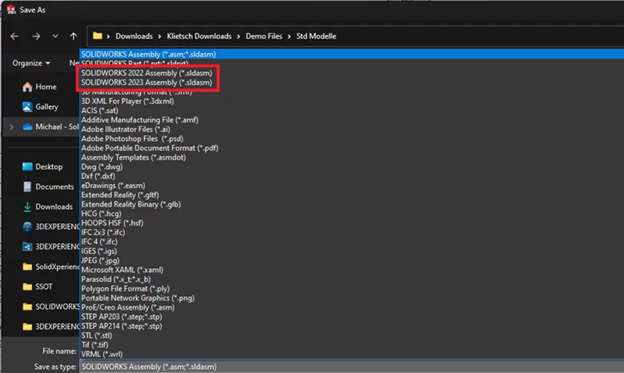
                Working with legacy files is often a challenge, but SOLIDWORKS makes it seamless. With backward compatibility, you can open and edit files from the 2 previous annual versions of the software, ensuring that your work remains accessible and editable, no matter when it was created.


                SOLIDWORKS Save menu displaying backward compatibility options


                Industry Recognized Credentials

                SOLIDWORKS certifications, like the Certified SOLIDWORKS Professional (CSWP) and Certified SOLIDWORKS Expert (CSWE), are recognized industry wide. These credentials validate your skills and expertise, making you more competitive in the job market and boosting your career prospects.


                Official SOLIDWORKS certification badge examples


                Enhanced, Connected Workflows

                The integration of SOLIDWORKS with other Dassault Systèmes products, such as the 3DEXPERIENCE platform, provides enhanced, connected workflows. This connectivity allows for real-time collaboration, data management, and innovation across teams and departments, making the design process more fluid and efficient.


                Enhancements Defined by Your Needs

                SOLIDWORKS continually evolves based on user feedback. Each year, new features and enhancements are introduced, driven by the needs of the design community. This user-focused approach ensures that the software stays relevant and continues to meet the demands of modern design challenges.


                The Power of the Cloud

                With SOLIDWORKS’ cloud-based solutions, you can access your projects anytime, anywhere. The cloud provides unparalleled flexibility, enabling collaboration across geographies and devices, ensuring that your design process is never interrupted, no matter where you are.


                Conclusion

                SOLIDWORKS is more than just a design tool; it is a comprehensive portfolio that supports designers at every stage of their career. From its intuitive user interface and powerful automation capabilities to its seamless integration and supportive community, SOLIDWORKS equips you with the tools you need to excel.

                By leveraging these features, you can enhance your creativity, improve your workflows, and achieve greater success in your 3D design projects.


                Download the PDF


                For those looking to boost their design skills and career, exploring the capabilities of SOLIDWORKS and obtaining industry-recognized certifications can be a game-changer. Contact our dedicated teams of SOLIDWORKS experts today to learn more about how this powerful software can help you become a better designer.

                X_green_halo

                Any questions? Need help? Ask one of our experts.

                Whether you’re ready to get started or just have a few more questions, you can contact us toll-free:
                  SOLIDWORKS 2025 Preview Now Available!

                  BLOG

                  SOLIDWORKS 2025 Preview Now Available!

                  [techtips_featured_image_shortcode]

                  As we look forward to the future of design and innovation, the SOLIDWORKS 2025 Preview promises an array of exciting updates and enhancements aimed at streamlining workflows, improving collaboration, and accelerating the creation of high-quality products. Let’s dive into the key features and improvements you can expect in this upcoming release.


                  SOLIDWORKS Updates Overview

                  The SOLIDWORKS 2025 preview brings a host of new features and enhancements that span design, collaboration, data management, and simulation. These updates are designed to help you deliver innovative products faster, with improved efficiency and accuracy.


                  What’s New in SOLIDWORKS Design and Collaboration


                  Collaboration and Data Management

                  SOLIDWORKS 2025 makes collaboration and data management easier and more efficient. You can now connect and collaborate directly with industry peers within SOLIDWORKS, ensuring data integrity with real-time notifications about design changes by team members. This improvement fosters a seamless workflow, allowing you to bring innovative products to market faster.


                  Parts

                  Designing parts becomes more intuitive with the new Continuous Edge Blend option for variable radius fillets, allowing for smoother integration of radius parameters. The Sheet Metal Bend Notch feature improves the manufacturability of designs, while the ability to pattern Reference Geometry (planes, axes, etc.) streamlines skeleton model creation and enhances design flexibility.


                  Assemblies

                  Accelerate your design process by copying assembly components along with their advanced and mechanical mates. Additionally, you can now check the manufacturability of your design faster with interference detection in Large Design Review mode, ensuring your assemblies are production ready.


                  Drawings

                  Creating detailed and accurate drawings is faster than ever with enhancements like providing detailed cut lists in the bill of materials. You can ensure standardization in your designs with the ability to create surface finish symbols in compliance with ISO standards.


                  More Design and Modeling Updates

                  SOLIDWORKS 2025 includes several updates to speed up your journey from design to production. These include improvements in 3D dimensioning and tolerancing, faster creation of manufacturing documentation for electrical and pipe routing, leveraging advancements in GPU technology with real-time interactive ray tracing, and streamlined workflows with enhanced import/export capabilities, user experience, and performance.


                  Increase Data Efficiency in SOLIDWORKS PDM

                  Understanding the assembly structure is now more intuitive with a bill of materials that follows the SOLIDWORKS assembly order. You can also check out the latest or specific revisions of files using the Get operation, and quickly access SOLIDWORKS PDM functions from the new PDM tab in the Command Manager toolbar, enhancing your data management efficiency.


                  Ensure Performance and Accuracy in SOLIDWORKS Simulation

                  Simplify complex assembly analysis without compromising accuracy with the new orthotropic spring connectors and enhanced pin connectors. The Under Constraint feature has been improved to help identify free body components, making it easier to solve complex assembly problems.

                  Conclusion


                  The SOLIDWORKS 2025 preview showcases a series of powerful updates designed to enhance your design and collaboration experience. From improved data management and collaboration to advanced design features and simulation capabilities, SOLIDWORKS 2025 is set to help you innovate and deliver high-quality products more efficiently. Stay tuned for the full release and get ready to transform your design process with these cutting-edge tools.

                  For more information check out our FAQ below, or reach out to the experts directly!

                  Ready to

                  unlock your potential?

                  Please fill the form and we will contact you soon!

                    Frequently Asked Questions

                    How do I test SOLIDWORKS Preview?

                    During the Preview program, you can either download and install a Beta release, or run the same release online from a supported web browser (no installation required).


                    Download

                    1. Go to the download page and login using your 3DEXPERIENCE ID.
                    2. Select the Beta release from the drop-down menu.
                    3. Select the Beta Product.
                    4. Read and accept the Customer License and Online Services Agreement (CLOSA).
                    5. Click ‘Download’, then run SolidWorksSetup.exe and follow the instructions.
                    6. Run the SOLIDWORKS Beta Installation Manager to download and install products.


                    Test online in a Web Browser

                    1. Go to https://my.solidworks.com/solidworkspreview
                    2. Select ‘Launch’.


                    Supported browsers:
                    Chrome 123.0.6312.86/87
                    Firefox 124.0.2
                    Microsoft Edge 123.0.2420.65

                    Is Preview testing confidential?

                    Yes. You are under a Non-Disclosure Agreement (NDA) during the Preview program. You cannot share any information about the SOLIDWORKS Beta products outside of the SOLIDWORKS Preview Community.

                    How do I participate?

                    No sign up is required!


                    Access to the Beta software is automatically available to all subscription customers. If you are currently on subscription, and your serial number is registered in your Customer Portal account, the Beta software is available to download or to run online from a supported web browser.


                    After the Preview program begins, you have exclusive access to:

                    • Download the Beta release or run it online from a supported browser.
                    • Report bugs that you find to the SOLIDWORKS Preview team.
                    • Connect with the SOLIDWORKS Preview Community and share your feedback with the R&D teams.

                    How do I set up the Preview release?

                    We strongly recommend that you install SOLIDWORKS Beta products on a separate machine from your production environment.


                    • Do not upgrade your current production SOLIDWORKS and Toolbox (SOLIDWORKS Data) to the Beta release. Specify a new, dedicated folder for the Beta release installation.
                    • Set ALL file locations in Tools > Options to Beta-specific testing locations.
                    • Keep ALL Beta items like templates and design library data separate from your production data.
                    • Do NOT use SOLIDWORKS Beta products with your production files. If you want to test your production data, make copies of that data for testing purposes.

                    What can I do to be an effective Preview tester?

                    • Test your normal production workflows using a copy of your production models.
                    • Modify your normal production workflows to accommodate new functionality.
                    • Review the What’s New document and test new functionality with new data or with your copied production data. To access the What’s New document, in SOLIDWORKS, click Help> What’s New.
                    • Connect with the SOLIDWORKS Preview community and interact with the R&D and Preview teams.
                    • We encourage you to use the SOLIDWORKS Task Scheduler Upgrade Assistant to test the migration of your SOLIDWORKS files before converting them to the new release.

                    How do I submit bugs and feedback?

                    To submit bug reports:

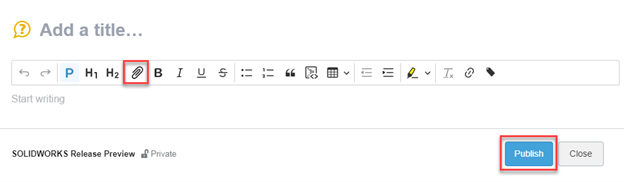
                    1. Go to the SOLIDWORKS Preview community and click ‘+ Add a Question’.SOLIDWORKS Preview Beta how to submit comments
                    2. In the ‘Add a title’ box, enter a problem summary.
                    3. Under ‘Start writing’, enter a problem description.
                    4. Click ‘Add media’ (paperclip icon) to attach a file.
                    5. Click ‘Publish’ to complete your question.

                    Attach files to comment and questions for SOLIDWORKS 2025 Preview

                    Notes for submitting bugs:

                    • Describe your issue in detail and attach relevant images, instructions, and files.
                      Note: Do NOT attach Rx files or any proprietary files. All file attachments are public and visible to all community members. To submit proprietary files, including Rx files, request a secure 3DS file transfer workspace.
                    • Do not contact your local reseller about Preview issues and bugs. Submit a bug report in the SOLIDWORKS Preview Community.
                    • The SOLIDWORKS Preview Program Support Team will review and respond to your bug reports.

                    To submit feedback:

                    Visit the SOLIDWORKS Preview community and create a discussion or ask a question.

                    If I install a Beta release, does it affect my production or commercial licenses?

                    No. Although you use your commercial serial numbers to download and install Beta releases, Beta license activation is completely separate from commercial license activation, regardless of whether you have standalone licenses or SolidNetWork licenses (SNL). You have as many Beta licenses as you have commercial licenses.

                    For example, you have a commercial SNL server that serves 5 licenses of SOLIDWORKS Standard and 5 licenses of SOLIDWORKS Premium. During the Preview period, you can mimic your commercial SNL server and install and setup a separate Beta SNL server that serves 5 licenses of SOLIDWORKS Standard and 5 licenses of SOLIDWORKS Premium.

                    X_green_halo

                    Any questions? Need help? Ask one of our experts.

                    Whether you’re ready to get started or just have a few more questions, you can contact us toll-free:

                      Unveiling SOLIDWORKS Ultimate

                      BLOG

                      Unveiling SOLIDWORKS Ultimate

                      [techtips_featured_image_shortcode]

                      Discovering SOLIDWORKS Ultimate: The Premier Design Solution

                      SOLIDWORKS ultimate is a comprehensive solution for companies aiming to streamline the entire product creation process—from initial design to final production. This robust software not only facilitates idea sketching but also covers testing, collaboration, project management, marketing, and manufacturing. By integrating these functionalities, it enhances workflow efficiency, eliminating unnecessary steps and enabling the creation of superior products.

                      A SOLIDWORKS Ultimate Overview

                      SOLIDWORKS Ultimate is the top version of the SOLIDWORKS software family. It builds on the strong base of SOLIDWORKS Premium.


                      At its core, it supports every phase of product development. Its capabilities include simulations to test design resilience under various conditions and tools to facilitate seamless collaboration. Designers and engineers benefit from faster project progression as all necessary resources are centralized, promoting lean teamwork and effective release management.


                      For both dispersed and co-located teams, SOLIDWORKS offers cloud-based tools ensuring rapid idea sharing. The software provides access to top-tier CAD programs for 3D modeling and simulation, eliminating guesswork by visualizing the impact of different forces on designs. This approach fosters detailed understanding of movements and reactions within models, ensuring functionality upon production.


                      Key Features of SOLIDWORKS Ultimate

                      By incorporating resource management, collaborative project planning, and release management alongside powerful design tools, SOLIDWORKS Ultimate becomes indispensable in product development. Its connected technologies enable hassle-free collaboration, maximizing efficiency and elevating project outcomes.


                      product offer matrix


                      By focusing on streamlined workflows, it includes project management, product lifecycle management, and cloud-based tools for working together. In unifying all steps of product development, SOLIDWORKS Ultimate creates a smooth and efficient process from idea to market.


                      Cutting-Edge Design and Simulation Tools

                      At the heart of it’s charm are its fantastic design and simulation abilities. With a wide range of industry-standard design tools, you can easily create detailed parts, assemblies, and complex designs with great accuracy.


                      What distinguishes SOLIDWORKS Ultimate is its focus on lean principles. This focus allows you to improve your design process at every turn.


                      You can see this focus on efficiency in features like:


                      1. Flexible cloud-based design tools: You can create and work together from any location, promoting smooth collaboration.
                      2. Robust Simulation Solutions: You can virtually test your designs for stress, frequency, thermal impact, and more, which cuts down the need for expensive physical prototypes and helps guarantee excellent product performance.
                      3. Cloud-powered Simulation: You can use the cloud to speed up your simulation studies, enabling you to try out several design variations and find the best solutions more quickly.


                      This strong mix of advanced design tools and lean-oriented features positions SOLIDWORKS Ultimate as the top choice for companies eager to enhance their design process and achieve outstanding results.


                      Secure Cloud-Based Connectivity and PLM

                      In today’s interconnected world, seamless collaboration is paramount. SOLIDWORKS Ultimate rises to the occasion with secure cloud-based connectivity and powerful product lifecycle management (PLM) tools.


                      These features keep your team in sync, enabling real-time communication and ensuring everyone can access the most up-to-date design data. This cloud-powered approach offers unparalleled flexibility, allowing remote teams to work together as if they were in the same room, while robust security measures safeguard your valuable intellectual property.

                      Take a look at these cloud-based benefits:


                      Feature  Benefit
                      Cloud-based Storage Provides secure, centralized access to your design data from any location.
                      Revision Management Streamline design iterations and track changes with easy branching and merging.
                      Cloud-based PLM Manage your entire product lifecycle – from concept to retirement – with ease.


                      SOLIDWORKS Ultimate’s robust cloud integration breaks down geographical barriers, enabling seamless teamwork, efficient data management, and accelerated product development.


                      Efficient and Accurate Manufacturing Processes

                      SOLIDWORKS Ultimate goes beyond just design. It also helps in the manufacturing phase, providing various tools that make your production flow better and ensure accuracy right from the beginning.

                      With the power of lean teamwork, SOLIDWORKS Ultimate links your design data to manufacturing instructions, helping communication between departments, reducing the chance of mistakes.  By taking this all-around approach to manufacturing, SOLIDWORKS Ultimate helps create smoother production, shorter lead times, and, in the end, a better final product.


                      Streamlined Documentation and Marketing

                      Having effective documentation and great marketing materials is important for successfully bringing your products to market. With this in mind, it offers many tools that make these essential parts of product development easier.

                      With project management features, you can keep your documentation organized. Meanwhile, cloud-based solutions help in creating beautiful marketing assets. Besides just regular technical documentation, it also provides capabilities to create engaging product experiences.


                      Exploring the Benefits of SOLIDWORKS Ultimate

                      Using SOLIDWORKS Ultimate in your workflow brings many important benefits. For one, it helps join all parts of product development in one place. This strong tool makes it easier for teams to work together, simplifies complicated tasks, and encourages everyone to be more effective.

                      When you choose SOLIDWORKS Ultimate, you are investing in more than just software. You’re creating a path for faster product development, better efficiency, and a real edge over competitors.


                      Unparalleled Scalability

                      Adapting to the changing world of business needs is really important for lasting success. Whether you are a new startup or a well-established company, it offers exceptional scalability to support your growth.


                      This means that you can use the tools you need right now and easily upgrade as your product development needs change. This kind of flexibility makes sure that it remains a helpful resource during your journey, allowing you to handle more complicated projects smoothly.


                      A Comprehensive Single Source of Truth

                      With SOLIDWORKS Ultimate, you can find a single source of truth for all the up-to-date information related to your product, no need to worry about using old or conflicting data. By using this centralized data management method, communication gets better, mistakes reduce, and everyone stays aligned throughout the product development process.


                      Moreover, you can make choices confidently and know you’re using the best information possible. This single source of truth helps build a work environment of openness, responsibility, and ultimately, trust in your team, leading to smoother workflows and better project results.


                      Thousands of Available Training Courses

                      Investing in SOLIDWORKS Ultimate means you’re investing in the success of your team. Through this platform, users can access thousands of training courses to help them tap into their full potential. Teams can learn everything from basic design ideas to complex simulation methods, to efficient collaboration in the cloud.


                      Unlocking Tomorrow’s Innovations with SOLIDWORKS Ultimate

                      SOLIDWORKS Ultimate stands at the top of design solutions, providing comprehensive, top-notch tools that boost creativity and make product development faster and easier. From its secure cloud connection to easy workflows, this software truly changes the game for how you design.

                      With a single source of truth, collaboration becomes much simpler. Whether you have lots of experience or if you’re just beginning, SOLIDWORKS Ultimate works for everyone.

                      Are you ready to take your design skills to the next level? Reach out to us today and discover everything that SOLIDWORKS Ultimate can offer you!

                      Frequently Asked Questions

                      What is SOLIDWORKS Ultimate?

                      SOLIDWORKS Ultimate is a comprehensive software suite that expands on SOLIDWORKS Premium by incorporating advanced cloud-based design tools, product release and structure management, immersive documentation and marketing content tools, and on-demand learning resources. It facilitates seamless collaboration across all stages of product development by integrating design, engineering, simulation, manufacturing, and go-to-market activities, thus eliminating isolated processes and enabling rapid iteration and exceptional product delivery.

                      SOLIDWORKS Ultimate is available through 3DEXPERIENCE SOLIDWORKS and will soon be offered with SOLIDWORKS 3D CAD.

                      Who is SOLIDWORKS Ultimate for?

                      SOLIDWORKS Ultimate is designed for engineering teams, product designers, and project managers looking for a complete innovation platform. With its collaborative features, it is perfect for people who appreciate easier communication and effective data management.

                      What is the difference between SOLIDWORKS Standard, Professional, Premium, and Ultimate?

                      SOLIDWORKS Ultimate expands on what SOLIDWORKS Standard, Professional, and Premium can do. By looking at the feature comparison, you can see that Ultimate provides the most complete set of tools. It caters to advanced design requirements, simulation, data management, and teamwork.

                      Does SOLIDWORKS Ultimate work with my existing environment?

                      Yes, SOLIDWORKS Ultimate is made for easy compatibility and integration with current systems. By building on earlier SOLIDWORKS features, it helps provide a smooth transition and keeps the user experience familiar while causing little disruption to your team’s productivity.

                      Can I upgrade from SOLIDWORKS Premium to SOLIDWORKS Ultimate?

                      For sure! There’s an easy way to move from SOLIDWORKS Premium to SOLIDWORKS Ultimate. By upgrading, you make a smart choice. This decision gives you more features and helps you use the platform to its fullest potential.

                      Is SOLIDWORKS Ultimate in the cloud?

                      SOLIDWORKS Ultimate has both components that you install on your computer and those that you can use online. It offers safe cloud storage, which helps you access your work easily and allows remote teams to work together in real-time. This also makes sure that your data stays secure.

                      How does SOLIDWORKS Ultimate connect to the cloud?

                      SOLIDWORKS Ultimate uses strong cloud connectivity features. By allowing secure data synchronization, it provides real-time updates. With this system, team members can easily access the latest data securely. As a result, it boosts collaboration and makes workflows smoother.

                      X_green_halo

                      Any questions? Need help? Ask one of our experts.

                      Whether you’re ready to get started or just have a few more questions, you can contact us toll-free:
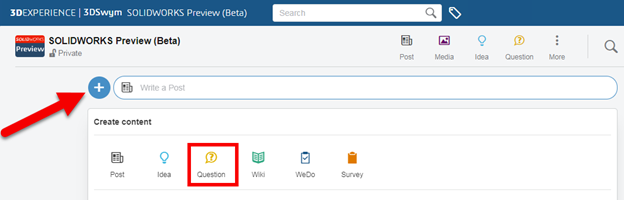
                          Download

                            Download

                              Download